
Kindle Paperwhite 12th Gen Power Button Replacement

CatPajamaParty and 2 other contributors
Last updated on Jun 19, 2025
Views: 770
View statistics:
- Past 24 Hours:
- 3
- Past 7 Days:
- 28
- Past 30 Days:
- 122
- All Time:
- 770
Comments: 0
No one has left comments on this guide. Will you be first?
Go to guide commentsCompleted: 1 2
1 person has marked this guide "completed." Will you be next?
2 people have marked this guide "completed." Including you — great job!
Favorites: 0 1
No one has favorited (and subscribed to) this guide. Will you be the first?
1 person has favorited (and subscribed to) this guide — and that's you!
Introduction
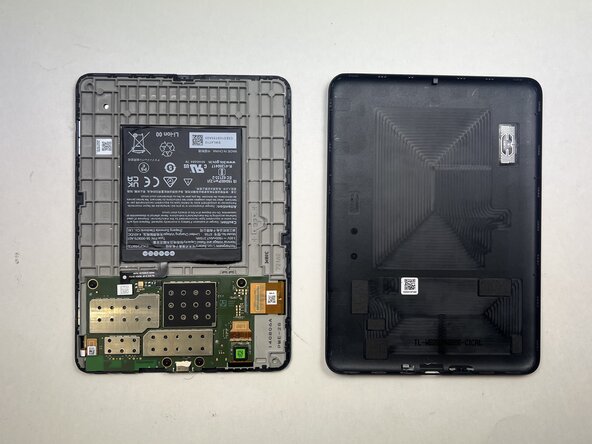
Go to step 1 ↓The power button on the Kindle Paperwhite 12th Gen is the only button on the device, located to the left of the charging port at the bottom of the device. It is held in with simple rubber placeholders, and can easily be replaced.
This replacement may be necessary if the button is damaged, overly sensitive, or unresponsive, making it difficult to properly use your Kindle.
Before you begin the repair, make sure to power off your Kindle and unplug the charger and any connected accessories.
What you need
Tools


-
-
-
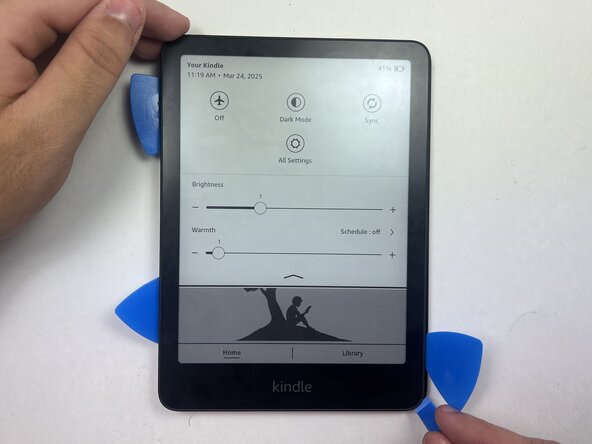
Use an opening tool or opening picks and insert the tip between the back case and screen.
-
Slide the opening tool around the edge of the tablet to release the clips holding them together and avoid damaging the connectors.
 Ask FixBot
-
-
-
-
-
-
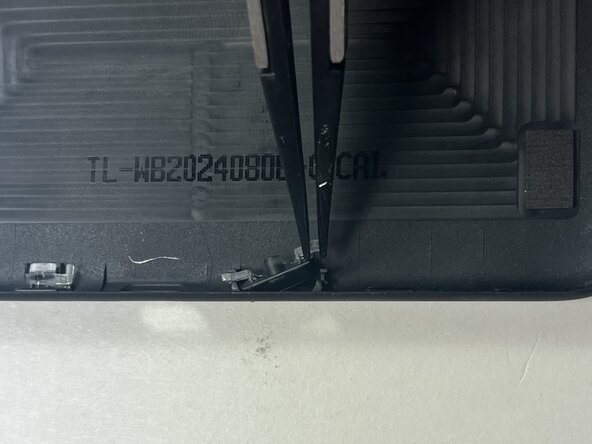
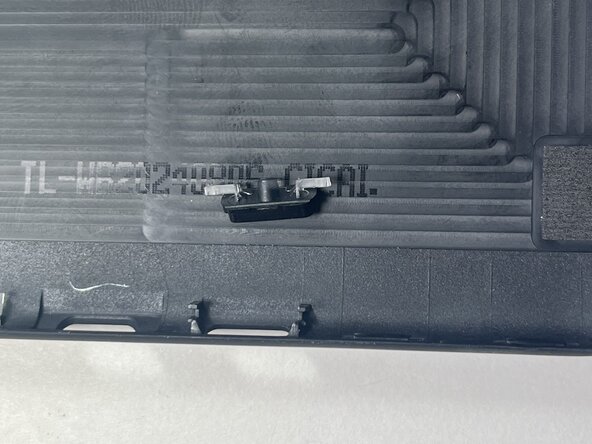
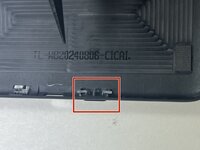
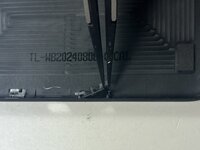
Use tweezers or your fingers to release the clips on each side of the button, gently lifting one side at a time.
-
-






To reassemble your device, follow these instructions in reverse order.
Cancel: I did not complete this guide.
One other person completed this guide.

Team

Austin Community College, Team 18-1, Watkins Spring 2025 Member of Austin Community College, Team 18-1, Watkins Spring 2025
AUSTINCC-WATKINS-S25S18G1
4 Members
60 Guides authored
