Free Shipping on Domestic Orders $75+

KBD67 Lite R4 Keyboard Keys Replacement

Views: 529

View statistics:

Past 24 Hours:
1
Past 7 Days:
12
Past 30 Days:
59
All Time:
529
Comments: 0

No one has left comments on this guide. Will you be first?

Go to guide comments
Completed: 0

No one has marked this guide "completed." Will you be the first?

Favorites: 0

No one has favorited (and subscribed to) this guide. Will you be the first?

Time Required: No estimate
Difficulty: Moderate
Community-Contributed Guide

An awesome member of our community made this guide. It was not created by iFixit staff.

KBD67 Lite R4 Keyboard Keys Replacement

Introduction

Go to step 1 ↓

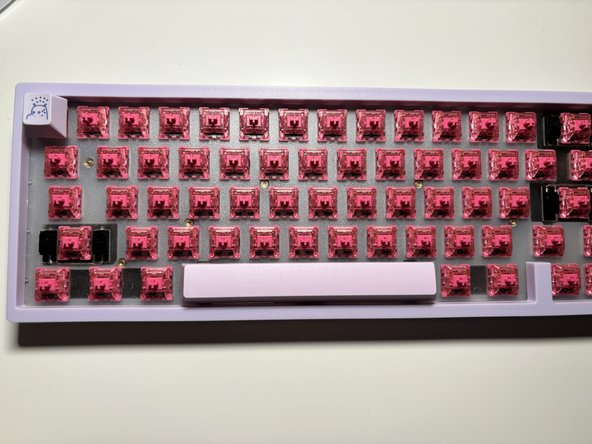
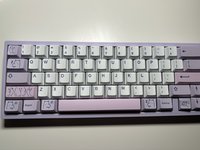
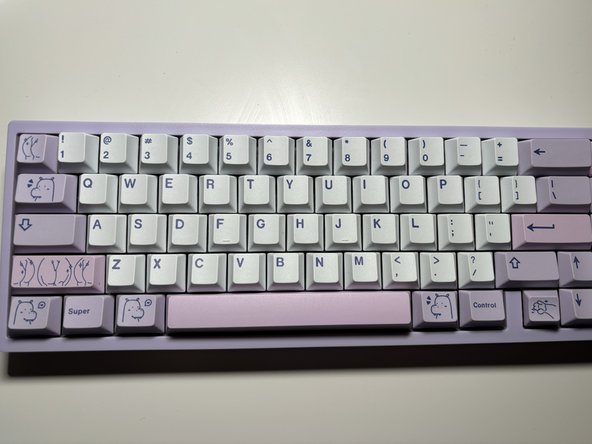
This a guide on cleaning and replacing keys on a KBD67 Lite R4 keyboard.

What you need

Tools

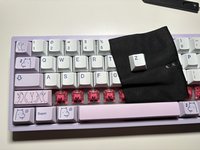
    1. KBD67 Lite R4 Keyboard Keys Replacement, Remove Keycaps: step 1, image 1 of 3 KBD67 Lite R4 Keyboard Keys Replacement, Remove Keycaps: step 1, image 2 of 3 KBD67 Lite R4 Keyboard Keys Replacement, Remove Keycaps: step 1, image 3 of 3
      • Place keyboard on top of a flat table.

      • Remove keycaps manually or with a key cap puller, as demonstrated.

      • Organize tools to prevent loss.

      Ask FixBot

      Add Comment

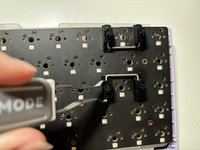
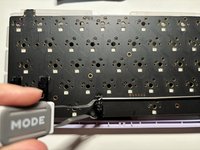
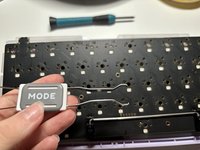
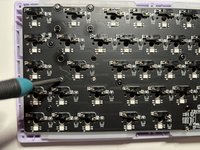
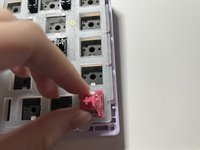
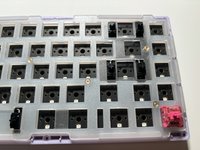
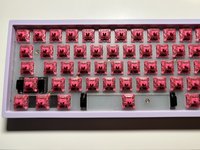
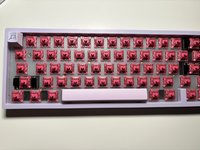
    2. KBD67 Lite R4 Keyboard Keys Replacement, Remove switches from PCB: step 2, image 1 of 3 KBD67 Lite R4 Keyboard Keys Replacement, Remove switches from PCB: step 2, image 2 of 3 KBD67 Lite R4 Keyboard Keys Replacement, Remove switches from PCB: step 2, image 3 of 3
      • These images showcase the correct utilization of a key switch puller.

      • Remove switches either manually or with a key switch puller.

      • A switch puller is recommended as hand removal might be difficult.

      Ask FixBot

      Add Comment

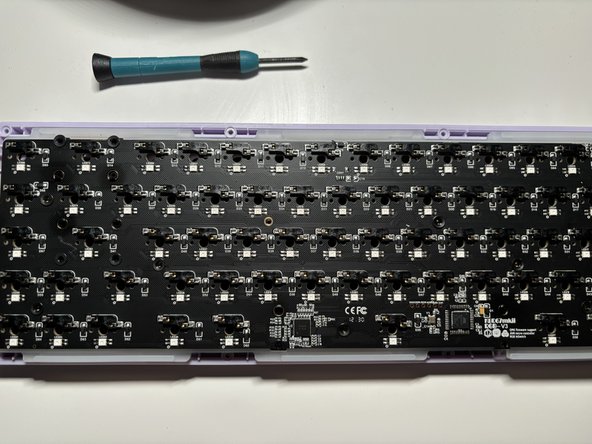
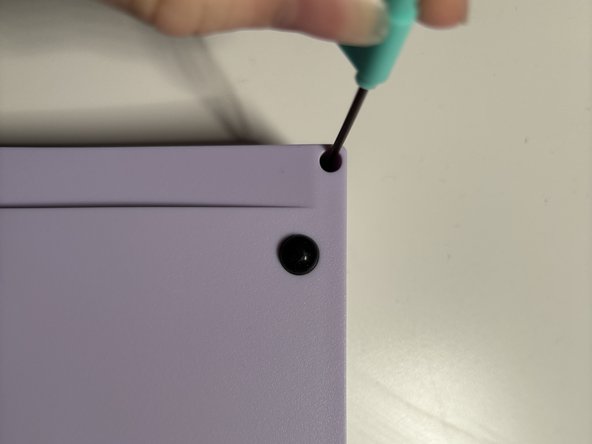
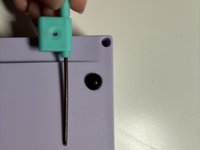
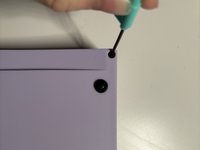
    3. KBD67 Lite R4 Keyboard Keys Replacement, Remove case (unscrew from back): step 3, image 1 of 3 KBD67 Lite R4 Keyboard Keys Replacement, Remove case (unscrew from back): step 3, image 2 of 3 KBD67 Lite R4 Keyboard Keys Replacement, Remove case (unscrew from back): step 3, image 3 of 3
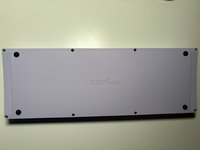
      • Use screwdriver to unscrew the eight screws on back of keyboard.

      • Make sure to secure screws for later use.

      Ask FixBot

      Add Comment

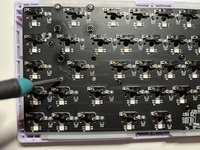
    4. KBD67 Lite R4 Keyboard Keys Replacement, Remove PCB from case: step 4, image 1 of 3 KBD67 Lite R4 Keyboard Keys Replacement, Remove PCB from case: step 4, image 2 of 3 KBD67 Lite R4 Keyboard Keys Replacement, Remove PCB from case: step 4, image 3 of 3
      • Unscrew the PCB from case.

      • Avoid placing the PCB on static-prone surfaces to prevent it from shorting the switch sockets.

      Ask FixBot

      Add Comment

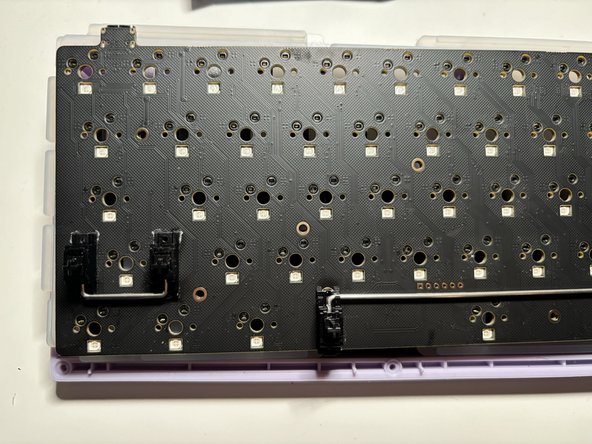
    5. KBD67 Lite R4 Keyboard Keys Replacement, Unscrew the stabilizers: step 5, image 1 of 3 KBD67 Lite R4 Keyboard Keys Replacement, Unscrew the stabilizers: step 5, image 2 of 3 KBD67 Lite R4 Keyboard Keys Replacement, Unscrew the stabilizers: step 5, image 3 of 3
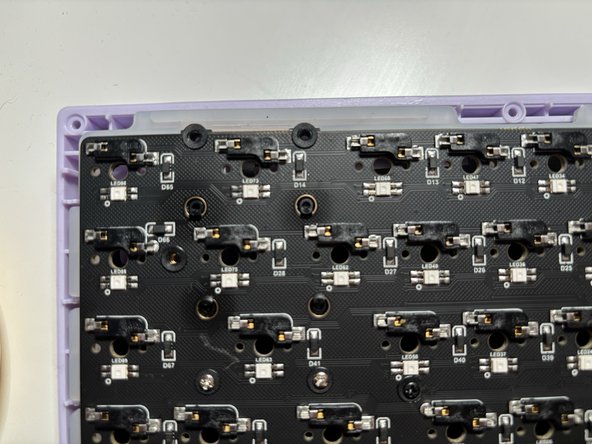
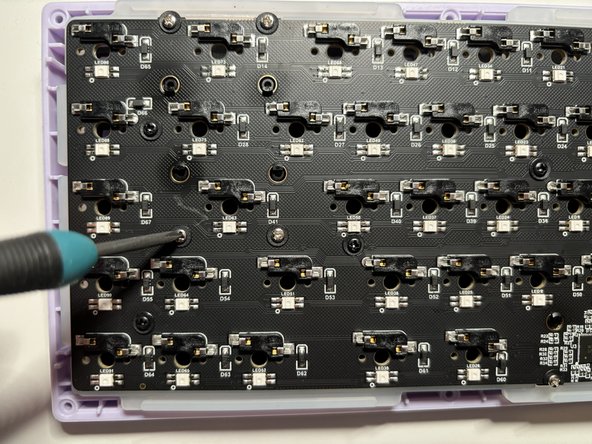
      • Unscrew the stabilizers from the back of the PCB.

      • Keep track of the noise-reducing foam stickers screwed between the PCB and keyboard switches.

      Ask FixBot

      Add Comment

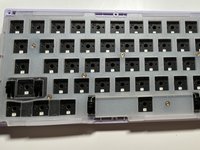
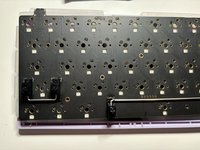
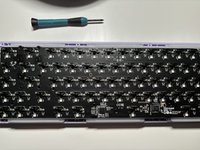
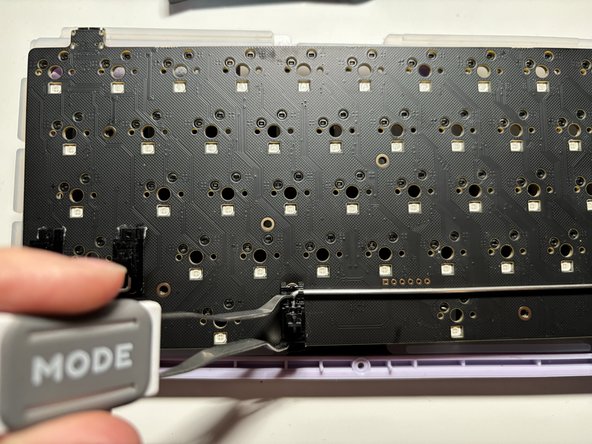
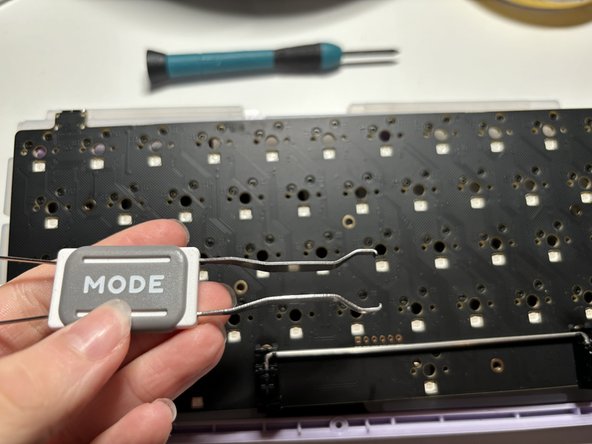
    6. KBD67 Lite R4 Keyboard Keys Replacement, Pull Stabilizers out of PCB: step 6, image 1 of 3 KBD67 Lite R4 Keyboard Keys Replacement, Pull Stabilizers out of PCB: step 6, image 2 of 3 KBD67 Lite R4 Keyboard Keys Replacement, Pull Stabilizers out of PCB: step 6, image 3 of 3
      • Use switch puller to take out stabilizers.

      • Once the stabilizers are unscrewed from the back, they can be removed from the PCB.

      • This completes the disassembly of the keyboard. Place the PCB in a static-free area.

      Ask FixBot

      Add Comment

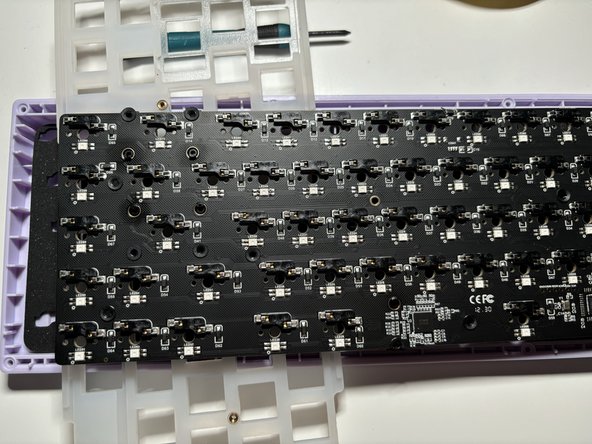
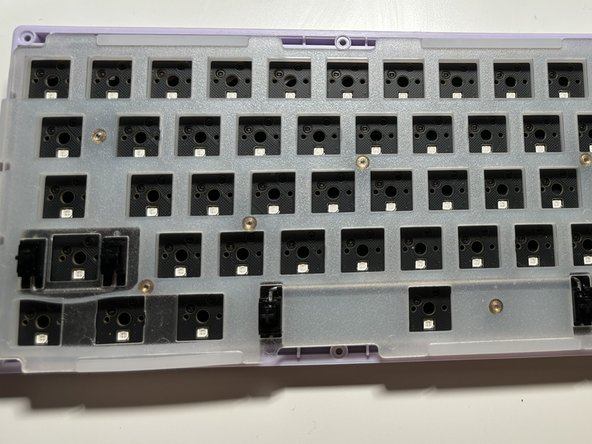
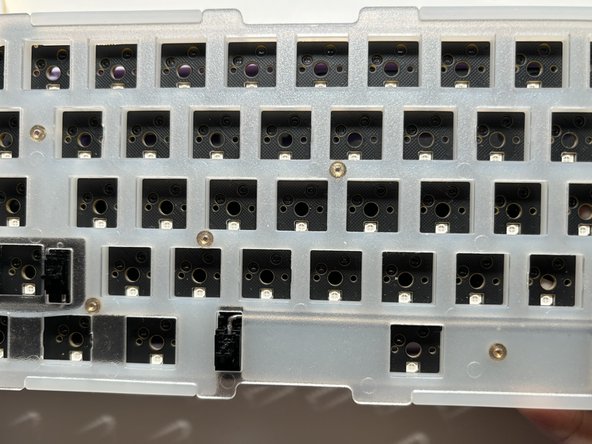
    7. KBD67 Lite R4 Keyboard Keys Replacement, Place PCB on foam and plastic cover: step 7, image 1 of 3 KBD67 Lite R4 Keyboard Keys Replacement, Place PCB on foam and plastic cover: step 7, image 2 of 3 KBD67 Lite R4 Keyboard Keys Replacement, Place PCB on foam and plastic cover: step 7, image 3 of 3
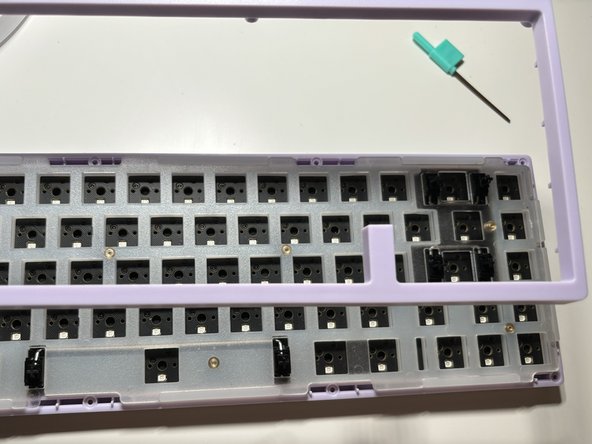
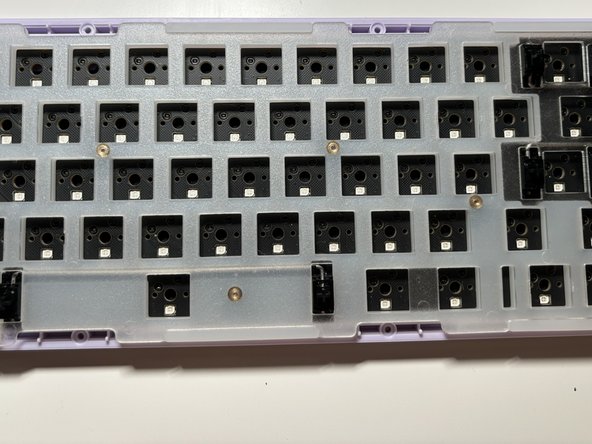
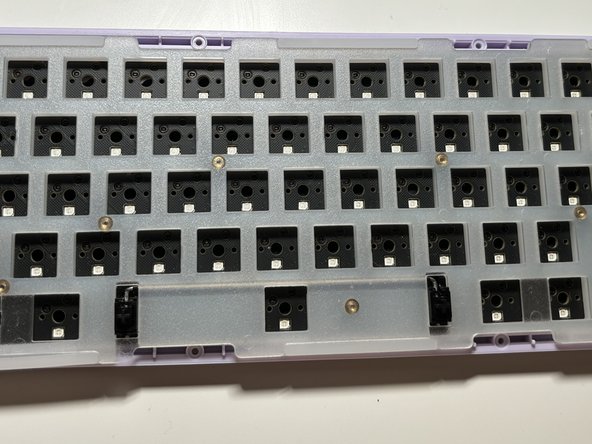
      • Place the plastic and foam cover on the bottom of the keyboard case.

      • The PCB sits on top of the foam cover.

      Ask FixBot

      Add Comment

    8. KBD67 Lite R4 Keyboard Keys Replacement, Put stabilizers back onto PCB: step 8, image 1 of 3 KBD67 Lite R4 Keyboard Keys Replacement, Put stabilizers back onto PCB: step 8, image 2 of 3 KBD67 Lite R4 Keyboard Keys Replacement, Put stabilizers back onto PCB: step 8, image 3 of 3
      • Ensure noise-reducing foam stickers are in position before attaching the stabilizers.

      • Install stabilizers onto the PCB.

      • Screw where applicable.

      Ask FixBot

      Add Comment

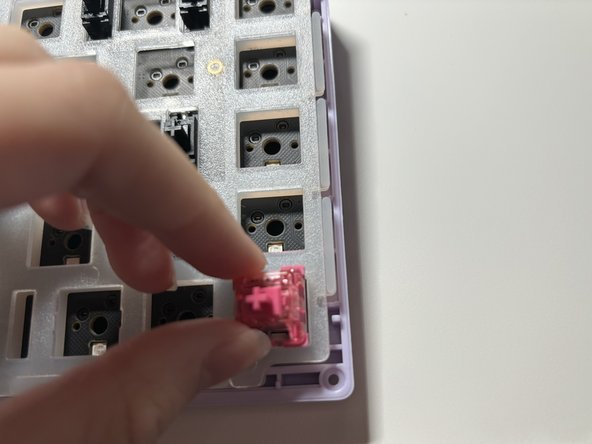
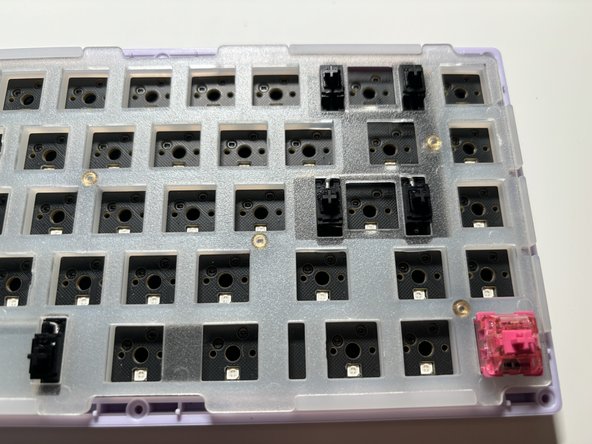
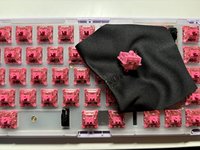
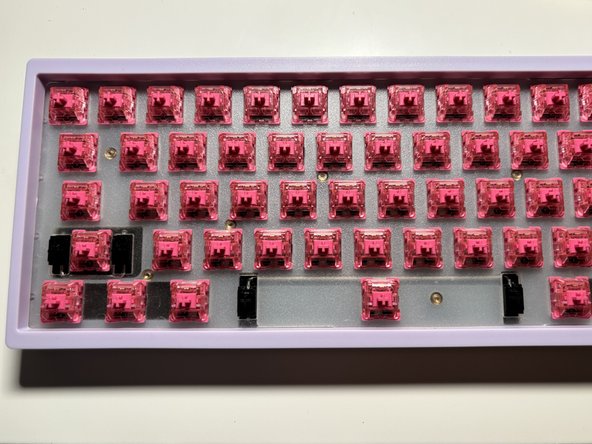
    9. KBD67 Lite R4 Keyboard Keys Replacement, Replace switches into hot swap PCB: step 9, image 1 of 3 KBD67 Lite R4 Keyboard Keys Replacement, Replace switches into hot swap PCB: step 9, image 2 of 3 KBD67 Lite R4 Keyboard Keys Replacement, Replace switches into hot swap PCB: step 9, image 3 of 3
      Tool used on this step:
      Microfiber Cleaning Cloths
      $3.99
      Buy
      • Do not bend the switch pins.

      • Optional: You can clean the switches with a microfiber cloth.

      • Align the key switch pins with the corresponding holes on the PCB.

      Ask FixBot

      Add Comment

    10. KBD67 Lite R4 Keyboard Keys Replacement, Put PCB back into the case: step 10, image 1 of 3 KBD67 Lite R4 Keyboard Keys Replacement, Put PCB back into the case: step 10, image 2 of 3 KBD67 Lite R4 Keyboard Keys Replacement, Put PCB back into the case: step 10, image 3 of 3
      • Use the eight screws saved from the third step.

      • Screw where applicable.

      Ask FixBot

      Add Comment

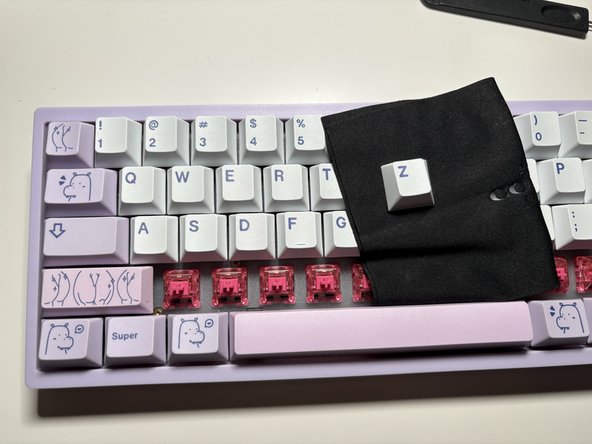
    11. KBD67 Lite R4 Keyboard Keys Replacement, Choose keycaps for Switches: step 11, image 1 of 3 KBD67 Lite R4 Keyboard Keys Replacement, Choose keycaps for Switches: step 11, image 2 of 3 KBD67 Lite R4 Keyboard Keys Replacement, Choose keycaps for Switches: step 11, image 3 of 3
      • Choose keycaps to place onto switches.

      • Optional: If you would like, clean the keycaps with a microfiber cloth or a bristled toothbrush before reattaching them.

      Ask FixBot

      Add Comment

    12. KBD67 Lite R4 Keyboard Keys Replacement, Test the switches and PCB: step 12, image 1 of 2 KBD67 Lite R4 Keyboard Keys Replacement, Test the switches and PCB: step 12, image 2 of 2
      • Plug the keyboard into a device of your choice and test its functions using appropriate software.

      Ask FixBot

      Add Comment

Conclusion

To reassemble your device, follow these instructions in reverse order.

Cancel: I did not complete this guide.

Nathan Vieux

Member since: 12/04/23

205 Reputation

1 Guide authored

0 Guide Comments

Add Comment

View Statistics:

Past 24 Hours: 1

Past 7 Days: 12

Past 30 Days: 59

All Time: 529