
Jazz Digi-Stix JDC11 Viewer Replacement

Katelyn Fry and 4 other contributors
Last updated on Jan 28, 2014
Views: 682
View statistics:
- Past 24 Hours:
- 1
- Past 7 Days:
- 6
- Past 30 Days:
- 32
- All Time:
- 682
Comments: 0
No one has left comments on this guide. Will you be first?
Go to guide commentsCompleted: 0 1
No one has marked this guide "completed." Will you be the first?
1 person has marked this guide "completed." It's you — great job!
Favorites: 0 1
No one has favorited (and subscribed to) this guide. Will you be the first?
1 person has favorited (and subscribed to) this guide — and that's you!
Introduction
Go to step 1 ↓This guide will aid the user in the installation of the viewer for this device. The viewer is eyepiece that the user looks through in order to take a photograph. This guide will need to be used if the viewer is scratched or cracked. Be sure to put the viewer in the correct way when putting the new part in.

-
-
-
Flip the device so that the bottom is facing upwards. Using thumb, push the tab on the bottom in the direction indicated by the arrow and then lift the unhinged part of the tab.
 Ask FixBot
-
-
-
-
-
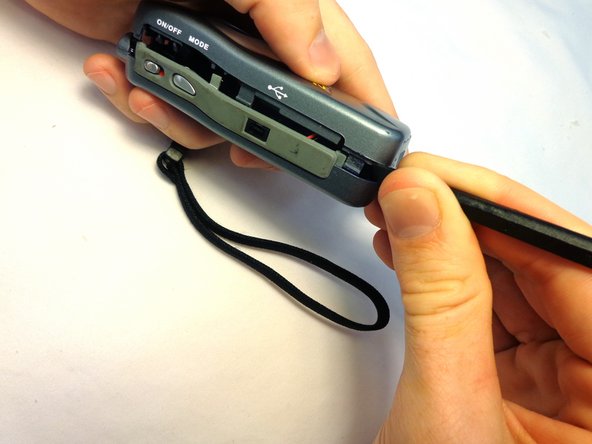
Carefully insert spudger into the seam on the top side of the device and tilt and twist the spudger to open the device. Work it around the device until the two case halves separate.
-
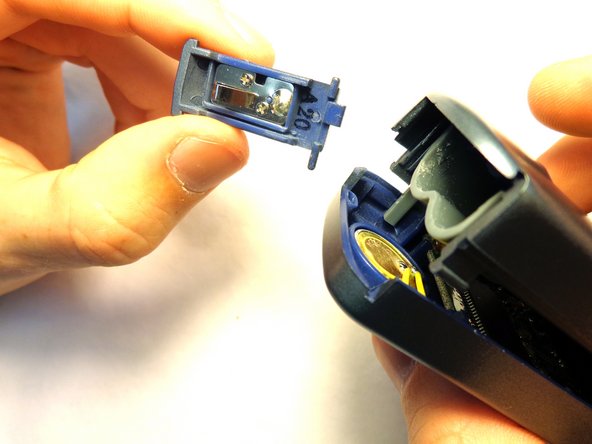
Before completely separating the two halves, grab the tab on the bottom of the device and pull the two halves of the case away from the hinged part of the tab so as not to break the plastic rods.
-
-
-


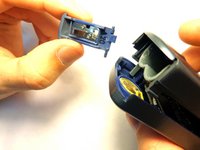

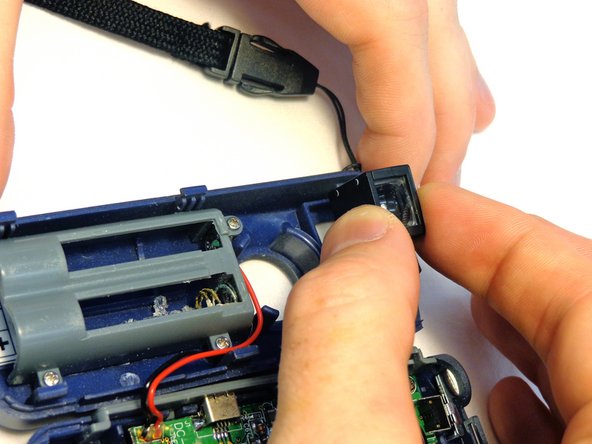
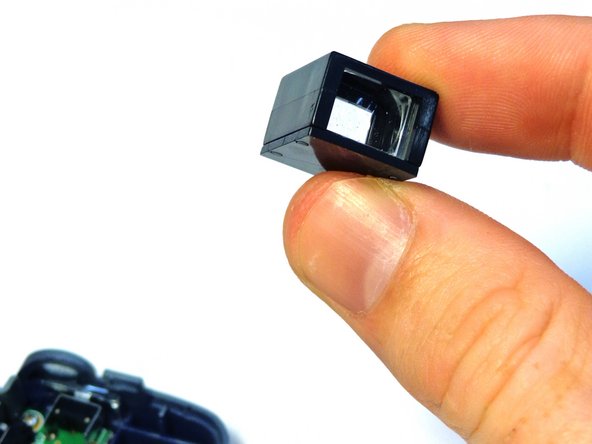
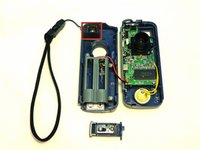
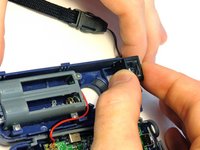
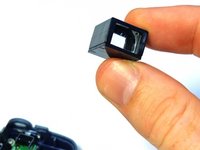
To reassemble your device, follow these instructions in reverse order.

Team

Clemson, Team 12-3, Benson Spring 2013 Member of Clemson, Team 12-3, Benson Spring 2013
CLEM-BENSON-S13S12G3
3 Members
84 Guides authored
