Introduction
Before using this guide, look at the JBL Tune 510BT headphones troubleshooting page for simple solutions to this problem. If none of these simple solutions work, consult this guide to fix your headphones.
This guide is designed to help you replace the damaged or corroded volume button on your JBL Tune 510BT headphones. If you have noticed that the volume button on your headphones isn't responsive or cannot be pressed down, this guide will provide step-by-step instructions to help you restore your headphones to optimal condition.
The volume button on headphones is crucial for headphone use. It allows the user to increase, decrease, and pause their media. Without a fully functioning volume button, it can be extremely difficult and even impossible for the user to use the headphones.
What you need
-
-
-
Firmly grasp the earmuff and pull away from the center until the lip of the earmuff is disengaged.
-
Pull the earmuff towards the center of the headphones until it is free.
 Ask FixBot
-
-
-
-
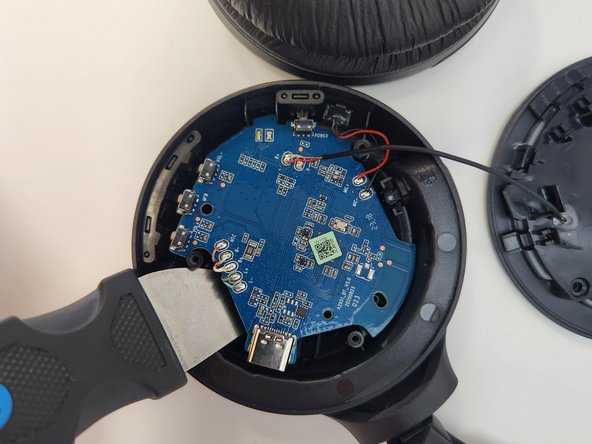
Carefully remove the faceplate by lifting it firmly.
-
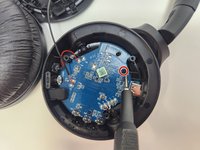
To completely detach the faceplate, desolder the wires from the connections on the motherboard.
-
-
-
-
-
Remove the 1 mm screw using a JIS #00 screwdriver.
-
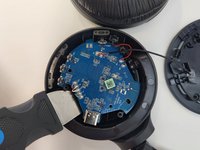
Using your finger or a Jimmy, gently pry the circuit board from the casing, being careful to not pull too hard to dislodge the connected wires.
-
-
-
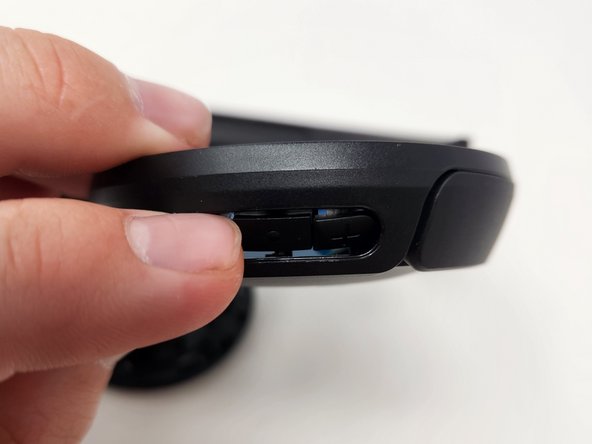
Gently push the damaged volume button from the outside towards the inner part of the headphone casing until it dislodges.
-
-



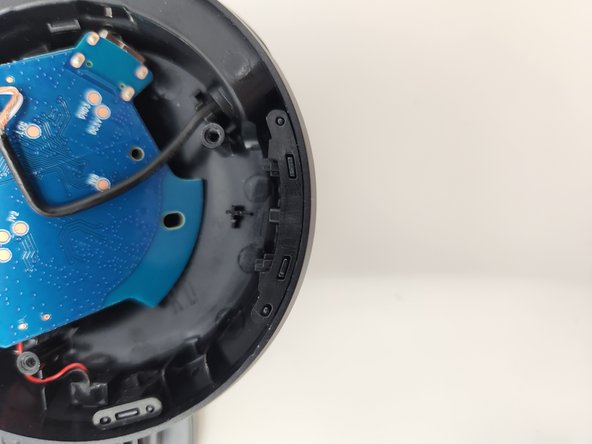
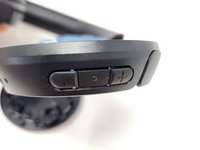
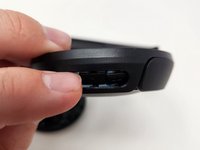
To reassemble your device, follow these instructions in reverse order.
Cancel: I did not complete this guide.
3 other people completed this guide.

Team

Utah Tech University, Team 1-2, McMurrin Spring 2024 Member of Utah Tech University, Team 1-2, McMurrin Spring 2024
UTAHTECH-MCMURRIN-S24S1G2
2 Members
72 Guides authored
