Free Shipping on Domestic Orders $75+

JBL Pulse 2 Motherboard Replacement

What you need

  1. JBL Pulse 2 Motherboard Replacement, Battery: step 1, image 1 of 2 JBL Pulse 2 Motherboard Replacement, Battery: step 1, image 2 of 2
    • Remove the rubber rings from either end of the device.

    • If there is difficulty in lifting the rings from the device, use the metal spudger.

    Ask FixBot

    Add Comment

  2. JBL Pulse 2 Motherboard Replacement: step 2, image 1 of 1
    • Remove the four 4.8mm Phillips #1 screws from each end of the device with the Phillips head screwdriver.

    • Lift the end pieces off of the device.

    Ask FixBot

    Add Comment

  3. JBL Pulse 2 Motherboard Replacement: step 3, image 1 of 1
    • Remove the four 9.5mm Phillips #1 screws from each end of the device.

    Ask FixBot

    Add Comment

  4. JBL Pulse 2 Motherboard Replacement: step 4, image 1 of 2 JBL Pulse 2 Motherboard Replacement: step 4, image 2 of 2
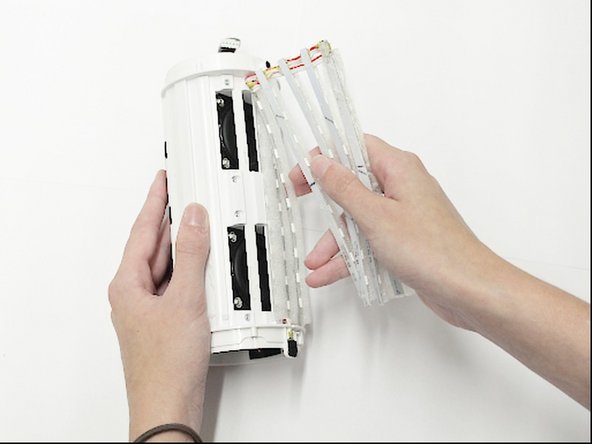
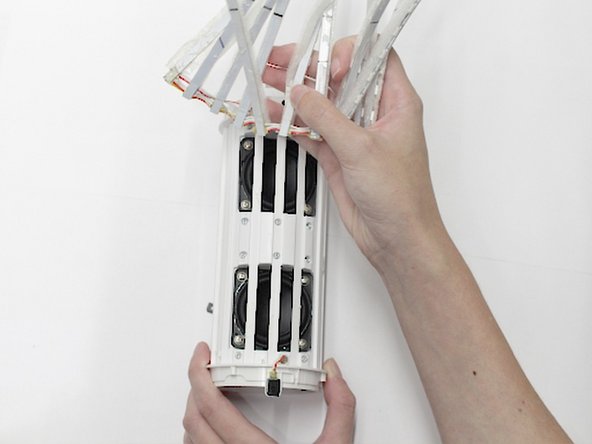
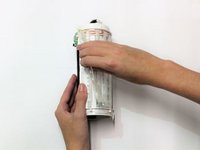
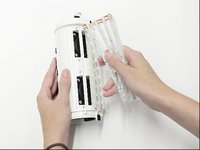
    • Peel one end off and slowly draw it across the length of the device until you get to the other side.

    Ask FixBot

    Add Comment

  5. JBL Pulse 2 Motherboard Replacement: step 5, image 1 of 3 JBL Pulse 2 Motherboard Replacement: step 5, image 2 of 3 JBL Pulse 2 Motherboard Replacement: step 5, image 3 of 3
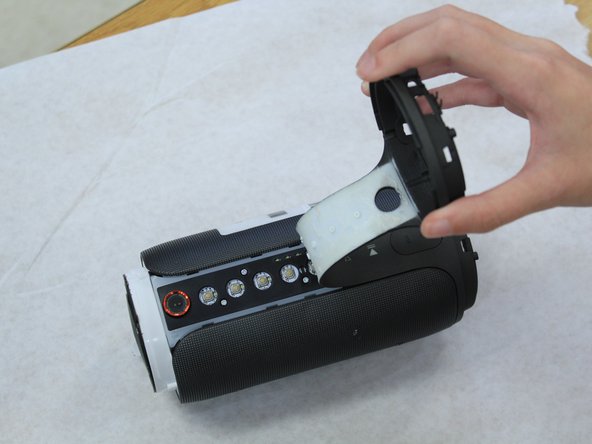
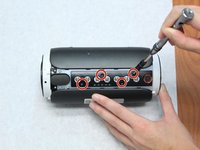
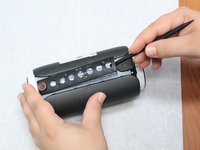
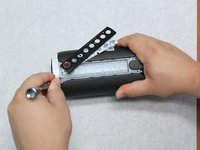
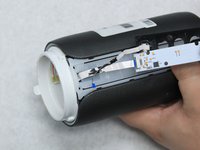
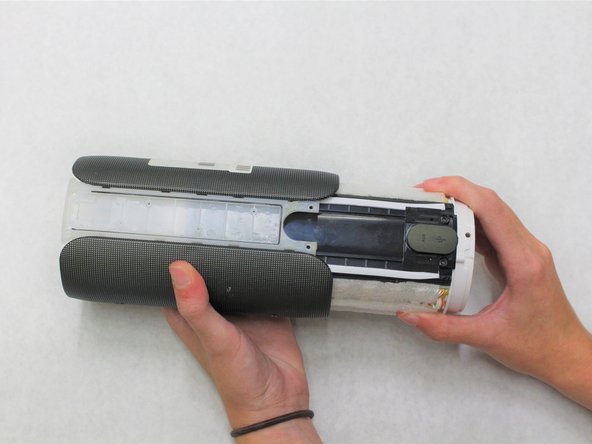
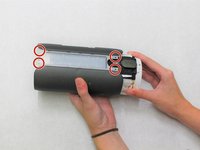
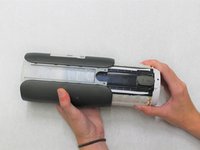
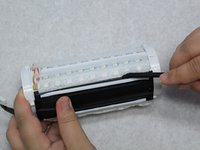
    • Remove the four 7.9mm Phillips #1 screws along the black centerpiece of the device between the camera and the auxiliary port.

    • Lift up the casing and circuit board but do not try and remove the ribbon wires.

    Ask FixBot

    Add Comment

  6. JBL Pulse 2 Motherboard Replacement: step 6, image 1 of 1
    • Remove the cover from the end that the ribbon wires are attached to. It should peel off easily.

    Ask FixBot

    Add Comment

  7. JBL Pulse 2 Motherboard Replacement: step 7, image 1 of 2 JBL Pulse 2 Motherboard Replacement: step 7, image 2 of 2
    • Unlatch the mechanism holding the ribbon wires in place, then disconnect them from the motherboard.

    • To access the wires, remove some of the black glue holding them in place with the spudger.

    Ask FixBot

    Add Comment

  8. JBL Pulse 2 Motherboard Replacement: step 8, image 1 of 2 JBL Pulse 2 Motherboard Replacement: step 8, image 2 of 2
    • Slowly pull the ribbon wires out from the outside.

    • If there is too much resistance, remove more of the black glue.

    Ask FixBot

    Add Comment

  9. JBL Pulse 2 Motherboard Replacement: step 9, image 1 of 2 JBL Pulse 2 Motherboard Replacement: step 9, image 2 of 2
    • Remove the four 7.9mm Phillips #1 screws around the edges of the center piece.

    • Slide the outer casing off away from the auxiliary and micro USB port.

    Ask FixBot

    Add Comment

  10. JBL Pulse 2 Motherboard Replacement: step 10, image 1 of 1
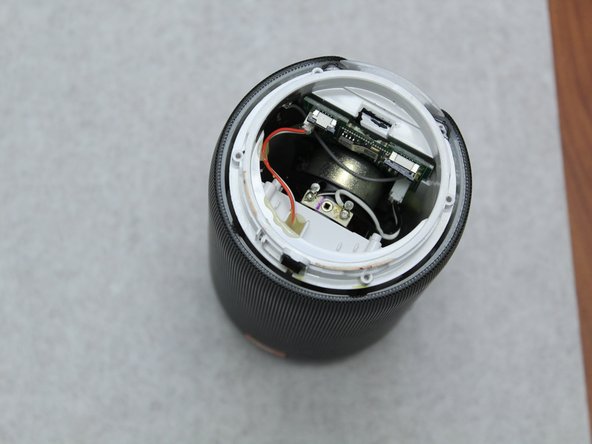
    • Remove the other end of the device to access the wiring underneath it.

    Ask FixBot

    Add Comment

  11. JBL Pulse 2 Motherboard Replacement: step 11, image 1 of 1
    Tool used on this step:
    Tweezers
    $3.99
    Buy
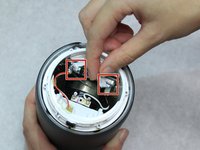
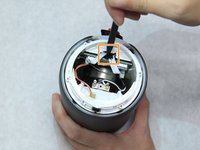
    • Use the angled tweezers to disconnect the battery from the motherboard. It will take some work to remove this piece.

    Ask FixBot

    Add Comment

  12. JBL Pulse 2 Motherboard Replacement: step 12, image 1 of 1
    • Remove the four 7.9mm Phillips #1 screws from the black centerpiece of the device.

    Ask FixBot

    Add Comment

  13. JBL Pulse 2 Motherboard Replacement: step 13, image 1 of 2 JBL Pulse 2 Motherboard Replacement: step 13, image 2 of 2
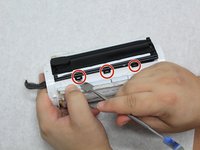
    • Use the spudger to reach under the sides of the black centerpiece to access the six latches, three of which are on each side.

    Ask FixBot

    Add Comment

  14. JBL Pulse 2 Motherboard Replacement: step 14, image 1 of 2 JBL Pulse 2 Motherboard Replacement: step 14, image 2 of 2
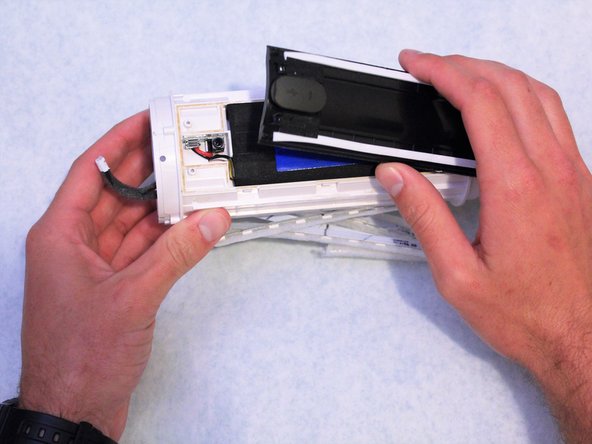
    • Lift the black centerpiece off with the metal spudger to reveal the battery underneath.

    Ask FixBot

    Add Comment

  15. JBL Pulse 2 Motherboard Replacement: step 15, image 1 of 1
    • Use a hot air gun to soften the hot glue in order to fully remove the battery.

    Ask FixBot

    Add Comment

  16. JBL Pulse 2 Motherboard Replacement, Motherboard: step 16, image 1 of 3 JBL Pulse 2 Motherboard Replacement, Motherboard: step 16, image 2 of 3 JBL Pulse 2 Motherboard Replacement, Motherboard: step 16, image 3 of 3
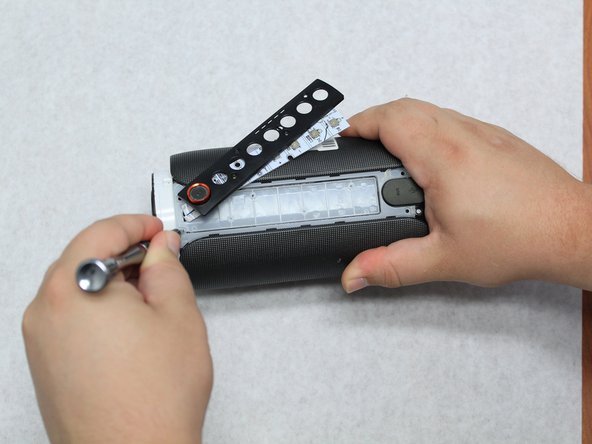
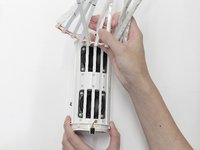
    • Manually remove the LED strips from the outside of the white plastic casing.

    Ask FixBot

    Add Comment

  17. JBL Pulse 2 Motherboard Replacement: step 17, image 1 of 3 JBL Pulse 2 Motherboard Replacement: step 17, image 2 of 3 JBL Pulse 2 Motherboard Replacement: step 17, image 3 of 3
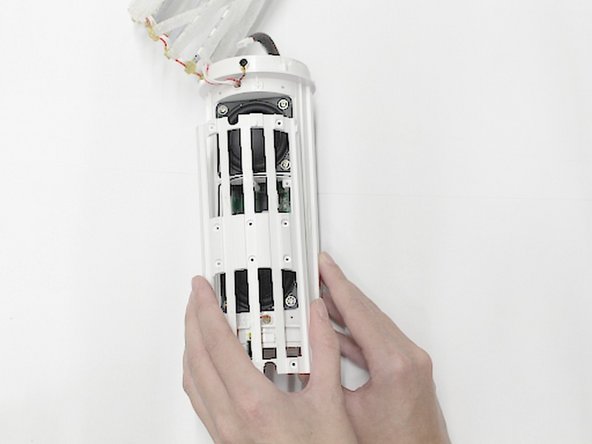
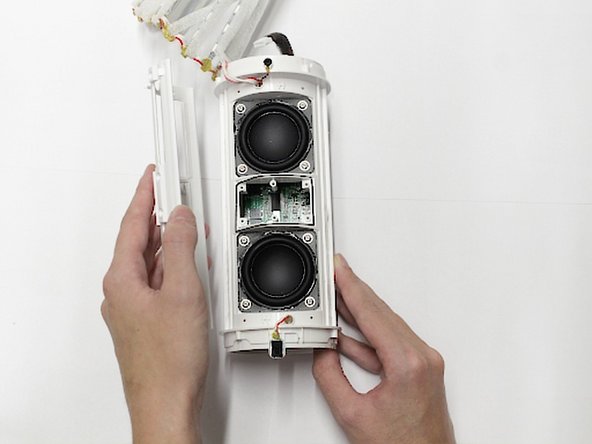
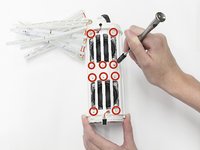
    • Use the Phillips #1 screwdriver to remove the ten 9.5mm screws that hold the cage in place.

    • Lift the cage off.

    Ask FixBot

    Add Comment

  18. JBL Pulse 2 Motherboard Replacement: step 18, image 1 of 2 JBL Pulse 2 Motherboard Replacement: step 18, image 2 of 2
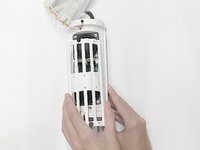
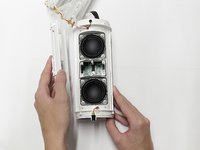
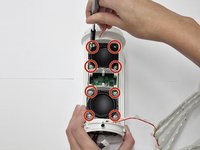
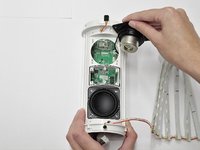
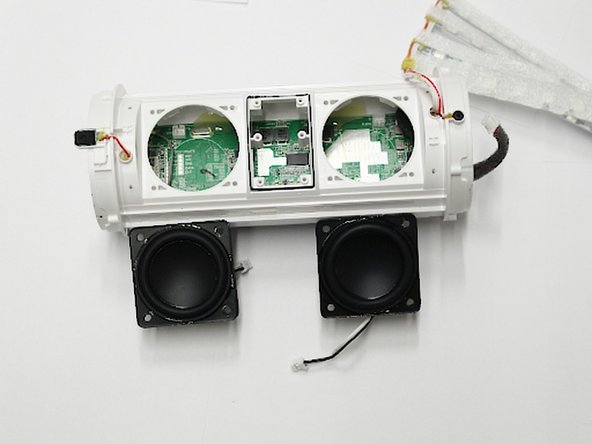
    • Use the Phillips #1 screwdriver to remove the eight 6.4mm screws that hold the speakers in place.

    • Partially remove the speakers so you can see where they connect to the motherboard.

    Ask FixBot

    Add Comment

  19. JBL Pulse 2 Motherboard Replacement: step 19, image 1 of 2 JBL Pulse 2 Motherboard Replacement: step 19, image 2 of 2
    Tool used on this step:
    Tweezers
    $4.99
    Buy
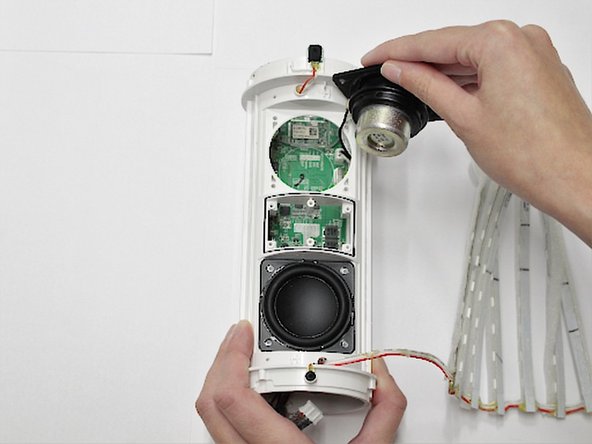
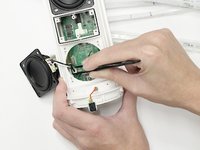
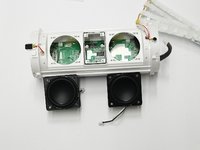
    • Use the straight tweezers to disconnect the speakers from the motherboard.

    • Fully remove the speakers once they are disconnected from the motherboard.

    Ask FixBot

    Add Comment

  20. JBL Pulse 2 Motherboard Replacement: step 20, image 1 of 1
    • Disconnect the remaining wires from the motherboard with the straight tweezers.

    • Be cautious when performing this step. The mic wire is fragile and liable to break.

    Ask FixBot

    Add Comment

  21. JBL Pulse 2 Motherboard Replacement: step 21, image 1 of 1
    • Use a hot air gun to soften the glue from the corners of the motherboard.

    • Slide the motherboard out of the casing.

    • The hot glue covers portions of the motherboard so be careful when softening and removing it.

    Ask FixBot

    Add Comment

Conclusion

To reassemble your device, follow these instructions in reverse order.

Cancel: I did not complete this guide.

4 other people completed this guide.

1 Guide Comment

Well taught tnx

Deepak Soni - Reply Share

Add Comment

View Statistics:

Past 24 Hours: 2

Past 7 Days: 28

Past 30 Days: 59

All Time: 2,971