Introduction
If your JBL 2 speaker isn't working correctly or delivering the high-quality sounds you expect, you may need to replace the battery. Replacing the battery can breathe new life into your device.
What you need
-
-
-
Remove the rubber rings from either end of the device.
-
If there is difficulty in lifting the rings from the device, use the metal spudger.
 Ask FixBot
-
-
-
Remove the four 4.8mm Phillips #1 screws from each end of the device with the Phillips head screwdriver.
-
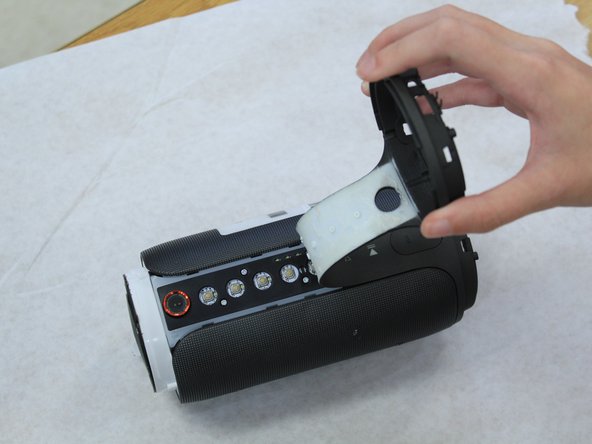
Lift the end pieces off of the device.
-
-
-
Peel one end off and slowly draw it across the length of the device until you get to the other side.
-
-
-
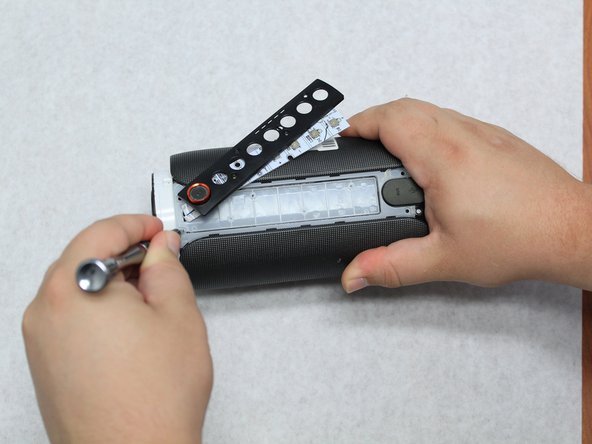
Remove the four 7.9mm Phillips #1 screws along the black centerpiece of the device between the camera and the auxiliary port.
-
Lift up the casing and circuit board but do not try and remove the ribbon wires.
-
-
-
-
Remove the cover from the end that the ribbon wires are attached to. It should peel off easily.
-
-
-
Unlatch the mechanism holding the ribbon wires in place, then disconnect them from the motherboard.
-
To access the wires, remove some of the black glue holding them in place with the spudger.
-
-
-
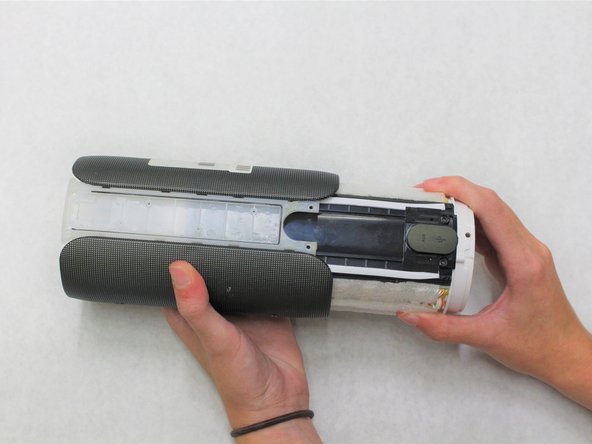
Remove the four 7.9mm Phillips #1 screws around the edges of the center piece.
-
Slide the outer casing off away from the auxiliary and micro USB port.
-
-
Tool used on this step:Tweezers$3.99
-
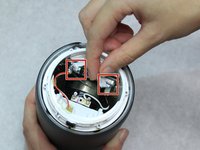
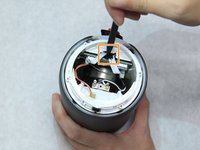
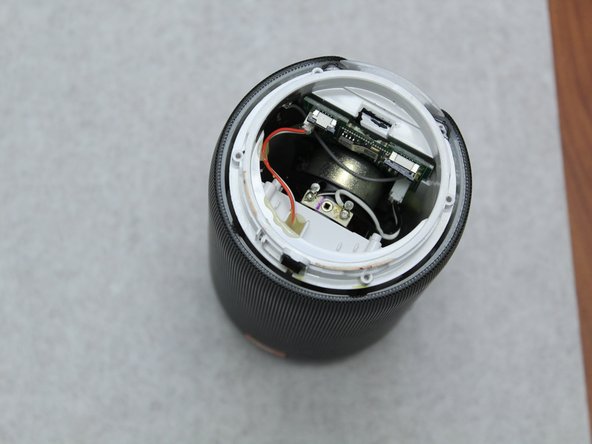
Use the angled tweezers to disconnect the battery from the motherboard. It will take some work to remove this piece.
-
-
-
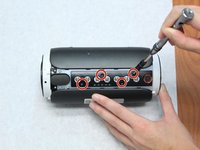
Remove the four 7.9mm Phillips #1 screws from the black centerpiece of the device.
-
-
-
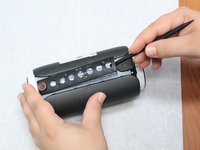
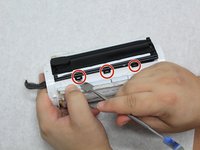
Use the spudger to reach under the sides of the black centerpiece to access the six latches, three of which are on each side.
-
-
-
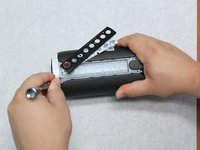
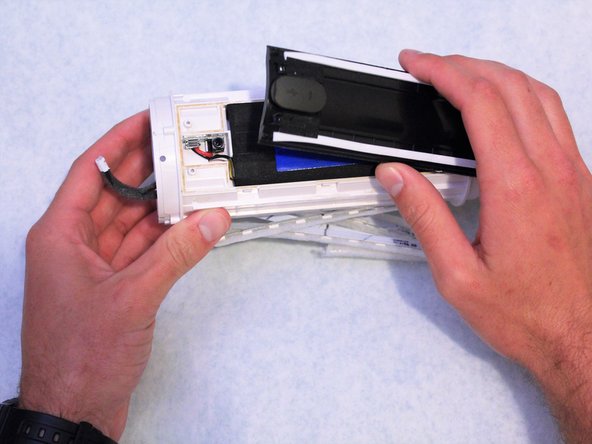
Lift the black centerpiece off with the metal spudger to reveal the battery underneath.
-
-
-
Use a hot air gun to soften the hot glue in order to fully remove the battery.
-
-












To reassemble your device, follow these instructions in reverse order.
Cancel: I did not complete this guide.
6 other people completed this guide.

Team

Western Carolina University, Team S1-G1, Virtue Fall 2018 Member of Western Carolina University, Team S1-G1, Virtue Fall 2018
WCU-VIRTUE-F18S1G1
4 Members
60 Guides authored
