
JBL Charge Micro USB / Aux Port Replacement

Alexander Castanares and 9 other contributors
Last updated on Apr 15, 2020
Views: 116K
View statistics:
- Past 24 Hours:
- 6
- Past 7 Days:
- 31
- Past 30 Days:
- 153
- All Time:
- 115,582
Comments: 37
16 comments on steps, 21 guide comments.
Go to guide commentsCompleted: 14 15
14 people have marked this guide "completed." Will you be next?
15 people have marked this guide "completed." Including you — great job!
Favorites: 4 5
4 people have favorited (and subscribed to) this guide. Will you be next?
5 people have favorited (and subscribed to) this guide — including you!
Incorrect Tools
Help make this guide better by using the correct tools in images and/or text.
Introduction
Go to step 1 ↓Since the Micro USB / AUX Port connectors are super-glued into the white casing, it is nearly impossible to replace it without replacing the whole piece of casing. Follow this guide to isolate and replace the white casing containing the Micro USB / AUX Port.
What you need
Tools


-
-
-
Make sure the device is powered off before you begin to disassemble the speaker.
-
Remove the trim from the speaker using a jimmy or metal spudger.
 Ask FixBot
-
-
-
Use a Phillips #1 screwdriver to remove the five 6 mm screws securing the battery cover.
-
Remove the battery cover and set the cover aside.
-
-
-
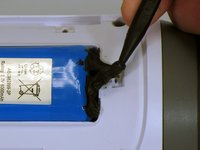
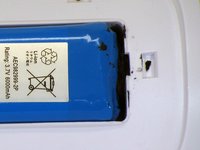
Do not puncture or bend the battery. Take care not to damage the battery cable beneath the black adhesive.
-
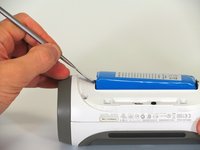
Use a plastic spudger to carefully loosen the black adhesive securing the battery in its compartment.
-
-
-
The first photo shows a metal spudger. Use a plastic spudger instead to avoid damaging the battery.
-
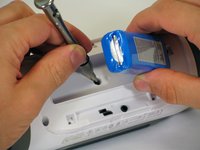
Use the flat end of a plastic spudger to gently lift the end of the battery opposite the cable. Lift it only far enough to access the screw underneath. Do not bend the battery or strain its cable.
-
Use a Phillips #2 screwdriver to remove the 16 mm screw beneath the battery.
-
-
-
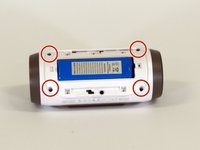
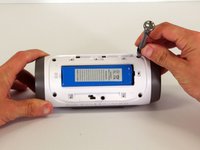
Use a Phillips #2 screwdriver to remove the four remaining 16 mm screws securing the white plastic housing.
-
Keep these screws separate from the shorter battery-cover screws.
-
-
-
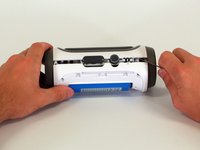
The rear housing is still connected to the speaker by cables. Do not pull the housing halves apart.
-
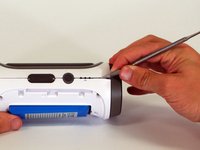
Starting at the corner shown in the photos, carefully insert a metal spudger into the seam between the rear housing and the speaker.
-
Work along the seam to release the adhesive. Avoid inserting the tool deeply into the speaker, where it could damage internal components.
-
Open the rear housing only far enough to access the connectors.
-
-
-
Support the rear housing so that it does not hang from its cables.
-
Disconnect the three white connectors from the motherboard. Grip the connector housings rather than pulling on the wires. Do not force the connectors.
-
Remove the rear housing.
-
-
-
-
-
Place the rear housing on your work surface with its inner side facing up.
-
Locate the battery cable and the opening through which it passes.
-
-
-
-
Using a razor blade, remove the glue holding the battery cable in place.
-
Use multiple vertical cuts to remove pieces of the glue.
-
-
-
Carefully remove the foam surrounding the battery cable.
-
Do not pull on the cable or damage its insulation.
-
-
-
Carefully guide the disconnected battery connector and cable through the opening in the housing.
-
Do not force the connector through the opening or pull on the wires.
-
Remove the battery.
-
-
-
-
-
Place the battery into the new white casing.
-
Reassemble the device by following the steps in reverse order.
-
-










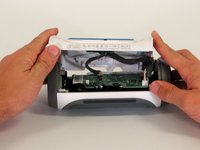
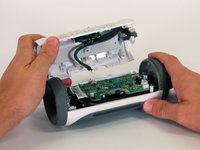


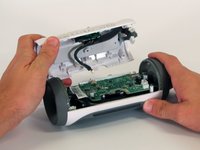
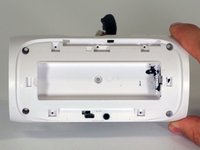
To reassemble your device, follow these instructions in reverse order.
Cancel: I did not complete this guide.
14 other people completed this guide.

Team

Cal Poly, Team 12-4, Lancaster Spring 2015 Member of Cal Poly, Team 12-4, Lancaster Spring 2015
CPSU-LANCASTER-S15S12G4
2 Members
48 Guides authored
21 Guide Comments
Hi. This is the problem my speaker is having, but all I need to know is where to buy the replacement back. That's certainly something you should have included in your guide.
The purpose of a guide is to show how to fix the device, not obtain parts. I suggest eBay.
Yeah what was the point of this if people can't actually do it. BS
The point is to guide people on the replacement of parts, not obtaining parts. I suggest eBay.
