Introduction
This guide will show you how to setup Ubuntu Linux on your Chromebook Pixel without flashing your BIOS.
A word on flashing...
You may choose to remove the Write-Protect screw and tinker with the BIOS or flash it in the future. Note that I am not responsible for any mishaps that may arise from that.
-
-
-
Enable Developer Mode/Legacy Boot
-
As mentioned before, you don't need to flash your BIOS, we'll just use the stock SeaBIOS.
-
This means you'll have to press "crtl" + "L" on each boot
-
It'll take some time so grab a coffee while you're waiting...
 Ask FixBot
-
-
-
Unlike the Windows installation, you don't need a USB keyboard or mouse to boot the OS
-
Select your USB installer drive on startup
-
You should get the Ubuntu startup screen
-
-
-
-
I highly recommend you connect to Wi-Fi before you continue to get all the necessary drivers
-
The Wi-Fi card is automatically detected on boot
-
Just step through the installer like you would with any other distro
-
-
-
Remove your installation media and reboot when prompted by Ubuntu
-
On startup, login to your account and setup your hotkeys to enable volume (mute, decrease, increase).
-
Display brightness can be fixed by setting up a custom keymapping:
-
sudo apt-get install xdotool
-
name: Brightness Up command: xdotool key XF86MonBrightnessUp
-
name: Brightness Down command: xdotool key XF86MonBrightnessDown
-
-


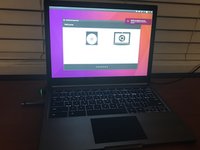
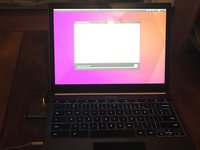

You're done! If you ever want to get back to ChromeOS just create a recovery drive in your Chrome browser and enable secure boot at the Pixel startup.

