
Insignia NS-VCS14SL7 Power Button Replacement

Thibaut Pillot and 3 other contributors
Last updated on Jun 10, 2018
Views: 793
View statistics:
- Past 24 Hours:
- 5
- Past 7 Days:
- 18
- Past 30 Days:
- 57
- All Time:
- 793
Comments: 2
2 comments on steps.
Completed: 0 1
No one has marked this guide "completed." Will you be the first?
1 person has marked this guide "completed." It's you — great job!
Favorites: 1 2
1 person has favorited (and subscribed to) this guide. Will you be next?
2 people have favorited (and subscribed to) this guide — including you!
Introduction
Go to step 1 ↓The Insignia 2-in-1 Handheld vacuum button may get jammed or the electrical components can stop working. In either case, this guide can show you how to fix or replace the power button.
What you need
Tools
-
-
Spudger4.9


-
-
-
Push down the black button to release the dust cup.
-
Pull the dust cup up and away from handheld portion to remove.
 Ask FixBot
-
-
-
Remove the five 12.0 mm screws on the back of the handheld portion using the Phillips #2 screwdriver.
-
Lift the silver cover off of the black body of the handheld portion to expose the battery and wiring.
-
-
-
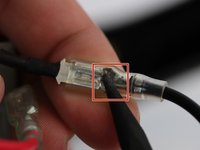
Pull apart the red and black wires.
-
Do so for all of the wires. (Red x1, Black x2)
-
-
-
-
Remove the tape holding the battery to the black housing.
-
Slide the entire battery bundle out.
-
-
-
-
-
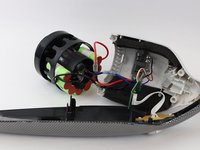
Remove motor and impeller housing to gain access to power button.
-
-
-
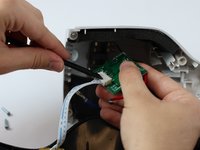
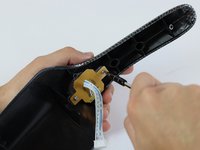
Pry upwards on the retaining clip with black plastic spudger and pull to remove the 5 pin connector.
-
-
-
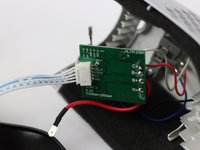
Remove the two 10mm Philips #2 screws holding the brown printed circuit board to the vacuum.
-
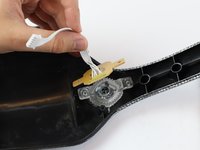
Remove brown printed circuit board.
-
Pull up on clear plastic power button assembly to remove.
-
-






To reassemble your device, follow these instructions in reverse order.

Team

USF Tampa, Team S16-G3, Boczar Spring 2018 Member of USF Tampa, Team S16-G3, Boczar Spring 2018
USFT-BOCZAR-S18S16G3
4 Members
72 Guides authored
