
Insignia NS-CSPBTHOL-R Buttons Replacement

Zachary Foltz and 2 other contributors
Last updated on May 24, 2017
Views: 793
View statistics:
- Past 24 Hours:
- 4
- Past 7 Days:
- 18
- Past 30 Days:
- 85
- All Time:
- 793
Comments: 0
No one has left comments on this guide. Will you be first?
Go to guide commentsCompleted: 0 1
No one has marked this guide "completed." Will you be the first?
1 person has marked this guide "completed." It's you — great job!
Favorites: 0 1
No one has favorited (and subscribed to) this guide. Will you be the first?
1 person has favorited (and subscribed to) this guide — and that's you!
Action Shots
Be an action hero! This guide needs images that better demonstrate how to perform specific actions.
Needs More Images
A few more images would make this guide's procedures crystal clear.
Introduction
Go to step 1 ↓This guide will show the steps to accessing the interior of the speaker to address problems with the main buttons not making contact with the motherboard.
What you need
Tools


-
-
-
Use the spudger to pry off the plastic grate covering the speakers, then gently pull it off with your fingers.
 Ask FixBot
-
-
-
once the grate has been removed, Remove the six 3mm screws using the J00 JIS screw bit. This will require a long, narrow screwdriver.
-
-
-
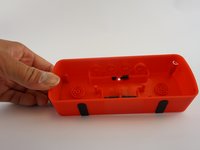
Insert the Spudger between the corners of base and the face of the speaker to open the device. The screw on the upper right corner may be difficult to take out. If you cannot take it out with a screwdriver, using force to pull the face of the speaker apart may break the plastic that surrounds the screw.
-
-
-
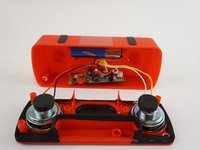
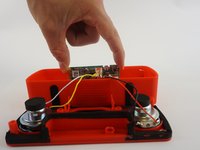
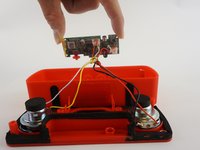
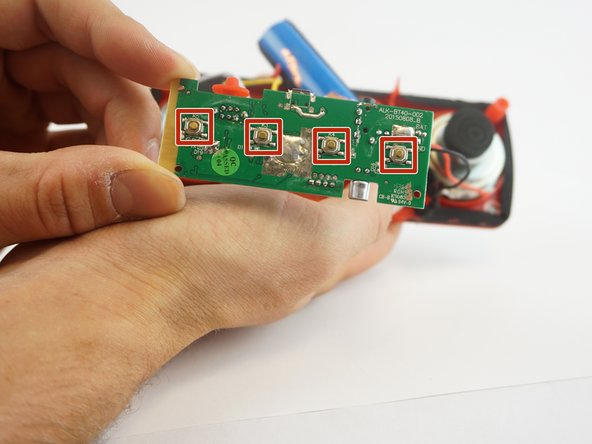
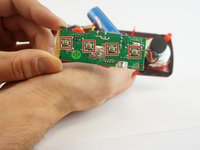
Gently pull apart the speaker to separate the speakers from the battery and motherboard. Then pull out the motherboard with your fingers by grabbing the edges and pulling upwards.
-
-
-



To reassemble your device, follow these instructions in reverse order.

Team

USF Tampa, Team 12-6, Eyestone Spring 2017 Member of USF Tampa, Team 12-6, Eyestone Spring 2017
USFT-EYESTONE-S17S12G6
3 Members
48 Guides authored
