
Insignia NS-B2110 Button Replacement

Samuel Randall and 5 other contributors
Last updated on Jan 25, 2016
Views: 865
View statistics:
- Past 24 Hours:
- 2
- Past 7 Days:
- 16
- Past 30 Days:
- 86
- All Time:
- 865
Comments: 0
No one has left comments on this guide. Will you be first?
Go to guide commentsCompleted: 0 1
No one has marked this guide "completed." Will you be the first?
1 person has marked this guide "completed." It's you — great job!
Favorites: 0 1
No one has favorited (and subscribed to) this guide. Will you be the first?
1 person has favorited (and subscribed to) this guide — and that's you!
Introduction
Go to step 1 ↓If the buttons on the stereo's face or the visual display are not working, you may need to remove them from the device to be replaced. This guide shows how to go about removing the buttons and LED display. This guide requires a knowledge of soldering. If you don't know how, follow this very simple step-by-step soldering guide
What you need
Tools
-
-
Spudger4.9
-


-
-
-
Flip the stereo so the CD opening is face down.
-
With two fingers, pinch the tabs and lift up to open the battery protection cover.
 Ask FixBot
-
-
-
Using a spudger or your fingers, push up against the positive end of the battery. Once it is loose, lift the battery out.
-
Repeat until all eight batteries are removed.
-
-
-
-
-
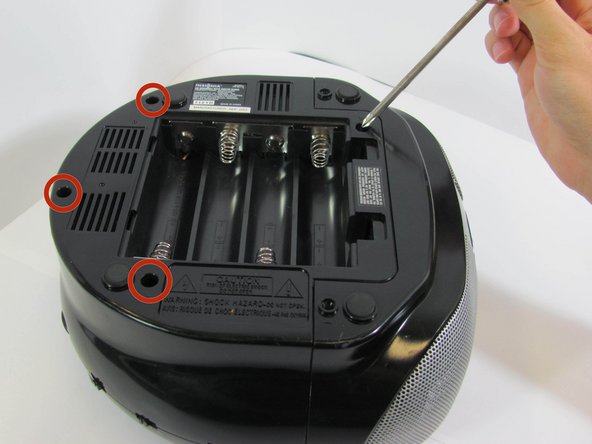
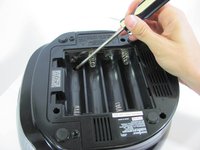
Using a long Phillips #2 screwdriver, remove one 6mm screw located inside the battery compartment.
-
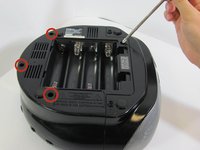
Use the same screwdriver to remove four more 6mm screws along the outside of the case.
-
-
-
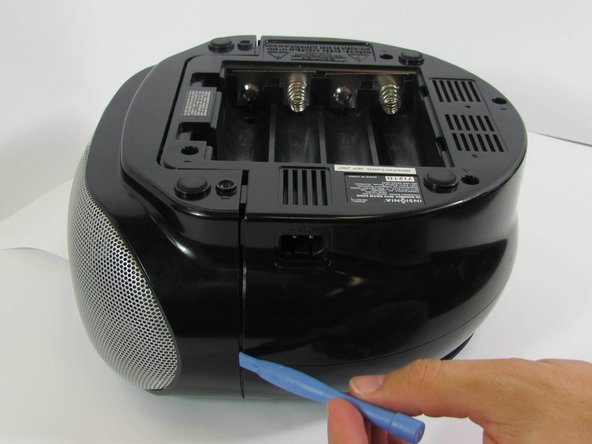
With a plastic opening tool, wedge the bottom shell from the main speaker face along the edge.
-
Once the pieces are separated, pull them apart and place the bottom cover aside, near the stereo.
-
-
-
-
With a Phillips #2 screwdriver, remove five 5mm screws from the "quarter circle" circuit board.
-
Remove the green quarter circle circuit board and place to the side.
-
-
-
On the brown side of the quarter circle circuit board, remove the two white ribbon cables with pink stripes attached to a plastic connector. To do this, pinch the tabs with your hands while pulling outward on the connector.
-
-
-
With a Phillips #2 screwdriver, remove four 6mm screws from the rectangular circuit board.
-
-
-
Remove the two white ribbon cables attached to white plastic connectors from the circuit board by pinching the tabs with your hands and pulling outward on the connector.
-
-
-
With a Phillips #2 screwdriver, remove two 5mm screws from the black plastic frame which previously held up the rectangular circuit board.
-
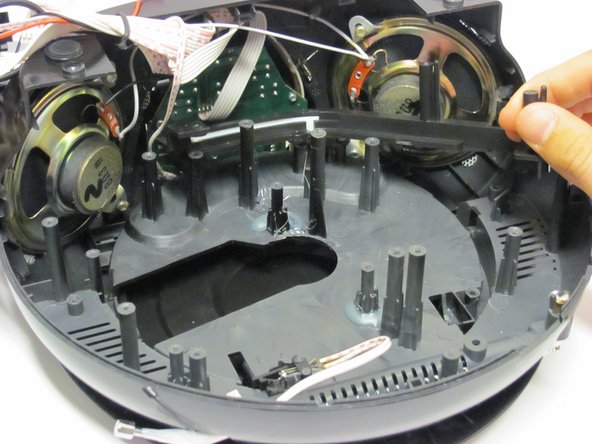
Remove the black plastic frame.
-
-
-
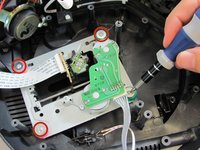
With a Phillips #1 screwdriver, remove four 3mm screws from the silver metal circuit board.
-
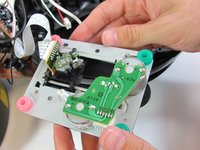
Remove and place the metal circuit board to the side.
-
-
-
-
With a Phillips #2 screwdriver, remove the two 3mm screws from the black plastic tuner frame.
-
-
-
-
-
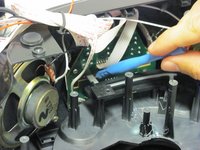
Remove the black plastic tuner assembly piece using the blue plastic opening tool.
-
-
-
Turn the device so the CD tray faces up.
-
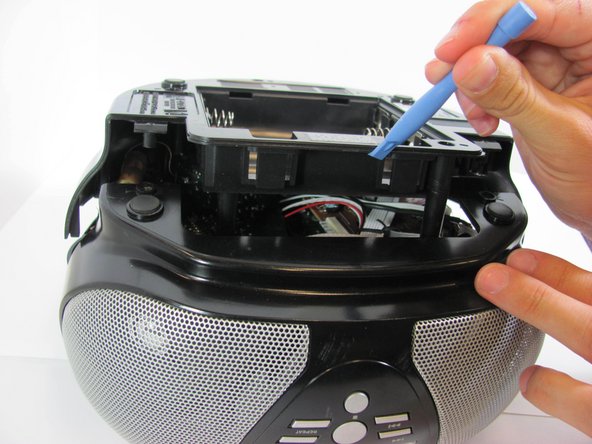
Use the blue plastic opening tool to separate the front half (containing the speakers and display) and the back half (containing the antenna).
-
Pull the two plastic pieces apart. This will require a mild amount of force.
-
-
-
Remove the six 5mm #2 Phillips head screws from the circuit board.
-
Remove the circuit board. This may require you to wiggle the board a little to get it free.
-
-
-
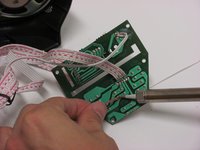
Remove the solder from the back of the button. There are 4 points of solder for every button.
-
Remove the button from the circuit board.
-
-




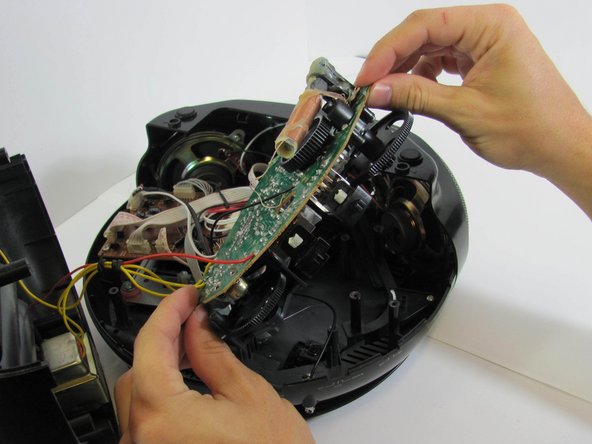
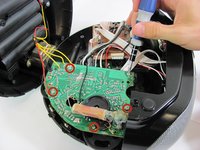
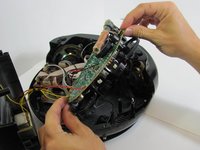


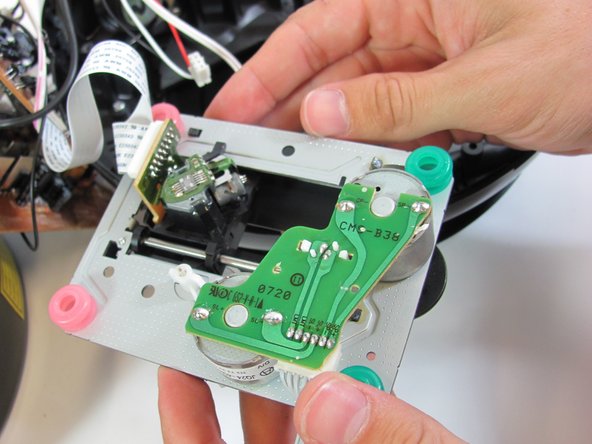


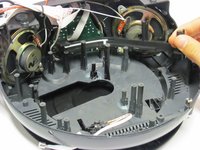

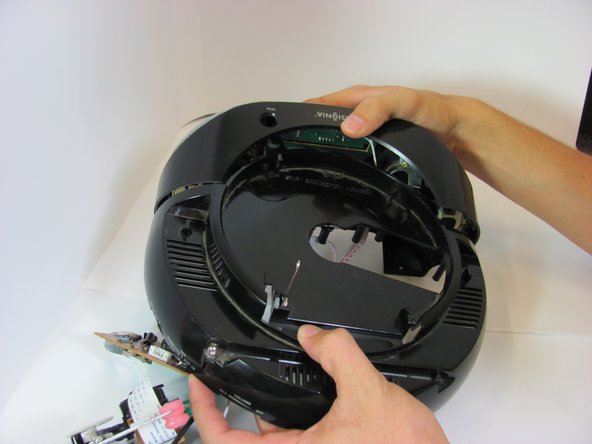
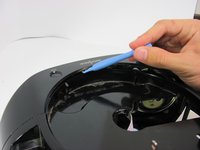
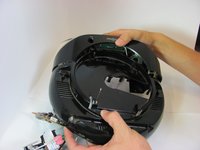

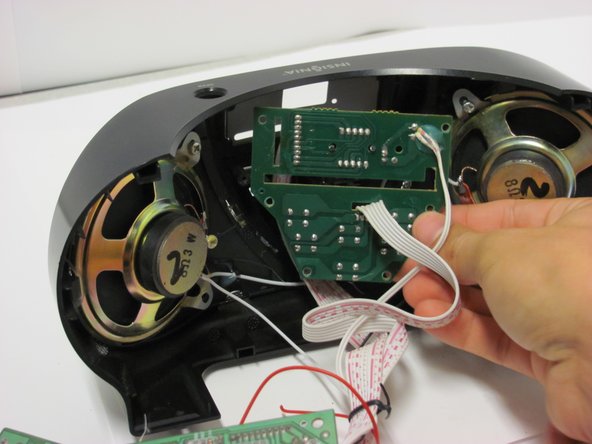
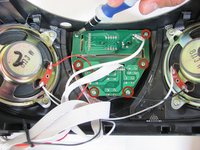
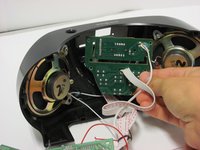

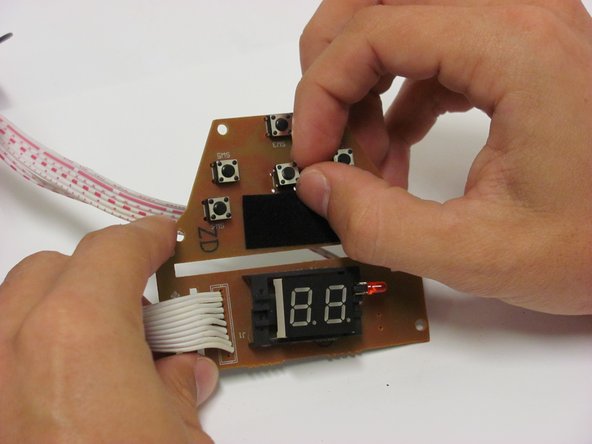
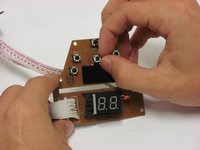
To reassemble your device, follow these instructions in reverse order. Solder the wires back on where they have been soldered off.

Team

Cal Poly, Team 4-31, Amido Fall 2013 Member of Cal Poly, Team 4-31, Amido Fall 2013
CPSU-AMIDO-F13S4G31
4 Members
96 Guides authored
