
IBM Thinkpad T61 RAM Replacement

Last updated on Mar 9, 2019
Views: 11K
View statistics:
- Past 24 Hours:
- 2
- Past 7 Days:
- 28
- Past 30 Days:
- 134
- All Time:
- 10,514
Comments: 0
No one has left comments on this guide. Will you be first?
Go to guide commentsCompleted: 15 16
15 people have marked this guide "completed." Will you be next?
16 people have marked this guide "completed." Including you — great job!
Favorites: 1 2
1 person has favorited (and subscribed to) this guide. Will you be next?
2 people have favorited (and subscribed to) this guide — including you!
Needs Better Images
Better photos will improve this guide. Help out by taking, editing, or uploading new ones!
Introduction
Go to step 1 ↓Replacing the RAM in this laptop is a relatively straightforward process.
What you need
Parts


Tools

-
-
-
Ensure the laptop has been properly shut down and unplugged.
-
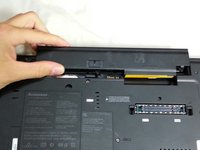
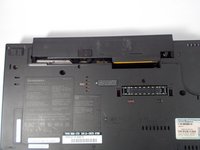
Turn the computer over so that you can see the battery release tab located near the top of the Thinkpad.
 Ask FixBot
-
-
-
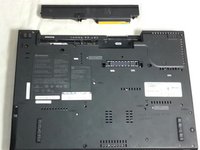
Hold the tab in the unlocked position and push the battery away from the computer to remove it.
-
-
-
Slide the new battery in until it clicks.
-
Ensure that the release tab is in the locked position.
-
-
-
-
-
Using a #0 Phillips screwdriver, remove four 17.0mm screws on the back of the computer.
-
-
-
Flip back over and open the laptop.
-
Lift up on the inside front panel just below the edge of the keyboard.
-
-
-
-
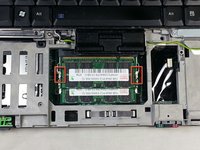
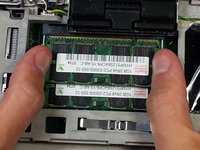
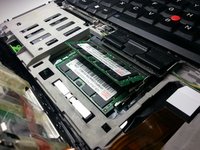
Press out on the two tabs on either side of the ram at the same time.
-
The RAM will release and pop up at a 25 degree angle.
-
-





To reassemble your device, follow these instructions in reverse order.
Cancel: I did not complete this guide.
15 other people completed this guide.

Team

Cal Poly, Team 8-58, Johann Spring 2013 Member of Cal Poly, Team 8-58, Johann Spring 2013
CPSU-JOHANN-S13S8G58
4 Members
60 Guides authored
