Introduction
An IBM ThinkPad T42 Wi-Fi card allows the device to connect to a wireless network. If your Wi-Fi card is broken or needs to be replaced, this guide will show you how.
What you need
-
-
-
Use a Phillips #0 screwdriver to remove the twenty screws on the underside of the T42.
 Ask FixBot
-
-
-
Remove the four Phillips screws located on either side of the rear of the T42 (there are two on each end.)
-
-
-
-
-
Flip the laptop over and open the screen to access the keyboard and trackpad.
-
-
-
-
Carefully maneuver the palm rest away from the keyboard, as both the keyboard and palm rest/trackpad will come off together.
-
-
-
-
-
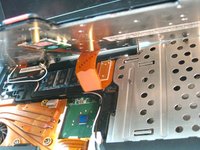
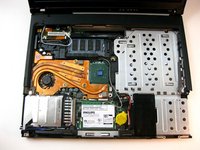
To remove Wi-Fi card, first disconnect both display wires on the top right.
-
-
-
Then slide both of the metal pieces holding it down outwards, and it will pop up.
-
-




To reassemble your device, follow these instructions in reverse order.
Cancel: I did not complete this guide.
3 other people completed this guide.

Team

Cal Poly, Team 29-76, Johann Spring 2010 Member of Cal Poly, Team 29-76, Johann Spring 2010
CPSU-JOHANN-S10S29G76
4 Members
180 Guides authored
2 Guide Comments
Get the HMM for the laptop! On a few of these, I have had to just pull out the internal wi-fi card, and use a USB wi-fi adapter.
The only screws that need to be removed are the ones that are numbered 1-4 on the bottom of the case. Best to remove the screws with #4 next to them, then remove the keyboard and then remove 1-3 and then the palm rest. Removing the ones on the rear is unnecessary.
