
IBM ThinkPad T42 Keyboard and Trackpad Replacement

Austin Kidd and 7 other contributors
Last updated on Jan 10, 2025
Views: 11K
View statistics:
- Past 24 Hours:
- 3
- Past 7 Days:
- 17
- Past 30 Days:
- 94
- All Time:
- 10,953
Comments: 2
2 comments on steps.
Completed: 3 4
3 people have marked this guide "completed." Will you be next?
4 people have marked this guide "completed." Including you — great job!
Favorites: 1 2
1 person has favorited (and subscribed to) this guide. Will you be next?
2 people have favorited (and subscribed to) this guide — including you!
Needs Better Images
Better photos will improve this guide. Help out by taking, editing, or uploading new ones!
Missing Steps
Oops! This guide is currently missing one or more important steps.
Better Introduction
Improve this guide by completing or revising its introduction.
What you need
Tools

-
-
-
Use a Phillips #0 screwdriver to remove the twenty screws on the underside of the T42.
 Ask FixBot
-
-
-
Remove the four Phillips screws located on either side of the rear of the T42 (there are two on each end.)
-
-
-
-
-
Flip the laptop over and open the screen to access the keyboard and trackpad.
-
-
-
-
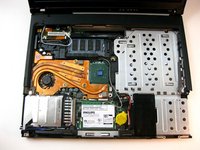
Carefully maneuver the palm rest away from the keyboard, as both the keyboard and palm rest/trackpad will come off together.
-
-


To reassemble your device, follow these instructions in reverse order.
Cancel: I did not complete this guide.
3 other people completed this guide.

Team

Cal Poly, Team 29-76, Johann Spring 2010 Member of Cal Poly, Team 29-76, Johann Spring 2010
CPSU-JOHANN-S10S29G76
4 Members
180 Guides authored
