Free Shipping on Domestic Orders $75+

IBM ThinkPad A31 Keyboard Replacement

What you need

  1. IBM ThinkPad A31 Keyboard Replacement, Battery: step 1, image 1 of 2 IBM ThinkPad A31 Keyboard Replacement, Battery: step 1, image 2 of 2
    • Flip the ThinkPad over so that it is upside down.

    • Push latch switch to the left.

    • Gently lift the battery out and away from the ThinkPad

    • You have to hold the latch to the left while you remove the battery. Simply pushing once will not unlock the battery

    Ask FixBot

    Add Comment

  2. IBM ThinkPad A31 Keyboard Replacement, Keyboard: step 2, image 1 of 3 IBM ThinkPad A31 Keyboard Replacement, Keyboard: step 2, image 2 of 3 IBM ThinkPad A31 Keyboard Replacement, Keyboard: step 2, image 3 of 3
    • The sticker is to keep the warranty on the laptop so once removed the warranty is void

    • Peel the sticker and remove the 15mm screw

    • Remove all 6 of the 16mm screws

    Ask FixBot

    Add Comment

  3. IBM ThinkPad A31 Keyboard Replacement: step 3, image 1 of 2 IBM ThinkPad A31 Keyboard Replacement: step 3, image 2 of 2
    • use a prying tool and insert it on the cracks on the sides of the keyboard and lift gently until you here a click

    • repeat this step on all sides of the keyboard until the keyboard is completely detached from the laptop

    Ask FixBot

    Add Comment

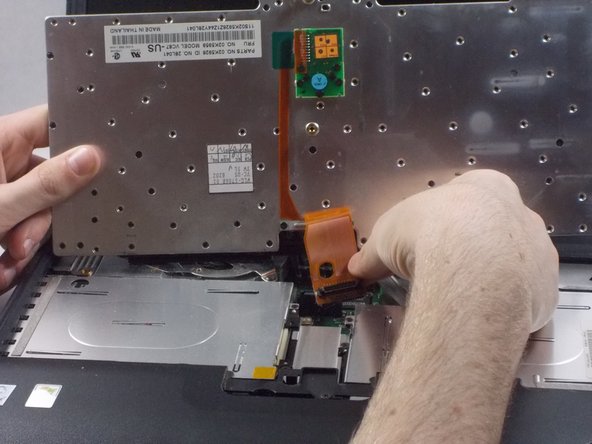
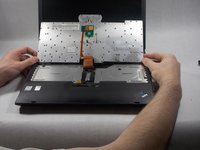
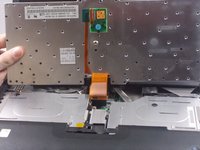
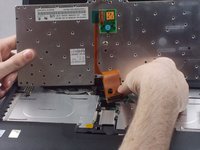
  4. IBM ThinkPad A31 Keyboard Replacement: step 4, image 1 of 3 IBM ThinkPad A31 Keyboard Replacement: step 4, image 2 of 3 IBM ThinkPad A31 Keyboard Replacement: step 4, image 3 of 3
    • Lift the keyboard and remove the keyboard ribbon cable from the laptop

    Ask FixBot

    Add Comment

Conclusion

To reassemble your device, follow these instructions in reverse order.

Cancel: I did not complete this guide.

2 other people completed this guide.

Matheus

Member since: 03/19/18

128 Reputation

1 Guide authored

Team

0 Guide Comments

Add Comment

View Statistics:

Past 24 Hours: 1

Past 7 Days: 4

Past 30 Days: 45

All Time: 915