Free Shipping on Domestic Orders $75+

IBM ThinkPad A30 Fan Replacement

Views: 3.3K

View statistics:

Past 24 Hours:
2
Past 7 Days:
20
Past 30 Days:
92
All Time:
3,340
Comments: 0

No one has left comments on this guide. Will you be first?

Go to guide comments
Completed: 0

No one has marked this guide "completed." Will you be the first?

Favorites: 1

1 person has favorited (and subscribed to) this guide. Will you be next?

Time Required: 35 - 50 minutes
Difficulty: Moderate
Missing Steps

Oops! This guide is currently missing one or more important steps.

IBM ThinkPad A30 Fan Replacement

Introduction

Go to step 1 ↓

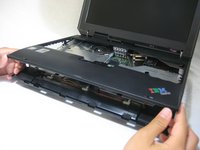
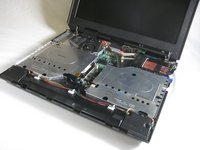
This guide details how to replace the IBM ThinkPad A30 fan. If the fan is faulty and needs to be replaced, then your computer may overheat and shut down without warning.

The CPU Fan is how the computer cools itself during usage. The fan dissipates the heat that the computer creates while in use. If the fan was to stop working, it would cause the processor to overheat and damage to the computer.

Before using this guide, you can first try running a 4k video on YouTube and if the fan starts running after you load the video, then the CPU fan is fine.

What you need

Tools

    1. IBM ThinkPad A30 Fan Replacement, Battery: step 1, image 1 of 2 IBM ThinkPad A30 Fan Replacement, Battery: step 1, image 2 of 2
      • Flip the ThinkPad over so that it is upside down.

      • Slide the highlighted tab to the left.

      • With your finger on the tab, remove the battery by lifting it upwards away from the laptop.

      Ask FixBot

      Add Comment

    1. IBM ThinkPad A30 Fan Replacement, Upper Case: step 2, image 1 of 1
      • Make sure the laptop is upside down and oriented in the direction shown.

      • Remove the six 16.7mm screws inside the circled holes.

      Ask FixBot

      Add Comment

    2. IBM ThinkPad A30 Fan Replacement: step 3, image 1 of 1
      • Rotate the ThinkPad so that the hard drive bay is facing you.

      • Remove the black cover to reveal a 14.8mm screw.

      • Remove the uncovered screw with a Phillips #0 screwdriver.

      Ask FixBot

      Add Comment

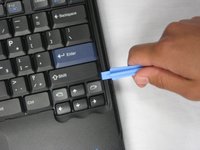
    3. IBM ThinkPad A30 Fan Replacement: step 4, image 1 of 2 IBM ThinkPad A30 Fan Replacement: step 4, image 2 of 2
      • Flip the ThinkPad over and open the LCD panel.

      • Pry apart the keyboard with a plastic opening tool or with your fingers.

      Ask FixBot

      Add Comment

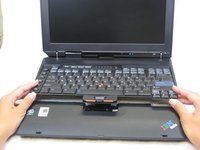
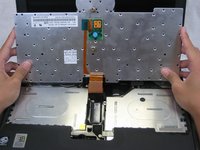
    4. IBM ThinkPad A30 Fan Replacement: step 5, image 1 of 3 IBM ThinkPad A30 Fan Replacement: step 5, image 2 of 3 IBM ThinkPad A30 Fan Replacement: step 5, image 3 of 3
      • Be careful not to pull out the keyboard carelessly; there is a connector underneath it!

      • Lift the front end of the keyboard as shown.

      • Using your fingers, remove the black film cover.

      Ask FixBot

      Add Comment

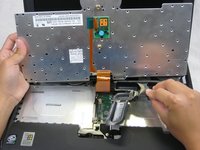
    5. IBM ThinkPad A30 Fan Replacement: step 6, image 1 of 3 IBM ThinkPad A30 Fan Replacement: step 6, image 2 of 3 IBM ThinkPad A30 Fan Replacement: step 6, image 3 of 3
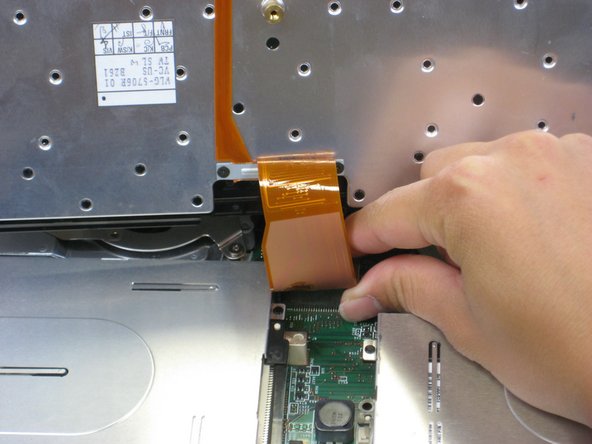
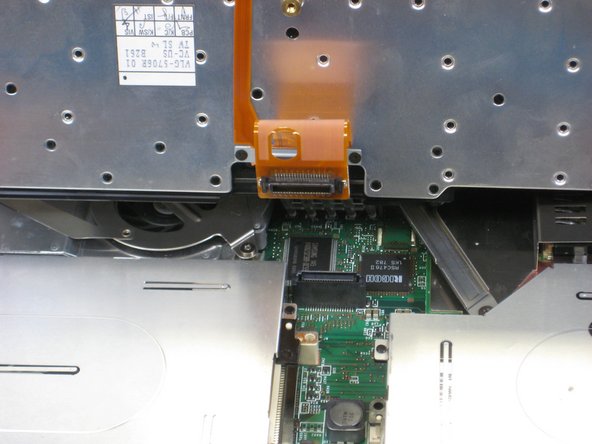
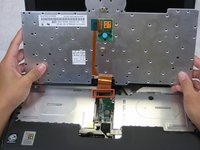
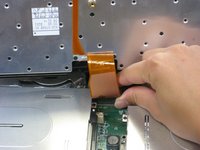
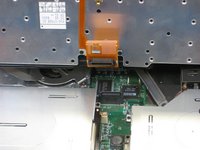
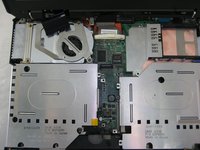
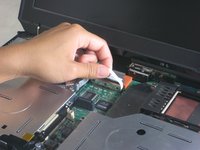
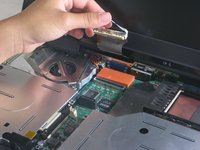
      • Locate the connector attached to the motherboard.

      • Disconnect the ribbon cable by removing the connector.

      Ask FixBot

      Add Comment

    6. IBM ThinkPad A30 Fan Replacement: step 7, image 1 of 2 IBM ThinkPad A30 Fan Replacement: step 7, image 2 of 2
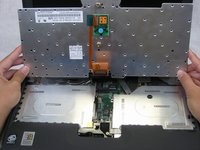
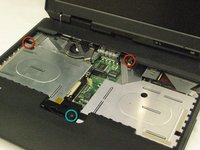
      • Lift and remove the keyboard.

      • Remove the two 5.6mm screws.

      • Remove the 16.7mm screw.

      Ask FixBot

      Add Comment

    7. IBM ThinkPad A30 Fan Replacement: step 8, image 1 of 3 IBM ThinkPad A30 Fan Replacement: step 8, image 2 of 3 IBM ThinkPad A30 Fan Replacement: step 8, image 3 of 3
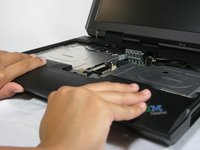
      • You will need to use a little force. Be wary of the tabs.

      • Pry off the upper case with your hands.

      Ask FixBot

      Add Comment

    1. IBM ThinkPad A30 Fan Replacement, Display Assembly: step 9, image 1 of 1
      • Remove the 5.6mm screw that holds the LCD to the upper case.

      Ask FixBot

      Add Comment

    2. IBM ThinkPad A30 Fan Replacement: step 10, image 1 of 3 IBM ThinkPad A30 Fan Replacement: step 10, image 2 of 3 IBM ThinkPad A30 Fan Replacement: step 10, image 3 of 3
      • Remove the 5.6mm screw on the left side of the three-pronged connector.

      • Remove the other two 16.7mm screws.

      • Lift and remove connector.

      Ask FixBot

      Add Comment

    3. IBM ThinkPad A30 Fan Replacement: step 11, image 1 of 2 IBM ThinkPad A30 Fan Replacement: step 11, image 2 of 2
      • Pull out the white tab connecting the LCD to the motherboard.

      Ask FixBot

      Add Comment

    4. IBM ThinkPad A30 Fan Replacement: step 12, image 1 of 2 IBM ThinkPad A30 Fan Replacement: step 12, image 2 of 2
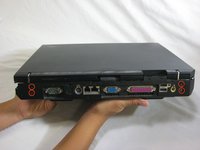
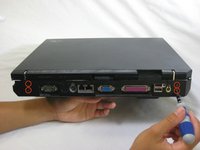
      • Turn the laptop so that the back is facing you.

      • Remove the four 5.6mm long screws.

      Ask FixBot

      Add Comment

    5. IBM ThinkPad A30 Fan Replacement: step 13, image 1 of 3 IBM ThinkPad A30 Fan Replacement: step 13, image 2 of 3 IBM ThinkPad A30 Fan Replacement: step 13, image 3 of 3
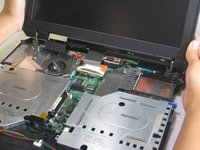
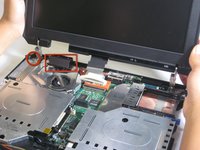
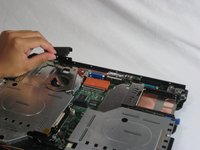
      • Place the laptop so that the LCD is facing you again.

      • Gently lift the LCD monitor up and out.

      • Remove the black plastic tab.

      Ask FixBot

      Add Comment

    1. IBM ThinkPad A30 Fan Replacement, Fan: step 14, image 1 of 1
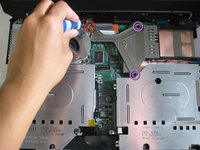
      • Remove the following screws from the fan retention bracket:

      • Single 5.6 mm screw.

      • Three 16.1 mm screws.

      Ask FixBot

      Add Comment

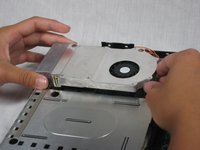
    2. IBM ThinkPad A30 Fan Replacement: step 15, image 1 of 1
      • Lift the heatsink bracket up.

      Ask FixBot

      Add Comment

    3. IBM ThinkPad A30 Fan Replacement: step 16, image 1 of 3 IBM ThinkPad A30 Fan Replacement: step 16, image 2 of 3 IBM ThinkPad A30 Fan Replacement: step 16, image 3 of 3
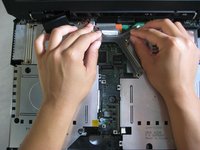
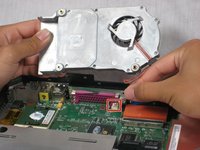
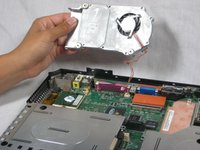
      • Be careful not to pull too hard. There is a cable attached to the fan.

      • Lift the fan/heatsink assembly up.

      • Locate the fan power cable and pull upwards near the connector.

      • Remove the fan/heatsink assembly.

      Ask FixBot

      Add Comment

Conclusion

To reassemble your device, follow these instructions in reverse order.

Cancel: I did not complete this guide.

Jessica

Member since: 10/06/10

162 Reputation

7 Guides authored

Team

Cal Poly, Team 4-44, Amido Fall 2010 Member of Cal Poly, Team 4-44, Amido Fall 2010

CPSU-AMIDO-F10S4G44

4 Members

156 Guides authored

0 Guide Comments

Add Comment

View Statistics:

Past 24 Hours: 2

Past 7 Days: 20

Past 30 Days: 92

All Time: 3,340