
IBM ThinkPad 600E RAM Replacement

Harold Rocha and 4 other contributors
Last updated on Dec 21, 2016
Views: 1.7K
View statistics:
- Past 24 Hours:
- 2
- Past 7 Days:
- 17
- Past 30 Days:
- 95
- All Time:
- 1,687
Comments: 1
1 comment on steps.
Completed: 2 3
2 people have marked this guide "completed." Will you be next?
3 people have marked this guide "completed." Including you — great job!
Favorites: 1 2
1 person has favorited (and subscribed to) this guide. Will you be next?
2 people have favorited (and subscribed to) this guide — including you!
Step Trimmer
This guide has unnecessary steps. Trim them to be more concise!
Introduction
Go to step 1 ↓This guide will show you how to replace the RAM from your laptop. There are several reasons to replace your RAM. The most common reason is to increase your RAM memory. Other reasons could be that it could faulty or damaged.
What you need
Tools


-
-
-
-
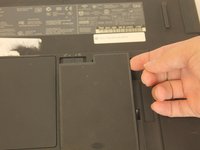
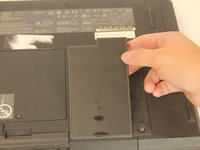
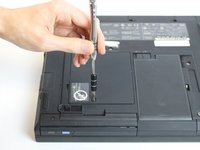
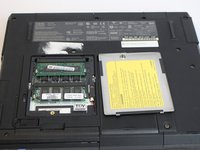
Using a screwdriver, loosen but do not remove the captive screw by turning counterclockwise.
-
One 3mm PH0 screw
-
-
-
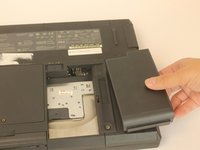
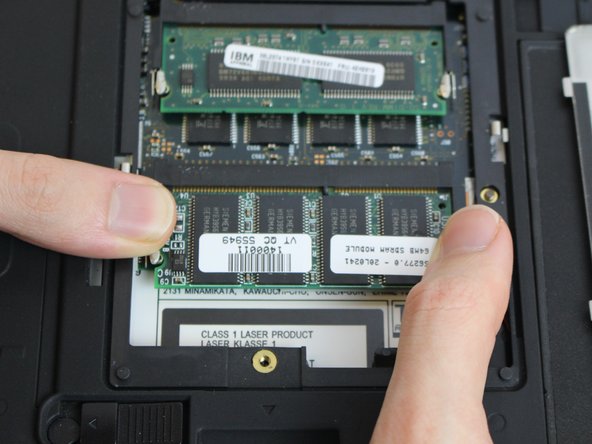
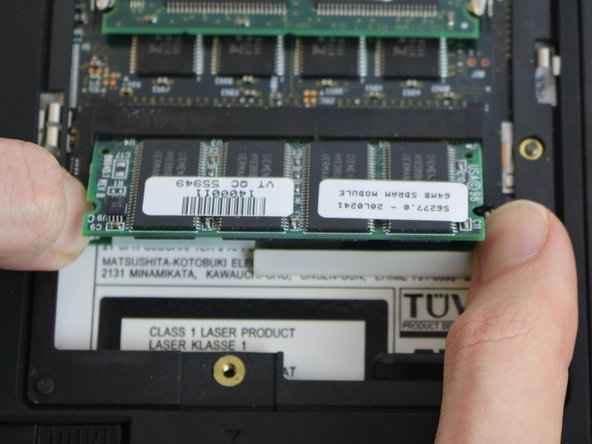
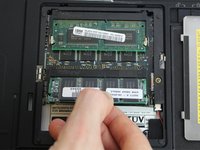
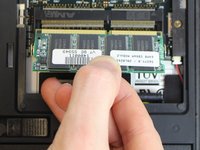
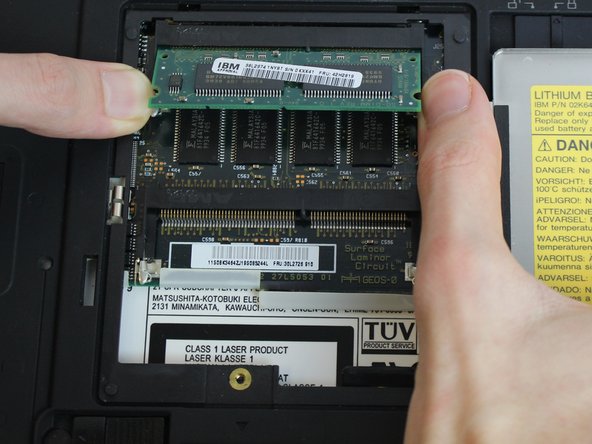
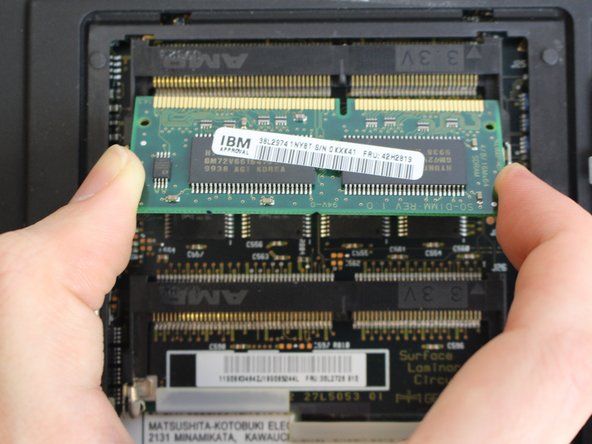
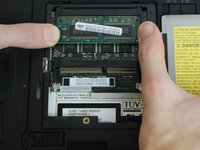
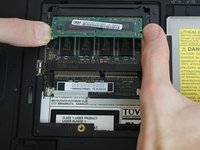
Using your fingers, pry the small retention clips apart until the ram pops up.
-
-


 Ask FixBot










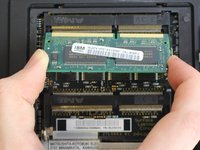
To reassemble your device, follow these instructions in reverse order.
Cancel: I did not complete this guide.
2 other people completed this guide.

Team

USF Tampa, Team 1-4, Nance Fall 2016 Member of USF Tampa, Team 1-4, Nance Fall 2016
USFT-NANCE-F16S1G4
4 Members
60 Guides authored
