
HyperX QuadCast S Pop Filter Replacement

Nathan Arruda and 2 other contributors
Last updated on Dec 19, 2022
Views: 4.9K
View statistics:
- Past 24 Hours:
- 4
- Past 7 Days:
- 58
- Past 30 Days:
- 165
- All Time:
- 4,879
Comments: 4
1 comment on steps, 3 guide comments.
Go to guide commentsCompleted: 1 2
1 person has marked this guide "completed." Will you be next?
2 people have marked this guide "completed." Including you — great job!
Favorites: 0 1
No one has favorited (and subscribed to) this guide. Will you be the first?
1 person has favorited (and subscribed to) this guide — and that's you!
Introduction
Go to step 1 ↓Pop filters help to minimize audio cutting out or loud popping noises. If your HyperX QuadCast S Microphone is experiencing these issues, you may need to replace your pop filter. The pop filter is located inside the microphone rather than on its exterior. The pop filter is secured by a layer of glue attached to a wire, so it is important to remember to apply glue to any replacement pop filter.
-
-
-
Set the microphone on a flat surface.
-
Pull each of the support bands upwards and off of the notches to release the microphone from its base.
 Ask FixBot
-
-
-
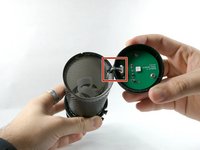
Grab ahold of the tap-to-mute Sensor and pull it upwards in a clockwise motion.
-
-
-
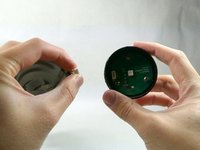
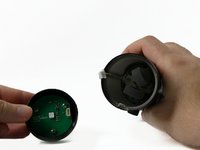
Gently unplug the cable, and remove the tap to the Tap-To-Mute sensor from the microphone.
-
-
-
-
-
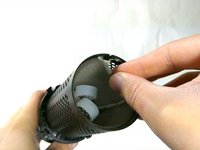
Once the Tap-To-Mute sensor has been removed, you will now have access to the pop filter.
-
-
-
-
The pop filter will be in a fixed position being glued to the wire. Remove glue residue before continuing to remove the pop filter.
-
-




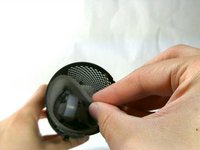
To reassemble your device, follow these instructions in reverse order.
Cancel: I did not complete this guide.
One other person completed this guide.

Team

UMass Dartmouth, Team 4-1, Sinclaire Fall 2022 Member of UMass Dartmouth, Team 4-1, Sinclaire Fall 2022
UMASSD-SINCLAIRE-F22S4G1
5 Members
72 Guides authored
3 Guide Comments
"Grab ahold of the tap-to-mute Sensor and pull it upwards in a clockwise motion."
This part is keyed. It literally cannot be pulled in any rotational motion...
Is there a place where you recomend i can get a replacement peice of foam for the pop filter. I cant find one anywhere online.
did you happen to find anything?
