
HyperX QuadCast S Mute Sensor Replacement

Nathan Arruda and one other contributor
Last updated on Dec 19, 2022
Views: 6.1K
View statistics:
- Past 24 Hours:
- 3
- Past 7 Days:
- 48
- Past 30 Days:
- 193
- All Time:
- 6,062
Comments: 5
1 comment on steps, 4 guide comments.
Go to guide commentsCompleted: 2 3
2 people have marked this guide "completed." Will you be next?
3 people have marked this guide "completed." Including you — great job!
Favorites: 0 1
No one has favorited (and subscribed to) this guide. Will you be the first?
1 person has favorited (and subscribed to) this guide — and that's you!
Introduction
Go to step 1 ↓If your HyperX QuadCast S microphone will not mute, there could be a problem with the Tap-To-Mute Sensor. Removing the Tap-To-Mute Sensor is easy and does not require any tools. Remember as you are disassembling the microphone, to follow the images listed. Damaging the wire which connects to the Tap-To-Mute Sensor can lead to many more problems and needed replacements. As much as the Tap-To-Mute Sensor is easy to remove, it's just as easy to damage the rest of the microphone. Follow our guide and you will be able to successfully access and replace your Tap-To-Mute Sensor.
-
-
-
Set the microphone on a flat surface.
-
Pull each of the support bands upwards and off of the notches to release the microphone from its base.
 Ask FixBot
-
-
-
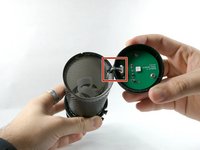
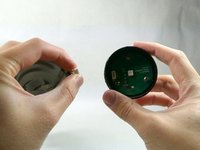
Grab ahold of the tap-to-mute Sensor and pull it upwards in a clockwise motion.
-
-
-
-
Gently unplug the cable, and remove the tap to the Tap-To-Mute sensor from the microphone.
-
-


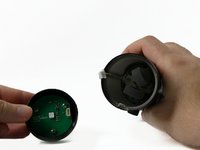
To reassemble your device, follow these instructions in reverse order.
Cancel: I did not complete this guide.
2 other people completed this guide.

Team

UMass Dartmouth, Team 4-1, Sinclaire Fall 2022 Member of UMass Dartmouth, Team 4-1, Sinclaire Fall 2022
UMASSD-SINCLAIRE-F22S4G1
5 Members
72 Guides authored
4 Guide Comments
I believe it should be compatible. The S version should just be different with its illumination and USB charging so the tap-to-mute sensor should be the same. Unfortunately, it's hard to source replacement parts since hyperx does not sell them separately. I could only recommend buying a used hyperx microphone for cheap and scraping the parts for replacement. Hope that helps.
what is the cable order to put them back in. i have a yellow, red, white, and black cable
Donde puedo comprar una remplazo de la Quadcast S TOUCH BOARD.V1 w45/19.hz?
