Introduction
If your Huawei P8 Lite's camera is not functioning properly, displaying a black screen, or is damaged, follow this guide in order to remove and replace the front and back cameras.
The camera is used to capture photographs or record video on your mobile phone, and contains both internal and external pieces.
Before using this guide, make sure to refer to the troubleshooting page for front camera faults Troubleshooting.
In this guide, the back cover will be removed, exposing the internal components of the device.
Handling and repairing internal components can potentially be dangerous and cause Electrostatic Discharge (ESD). In order to prevent this, it is important to use an anti-static wrist band and mat. To ensure proper use, refer to iFixit's guide on how to set up the wrist band and mat before beginning the camera replacement. How to set up your Anti-static mat and wristband
Make sure the device is powered off and not connected to any external power sources before beginning this guide.
What you need
-
-
-
Insert the SIM card eject tool into the small circular slots.
-
Apply slight pressure to pop the SIM card out, and remove it.
 Ask FixBot
-
-
-
With your finger nails, spudger or other gentle tools, remove the back cover by wedging into the space and popping the edge free.
-
-
-
Remove three screws using a Phillips #000 screwdriver.
-
Remove four screws using a T5 Torx screwdriver.
-
-
-
-
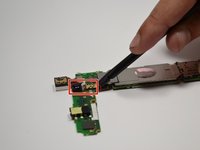
Using your fingers, carefully unlatch and remove the connectors attached to the motherboard.
-
-


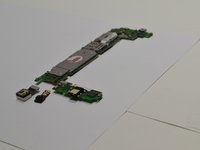
To reassemble your device, follow these instructions in reverse order.
Cancel: I did not complete this guide.
3 other people completed this guide.

Team

Metro State, Team 1-2, Carpenter Spring 2016 Member of Metro State, Team 1-2, Carpenter Spring 2016
MSU-CARPENTER-S16S1G2
3 Members
60 Guides authored
