
Huawei P10 Plus Display Replacement

Tobias Isakeit and
Last updated on Sep 1, 2021
Views: 16K
View statistics:
- Past 24 Hours:
- 6
- Past 7 Days:
- 24
- Past 30 Days:
- 134
- All Time:
- 15,984
Comments: 2
2 comments on steps.
Completed: 9 10
9 people have marked this guide "completed." Will you be next?
10 people have marked this guide "completed." Including you — great job!
Favorites: 0 1
No one has favorited (and subscribed to) this guide. Will you be the first?
1 person has favorited (and subscribed to) this guide — and that's you!
What you need


Introduction
Go to step 1 ↓In this guide we show you how to remove and replace a broken or defective display on your Huawei P10 Plus smartphone.
If the screen is broken you might want to protect your eyes from glass shreds and get a better grip to open the phone by applying some tape onto the screen.
If your replacement part does not come with adhesive mounted on it, you will also need to purchase new adhesive.
-
-
-
Use an iOpener to loosen the adhesive beneath the display, focusing on the upper and lower part of the display.
-
Use an opening pick, or iFlex, to separate the adhesive on all sides of the display.
 Ask FixBot
-
-
-
Place a suction cup, or iSclack, on the upper portion of the phone and lift the display off the midframe.
-
Don't remove the display, the cable is trapped under a bracket screwed to the phone. You can flip the display to lay it down without straining the cable, or simply hold it in the next steps.
-
-
-
-
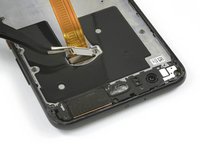
Remove the 3.3 mm-long Phillips screw securing the display flex connector bracket.
-
-
Tool used on this step:Tesa 61395 Tape$8.95
-
Open the metal bracket that covers the display flex cable.
-
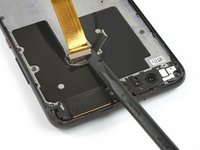
Use a spudger to disconnect the display flex cable.
-
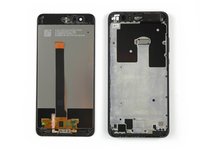
Remove the display.
-
-


To reassemble your device, follow these instructions in reverse order.
Cancel: I did not complete this guide.
9 other people completed this guide.

Team

Tobias Isakeit - Repairability Engineer Member of Tobias Isakeit - Repairability Engineer
Business
1 Member
2,268 Guides authored
