Free Shipping on Domestic Orders $75+

Huawei P10 Display Replacement

What you need

  1. Huawei P10 Display Replacement, Back Cover: step 1, image 1 of 3 Huawei P10 Display Replacement, Back Cover: step 1, image 2 of 3 Huawei P10 Display Replacement, Back Cover: step 1, image 3 of 3
    • Switch off your phone.

    • Remove the two Pentalobe P2 screws at the bottom.

    • Remove the SIM card tray.

    Ask FixBot

    Add Comment

  2. Huawei P10 Display Replacement: step 2, image 1 of 3 Huawei P10 Display Replacement: step 2, image 2 of 3 Huawei P10 Display Replacement: step 2, image 3 of 3
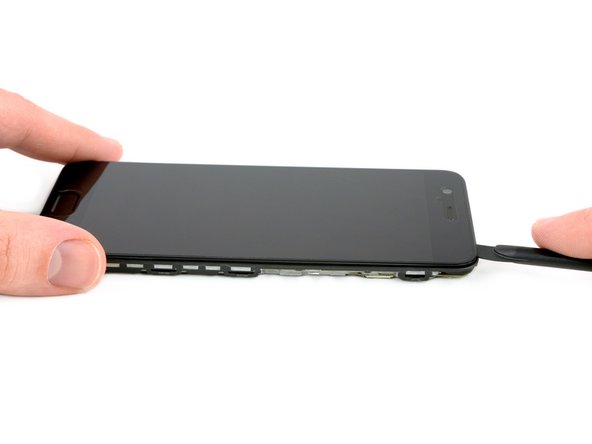
    • Insert a plastic opening tool between the display and the case starting at the bottom area of your phone.

    • Carefully pry the display with its parts out of the case.

    • Getting the prying tool in will require some effort, be careful not to slide the tool too much or you might slightly damage the housing.

    • After you pried out the bottom end, use the opening tool to open the clamps on both sides.

    Ask FixBot

    Add Comment

  3. Huawei P10 Display Replacement: step 3, image 1 of 2 Huawei P10 Display Replacement: step 3, image 2 of 2
    • Don't open the phone all the way, yet. The cable for the standby and volume buttons is still connected to the back cover.

    • Swing open the phone backwards.

    • Use a spudger to disconnect the power- and volume button flex cable.

    Ask FixBot

    Add Comment

  4. Huawei P10 Display Replacement, Main and display flex disconnect: step 4, image 1 of 3 Huawei P10 Display Replacement, Main and display flex disconnect: step 4, image 2 of 3 Huawei P10 Display Replacement, Main and display flex disconnect: step 4, image 3 of 3
    Tool used on this step:
    Tweezers
    $4.99
    Buy
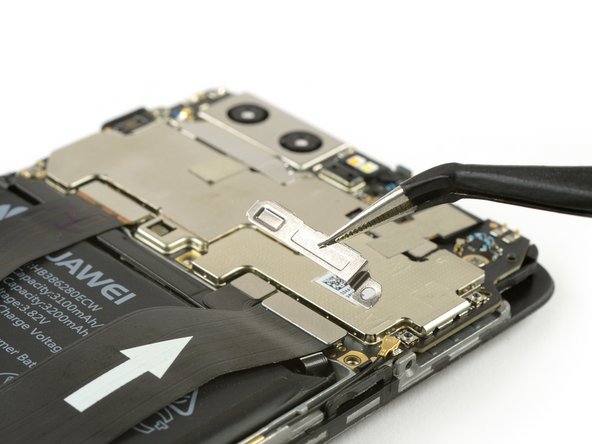
    • Remove the two Phillips #00 screws.

    • Use tweezers to remove both metal plates.

    Ask FixBot

    Add Comment

  5. Huawei P10 Display Replacement: step 5, image 1 of 3 Huawei P10 Display Replacement: step 5, image 2 of 3 Huawei P10 Display Replacement: step 5, image 3 of 3
    • Use a spudger to disconnect the interconnect, the battery and the display flex cable.

    Ask FixBot

    Add Comment

  6. Huawei P10 Display Replacement, Charging Board: step 6, image 1 of 2 Huawei P10 Display Replacement, Charging Board: step 6, image 2 of 2
    Tool used on this step:
    Tweezers
    $4.99
    Buy
    • Remove the four Phillips #00 screws.

    • Use Tweezers to remove the metal plate.

    Ask FixBot

    Add Comment

  7. Huawei P10 Display Replacement: step 7, image 1 of 2 Huawei P10 Display Replacement: step 7, image 2 of 2
    • Use a spudger to disconnect the main flex cable.

    • Use tweezers to disconnect the antenna cable and pull it out of the clamp holding it down to the charging board.

    Ask FixBot

    Add Comment

  8. Huawei P10 Display Replacement: step 8, image 1 of 2 Huawei P10 Display Replacement: step 8, image 2 of 2
    • Use a spudger to disconnect the headphone jack and the loudspeaker flex cables.

    Ask FixBot

    Add Comment

  9. Huawei P10 Display Replacement: step 9, image 1 of 2 Huawei P10 Display Replacement: step 9, image 2 of 2
    • Do not damage any components sitting on the charging board while removing it.

    • Use a spudger to pry out the charging board.

    • Remove the charging board.

    Ask FixBot

    Add Comment

  10. Huawei P10 Display Replacement, Loudspeaker: step 10, image 1 of 2 Huawei P10 Display Replacement, Loudspeaker: step 10, image 2 of 2
    • Only insert the spudger as deep as 1/16 of an inch to avoid damage.

    • Use a spudger to carefully pry out the loudspeaker. There is some adhesive underneath so it might be a little bit sticky. You can use an iOpener to loosen it.

    • Remove the loudspeaker.

    • When reassembling your phone, apply new adhesive where it's necessary.

    Ask FixBot

    Add Comment

  11. Huawei P10 Display Replacement, Display: step 11, image 1 of 2 Huawei P10 Display Replacement, Display: step 11, image 2 of 2
    Tool used on this step:
    Tweezers
    $4.99
    Buy
    • Remove the antenna cable if you haven't already.

    • Use tweezers to remove the interconnect cable.

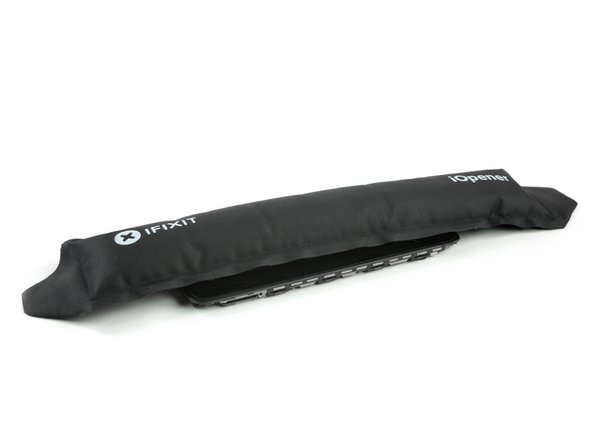
    • Use an iOpener to loosen the adhesive beneath the display. Especially take care of the upper and lower part of the display.

    Ask FixBot

    Add Comment

  12. Huawei P10 Display Replacement: step 12, image 1 of 3 Huawei P10 Display Replacement: step 12, image 2 of 3 Huawei P10 Display Replacement: step 12, image 3 of 3
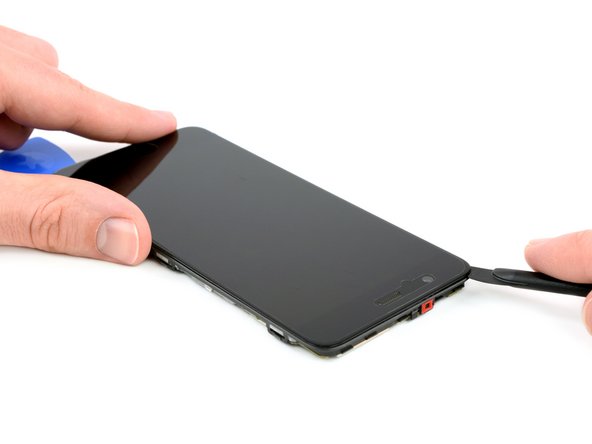
    • Insert the tip of an opening pick between the display and the midframe on the bottom of the phone, near the home button.

    • Slide the opening pick along the bottom edge, to cut the adhesive.

    • Slide the opening pick to the bottom right corner and leave it there.

    • Insert another opening pick under the screen on the bottom left corner.

    Ask FixBot

    Add Comment

  13. Huawei P10 Display Replacement: step 13, image 1 of 3 Huawei P10 Display Replacement: step 13, image 2 of 3 Huawei P10 Display Replacement: step 13, image 3 of 3
    • Slide the opening pick under the screen around all edges of the phone.

    • If the adhesive gets tough to pry it is likely too cold. Use your iOpener or heat gun to reheat it.

    Ask FixBot

    Add Comment

  14. Huawei P10 Display Replacement: step 14, image 1 of 2 Huawei P10 Display Replacement: step 14, image 2 of 2
    • Carefully pull the display assembly away from the frame.

    • Remove the display assembly.

    Ask FixBot

    Add Comment

Conclusion

To reassemble your device, follow these instructions in reverse order.

Cancel: I did not complete this guide.

24 other people completed this guide.

Dominik Schnabelrauch

Member since: 11/23/16

260,197 Reputation

682 Guides authored

Team

iFixit Member of iFixit

Staff

122 Members

26,593 Guides authored

4 Guide Comments

Any advice which adhesive to use? I’ve seen a russian replacement video, it looked like the guy was using some kind of silicone.

Tom My - Reply Share

I used B-7000 glue. It enables you to release the screen when a second replacement is needed.

teunkeusters - Reply Share

Assuming I purchase a screen off of ebay, and replace it using this method, will the touch id still work?

Simon Fisher - Reply Share

Add Comment

View Statistics:

Past 24 Hours: 4

Past 7 Days: 17

Past 30 Days: 90

All Time: 28,930