Free Shipping on Domestic Orders $75+

Huawei M750 Camera Replacement

What you need

  1. Huawei M750 Camera Replacement, Battery: step 1, image 1 of 1
    • Depress the top of the battery cover, and pull downwards towards the base of the phone.

    Ask FixBot

    Add Comment

  2. Huawei M750 Camera Replacement: step 2, image 1 of 1
    • Remove the battery by levering the battery out, using the cut just below the camera.

    Ask FixBot

    Add Comment

  3. Huawei M750 Camera Replacement, Back Panel: step 3, image 1 of 1
    • Use the opening tool to start prying the camera and speaker cover, starting from the battery side.

    • Work the opening tool around the border of the camera and speaker cover, until it comes loose.

    Ask FixBot

    Add Comment

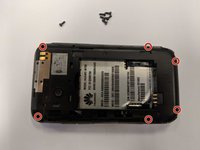
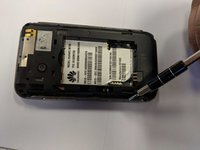
  4. Huawei M750 Camera Replacement: step 4, image 1 of 2 Huawei M750 Camera Replacement: step 4, image 2 of 2
    • Using the T5 Torx screwdriver, remove the six 6mm screws.

    Ask FixBot

    Add Comment

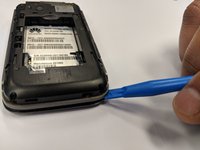
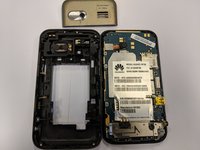
  5. Huawei M750 Camera Replacement: step 5, image 1 of 2 Huawei M750 Camera Replacement: step 5, image 2 of 2
    • Using the opening tool, pry the back panel from the front panel.

    • Work your way around the phone until the panels separate evenly.

    • This step may require a substantial amount of leverage.

    Ask FixBot

    Add Comment

  6. Huawei M750 Camera Replacement, Camera: step 6, image 1 of 1
    Tool used on this step:
    Tweezers
    $4.99
    Buy
    • The camera's connection to the motherboard is shown here.

    • Using the tweezers, disconnect the port, shown here in the picture.

    Ask FixBot

    Add Comment

  7. Huawei M750 Camera Replacement: step 7, image 1 of 1
    • Using the tweezers, carefully remove the lens and lens casing.

    • It should be held in by a simple tight fit. The front panel is what keeps the lens secured.

    • Do not touch the camera lens, or the digital camera component, if possible. This will prevent scratching, or damage.

    Ask FixBot

    Add Comment

Conclusion

To reassemble your device, follow these instructions in reverse order.

Cancel: I did not complete this guide.

0 Guide Comments

Add Comment

View Statistics:

Past 24 Hours: 1

Past 7 Days: 10

Past 30 Days: 32

All Time: 524