Free Shipping on Domestic Orders $75+

How to install Linux HP Chromebook 11 G8 EE

What you need

  1. How to install Linux HP Chromebook 11 G8 EE, Warnings and Prerequisites: step 1, image 1 of 1
    • Remember following this guide WILL clear ALL local data. Consider making a backup of all files before continuing. You will not be able to boot ChromeOS after this!

    • You will need a 4GB or more USB flash drive, with some Linux distro. I like to use CatchyOS, because it is fast and works out of the box

    • You will void all warranty following this guide!

  2. How to install Linux HP Chromebook 11 G8 EE, Disabling WP: step 2, image 1 of 3 How to install Linux HP Chromebook 11 G8 EE, Disabling WP: step 2, image 2 of 3 How to install Linux HP Chromebook 11 G8 EE, Disabling WP: step 2, image 3 of 3
    • Before doing anything else, we must turn off right protect by removing the battery.

    • Flip your Chromebook over, and remove the 6 screws on the bottom

    • Flip it over again, and carefully start prying at the trackpad to remove.

    • Do NOT pull the keyboard assembly straight out of the Chromebook, there are 2 ribbon cables attached

    • Remove the battery connector, then plug in external power and power off of AC power

  3. How to install Linux HP Chromebook 11 G8 EE, Entering Developer Mode: step 3, image 1 of 3 How to install Linux HP Chromebook 11 G8 EE, Entering Developer Mode: step 3, image 2 of 3 How to install Linux HP Chromebook 11 G8 EE, Entering Developer Mode: step 3, image 3 of 3
    • Click Escape + Reset + Power to enter Recovery Mode

    • When in recovery mode, press Control (ctrl) + d to enter developer mode

    • When in OS Verification screen, press enter, then press Control + d again

    • PRESSING ENTER WILL CLEAR ALL DATA!!!!

  4. How to install Linux HP Chromebook 11 G8 EE, Enter Dev Shell: step 4, image 1 of 2 How to install Linux HP Chromebook 11 G8 EE, Enter Dev Shell: step 4, image 2 of 2
    • It will take around 5-6 minutes to enter developer mode

    • After you have entered developer mode and returned to the main login screen in ChromeOS, connect to Wi-Fi.

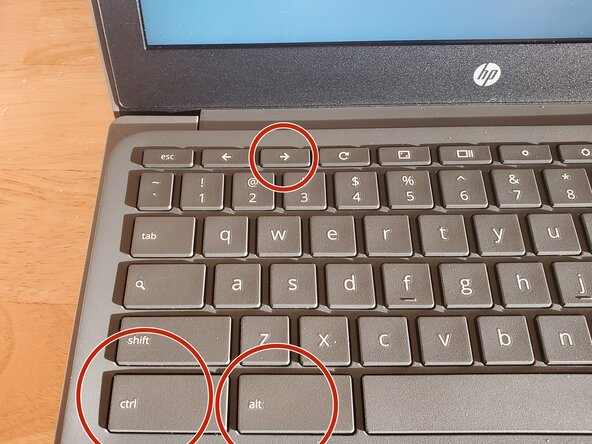
    • When connected, press Control + alt + forward arrow

  5. How to install Linux HP Chromebook 11 G8 EE, Start MrChromebox Util: step 5, image 1 of 3 How to install Linux HP Chromebook 11 G8 EE, Start MrChromebox Util: step 5, image 2 of 3 How to install Linux HP Chromebook 11 G8 EE, Start MrChromebox Util: step 5, image 3 of 3
    • Once you are in, enter username "chronos".

    • Enter the command "cd; curl -LO mrchromebox.tech/firmware-util.sh && sudo bash firmware-util.sh" and press enter.

    • Press Y to reboot, then, after reboot, sign back into the dev shell, and run the command again

  6. How to install Linux HP Chromebook 11 G8 EE, Installing MrChromebox: step 6, image 1 of 3 How to install Linux HP Chromebook 11 G8 EE, Installing MrChromebox: step 6, image 2 of 3 How to install Linux HP Chromebook 11 G8 EE, Installing MrChromebox: step 6, image 3 of 3
    • On the main MrChromebox menu, press number 2 and reboot

    • Follow the on screen instructions. This make take over 2 minutes

    • This may brick your system! Proceed with caution.

  7. How to install Linux HP Chromebook 11 G8 EE, Booting GRUB: step 7, image 1 of 3 How to install Linux HP Chromebook 11 G8 EE, Booting GRUB: step 7, image 2 of 3 How to install Linux HP Chromebook 11 G8 EE, Booting GRUB: step 7, image 3 of 3
    • After the install has finished, turn off the Chromebook, plug in the battery, and your USB stick with Linux, and boot back in.

    • At the bunny screen press escape to enter the UEFI BIOS

    • Click the second option, and select your drive

  8. How to install Linux HP Chromebook 11 G8 EE, Finished!: step 8, image 1 of 1
    • That's it! Boot into your live ISO, install Linux, and reassemble your Chromebook!

Finish Line

One other person completed this guide.

RaskAttack

Member since: 03/14/26

3 Reputation

3 Guides authored

0 Guide Comments

Add Comment

View Statistics:

Past 24 Hours: 0

Past 7 Days: 4

Past 30 Days: 25

All Time: 25