Free Shipping on Domestic Orders $75+

How to format an SD Card

Views: 6.8K

View statistics:

Past 24 Hours:
10
Past 7 Days:
93
Past 30 Days:
318
All Time:
6,840
Comments: 2

2 guide comments.

Go to guide comments
Completed: 4

4 people have marked this guide "completed." Will you be next?

Favorites: 0

No one has favorited (and subscribed to) this guide. Will you be the first?

Time Required: 15 seconds - 1 minute
Difficulty: Easy
Community-Contributed Guide

An awesome member of our community made this guide. It was not created by iFixit staff.

How to format an SD Card

Introduction

Go to step 1 ↓

If you're experiencing issues with your SD card, such as corruption, formatting errors, or general performance problems, formatting your SD card may be the solution you need. The SD Memory Card Formatter software is a reliable and effective tool developed by the SD Association to format SD, SDHC, and SDXC memory cards.

    1. How to format an SD Card, Mount the SD Card: step 1, image 1 of 1
      • Insert the SD Card into a reader connected to your computer.

      Ask FixBot

      Add Comment

    2. How to format an SD Card, Set up the Programme: step 2, image 1 of 1
      • Select the card you want to format.

      • The programme should normally just pick up the card you want to format. If it doesn't pick up any card, just press the refresh button.

      • You can choose to overwrite your files or to just do a quick format.

      • While it is more secure, p. ex. if you want to give your card away, to overwrite all files, it also takes a considerably longer amount of time.

      • Activate CHS format size adjustment.

      • By adjusting the CHS size, you can potentially resolve issues with unrecognized SD cards and improve the compatibility of the card with various devices. This can happen when the card has been formatted using a tool that sets the CHS values incorrectly, or when the device's firmware is not compatible with the card's actual CHS geometry.

      • This option might not be supported on some SD Cards and be greyed out, as newer SD card formatting standards such as the SDXC and SDUC protocols use different methods to address storage.

      • Name your SD Card.

      Ask FixBot

      Add Comment

    3. How to format an SD Card, Format the Card: step 3, image 1 of 2 How to format an SD Card, Format the Card: step 3, image 2 of 2
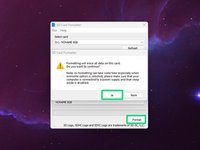
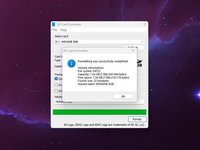
      • Press on the Format Button and confirm.

      • Depending on if you chose to do a quick format or to overwrite all files, this might take a while but usually doing a quick format is quite fast, taking just under 10 seconds.

      • If you press the Cancel button while doing an overwrite format it will just stop overwriting the files and still perform a quick format.

      Ask FixBot

      Add Comment

Conclusion

Happy computing!

Cancel: I did not complete this guide.

4 other people completed this guide.

Sebastian

Member since: 08/19/18

33,721 Reputation

72 Guides authored

2 Guide Comments

Muchas gracias

Leonardo Romero - Reply Share

Me sirvió demasiado son los mejores amigos

Leonardo Romero - Reply Share

Add Comment

View Statistics:

Past 24 Hours: 10

Past 7 Days: 93

Past 30 Days: 318

All Time: 6,840