Introduction
Acer Swift 3 2022.
Model Number: N20C12
Here is a guide on how to unplug the battery. It is important to have the battery completely unplugged to prevent any electrical damage to the laptop before disassembly. The battery is a piece of hardware that powers the rest of the computer, so it is important to have it unplugged for any disassembly. This will keep your laptop's longevity while fixing those pesky problems.
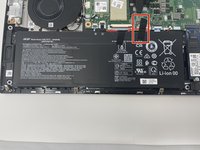
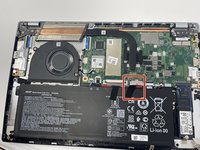
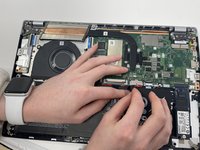
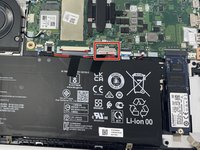
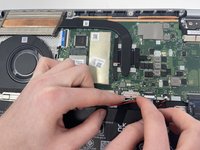
These five steps will be listed in every guide to ensure the best quality of life for your laptop. It is important to be careful during the 5th step, for it is easy to damage the white plastic plug-in or the attachment on the motherboard.
What you need
-
-
-
Remove the eleven 5 mm screws from the back of the device using a TR6 Torx screwdriver.
-
-
-
-
Use the iFixit opening tool to pry open the back of the device.
-
Remove the bottom cover from the laptop.
-
-
-
-
Unplug the group of wires by pulling the white plastic piece towards yourself.
-

 Ask FixBot




To reassemble your device, follow these instructions in reverse order.
Cancel: I did not complete this guide.
One other person completed this guide.

Team

Utah Tech University, Team 1-2, McMurrin Fall 2022 Member of Utah Tech University, Team 1-2, McMurrin Fall 2022
UTAHTECH-MCMURRIN-F22S1G2
2 Members
72 Guides authored
