
How to Reset / Restore Windows Tablet

Last updated on May 23, 2019
Views: 204K
View statistics:
- Past 24 Hours:
- 18
- Past 7 Days:
- 139
- Past 30 Days:
- 581
- All Time:
- 204,082
Comments: 66
37 comments on steps, 29 guide comments.
Go to guide commentsCompleted: 43 44
43 people have marked this guide "completed." Will you be next?
44 people have marked this guide "completed." Including you — great job!
Favorites: 4 5
4 people have favorited (and subscribed to) this guide. Will you be next?
5 people have favorited (and subscribed to) this guide — including you!
Community-Contributed Guide
An awesome member of our community made this guide. It was not created by iFixit staff.
Introduction
Go to step 1 ↓If you have forgotten Password, PIN, if you want to erase or refresh your tablet, you can do reset your tablet from the Troubleshoot menu.
Warning! A reset returns Surface to its factory settings!
Video Overview
-
-
-
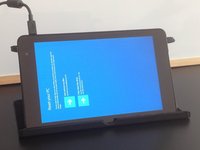
Connect the charger.
-
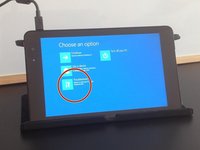
Select "Ease of Access".
-
Open "On-Screen Keyboard".
 Ask FixBot
-
-
-
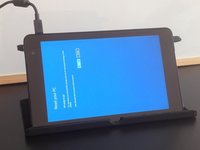
Tab the Shift key.
-
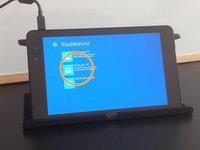
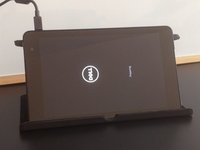
Reset the tablet.
-
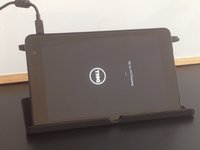
After the reset the tablet will start in Troubleshooting mode.
-
-
-
-
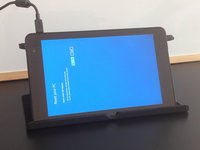
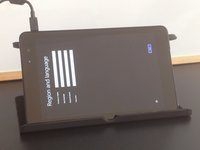
This will reset and restore your tablet to its factory settings.
-
That's all.
-
.
-
.
-
.
-
.
-
Did you do it successfully?
-
-






To reassemble your device, follow these instructions in reverse order.
Cancel: I did not complete this guide.
43 other people completed this guide.

Team

29 Guide Comments
thankz for help
Hi, did you know how to fix Windows tablet stuck in boot? It said that “no bootable device found “. Tablet brand and model : Vulcan Journey.
It started after I erase/format the tablet because I forgot the password.
Thanks
Hello. I have a MPMan with Win 10 installed and the touchscreen does not work anymore.
I'm going to install win 8.1 on it .... win 8.1 was out of production. thank you very much
while i am reset final step erase everything touch not in work how to fix?
