Free Shipping on Domestic Orders $75+

How to Fix Logitech G403 Double Click Issue

Views: 38K

View statistics:

Past 24 Hours:
8
Past 7 Days:
72
Past 30 Days:
269
All Time:
37,504
Comments: 17

7 comments on steps, 10 guide comments.

Go to guide comments
Completed: 10

10 people have marked this guide "completed." Will you be next?

Favorites: 0

No one has favorited (and subscribed to) this guide. Will you be the first?

Time Required: 20 minutes
Difficulty: Moderate
How to Fix Logitech G403 Double Click Issue

Introduction

Go to step 1 ↓

Use this guide to fix the mouse if there is a double click problem on your Logitech G403.

Double clicking is a very common problem for G403. If your warranty is finished, you can fix the mouse by yourself, rather than buy a new one.

You will need a precision screwdriver set to fix the mouse. However, in case your screwdriver doesn’t work, you can look at these pages for help:

Don’t forget to unplug your mouse before you start.

What you need

Tools

    1. How to Fix Logitech G403 Double Click Issue, How to Fix Logitech G403 Double Click Issue: step 1, image 1 of 1
      • Use a prying tool or your hand to take out both sides of the mouse feet.

      Ask FixBot

      Add Comment

    2. How to Fix Logitech G403 Double Click Issue: step 2, image 1 of 1
      • Use a precision screwdriver to remove four screws from the mouse.

      Ask FixBot

      Add Comment

    3. How to Fix Logitech G403 Double Click Issue: step 3, image 1 of 2 How to Fix Logitech G403 Double Click Issue: step 3, image 2 of 2
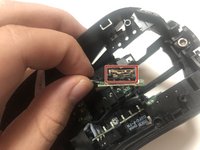
      • Slowly open the mouse, and take care not to tear the ribbon cable.

      • Detach the cable connector.

      Ask FixBot

      Add Comment

    4. How to Fix Logitech G403 Double Click Issue: step 4, image 1 of 2 How to Fix Logitech G403 Double Click Issue: step 4, image 2 of 2
      • Remove seven screws from the upper cover.

      Ask FixBot

      Add Comment

    5. How to Fix Logitech G403 Double Click Issue: step 5, image 1 of 2 How to Fix Logitech G403 Double Click Issue: step 5, image 2 of 2
      • Remove four screws from the mouse.

      • Remove the mouse click cover.

      Ask FixBot

      Add Comment

    6. How to Fix Logitech G403 Double Click Issue: step 6, image 1 of 2 How to Fix Logitech G403 Double Click Issue: step 6, image 2 of 2
      • Remove the five screws attached to the mouse click switches.

      Ask FixBot

      Add Comment

    7. How to Fix Logitech G403 Double Click Issue: step 7, image 1 of 2 How to Fix Logitech G403 Double Click Issue: step 7, image 2 of 2
      • Open the mouse switch using a prying tool or your hands.

      • Be careful not to lose the white plastic part from the mouse switch.

      Ask FixBot

      Add Comment

    8. How to Fix Logitech G403 Double Click Issue: step 8, image 1 of 2 How to Fix Logitech G403 Double Click Issue: step 8, image 2 of 2
      • Find the place where more tension is needed.

      • Use a prying tool or your hand to give more tension to the copper piece, making sure the copper is curved.

      Ask FixBot

      Add Comment

Conclusion

To reassemble your device, follow these instructions in reverse order.

Cancel: I did not complete this guide.

10 other people completed this guide.

Jisuk Kang

Member since: 07/05/20

415 Reputation

1 Guide authored

10 Guide Comments

Worked, thanks

Катерина Шумакова - Reply Share

step 8 made no sense and had to google it

rel - Reply Share

did you find a video about that? if you could send it pls or if it was some place where talk more about it

Lian López - Reply Share

Worked!!! I had this problem for years, even stoped playing valorant bacause of that. Thanks

VampireKing - Reply Share

I could not open these screws :( What are the screwdriver size to open these?

Siim - Reply Share

Add Comment

View Statistics:

Past 24 Hours: 8

Past 7 Days: 72

Past 30 Days: 269

All Time: 37,504