Free Shipping on Domestic Orders $75+

How To Start Remote Viewfinder on Samsung WB150F

What you need

  1. How To Start Remote Viewfinder on Samsung WB150F, Power on the device: step 1, image 1 of 2 How To Start Remote Viewfinder on Samsung WB150F, Power on the device: step 1, image 2 of 2
    • Turn on the device by pressing the button thats labeled POWER on the top.

    Ask FixBot

    Add Comment

  2. How To Start Remote Viewfinder on Samsung WB150F, Finding Remote Viewfinder: step 2, image 1 of 2 How To Start Remote Viewfinder on Samsung WB150F, Finding Remote Viewfinder: step 2, image 2 of 2
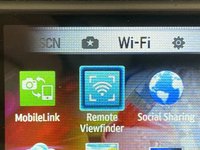
    • Look at the wheel at the top

    • Scroll until the dot is at Wi-Fi

    Ask FixBot

    Add Comment

  3. How To Start Remote Viewfinder on Samsung WB150F: step 3, image 1 of 3 How To Start Remote Viewfinder on Samsung WB150F: step 3, image 2 of 3 How To Start Remote Viewfinder on Samsung WB150F: step 3, image 3 of 3
    • Navigate using the Navigation wheel

    • Navigate until the blue glowing square is on Remote Viewfinder

    • Press OK

    Ask FixBot

    Add Comment

  4. How To Start Remote Viewfinder on Samsung WB150F, Setting Up: step 4, image 1 of 1
    • If everything done correctly, You will be on this screen, Time to install the viewfinder app.

    Ask FixBot

    Add Comment

  5. How To Start Remote Viewfinder on Samsung WB150F, Finding the app: step 5, image 1 of 1
    • Search up Remote ViewFinder on App Store/Play Store

    Ask FixBot

    Add Comment

  6. How To Start Remote Viewfinder on Samsung WB150F, Downloading the app: step 6, image 1 of 1
    • When you found the app, Press the download button

    • If it is a cloud, It means it was installed before, You will not need a password to download it.

    • The App Is pretty outdated, I suggest using iOS 4-10, It wont work on newer iOS

    • An iPhone 5c or an iPad 4 works well.

    Ask FixBot

    Add Comment

  7. How To Start Remote Viewfinder on Samsung WB150F, Connecting: step 7, image 1 of 2 How To Start Remote Viewfinder on Samsung WB150F, Connecting: step 7, image 2 of 2
    • Open up settings and go to the Wifi Tab

    • Connect your device to the cameras wifi.

    • The Wifi name should be the same as on the camera.

    Ask FixBot

    Add Comment

  8. How To Start Remote Viewfinder on Samsung WB150F, Starting the application: step 8, image 1 of 1
    • Launch Remote Viewfinder on your device

    Ask FixBot

    Add Comment

  9. How To Start Remote Viewfinder on Samsung WB150F, Connecting to the camera: step 9, image 1 of 2 How To Start Remote Viewfinder on Samsung WB150F, Connecting to the camera: step 9, image 2 of 2
    • Wait until its connected.

    • If you see the screen of your camera Your camera is connected (see step 10 for controls)

    Ask FixBot

    Add Comment

  10. How To Start Remote Viewfinder on Samsung WB150F, Controls: step 10, image 1 of 1
    • Flash

    • Timer

    • Photo Size

    • Zoom

    • Shutter Button

    • Camera View

    • Tap the camera view to hide/show the menu.

    Ask FixBot

    Add Comment

Conclusion

Close the app, to disconnect your camera from the app

Cancel: I did not complete this guide.

Artem Ivat

Member since: 02/05/20

3,900 Reputation

13 Guides authored

0 Guide Comments

Add Comment

View Statistics:

Past 24 Hours: 5

Past 7 Days: 11

Past 30 Days: 58

All Time: 2,123