
Hoover Rogue 970 Battery Replacement

Chris Kelemen and 2 other contributors
Last updated on Dec 20, 2023
Views: 732
View statistics:
- Past 24 Hours:
- 2
- Past 7 Days:
- 14
- Past 30 Days:
- 82
- All Time:
- 732
Comments: 0
No one has left comments on this guide. Will you be first?
Go to guide commentsCompleted: 0 1
No one has marked this guide "completed." Will you be the first?
1 person has marked this guide "completed." It's you — great job!
Favorites: 0 1
No one has favorited (and subscribed to) this guide. Will you be the first?
1 person has favorited (and subscribed to) this guide — and that's you!
Introduction
Go to step 1 ↓This guide is for the Hoover Rogue 970 (Model BH70970) Smart Vacuum.
If your Hoover Rogue 970 is failing to charge or turn on, this may be an issue with your battery.
The battery is what holds the charge for your device. If this battery is affected, then there will be issues with your device receiving power that allows it to function.
There are potential hazards when replacing the battery on this device such as the battery being swollen. If the battery is swollen look here for proper removal techniques.
What you need
Tools

-
-
-
Flip the vacuum over so that the battery cover is facing up.
-
Locate the battery cover.
 Ask FixBot
-
-
-
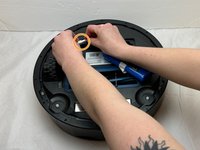
Remove the two 14.7 mm screws using a Phillips #0 screwdriver.
-
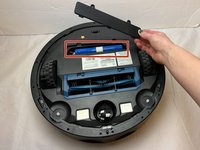
Lift the battery cover up to remove it from the vacuum.
-
-
-
-
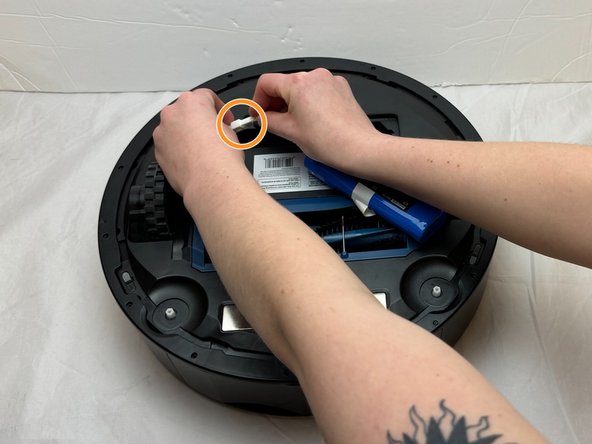
Lift the battery out of the vacuum to access the connected white tab.
-
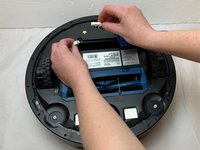
Disconnect the JST connector that attaches the battery to the vacuum.
-
-



To reassemble your device, follow these instructions in reverse order.

Team

Eastern Washington University, Team 1-1, Carnegie Fall 2023 Member of Eastern Washington University, Team 1-1, Carnegie Fall 2023
EWU-CARNEGIE-F23S1G1
4 Members
96 Guides authored
