Introduction
Sometimes, gaming controller buttons malfunction, and fail to read or send inputs to the game. After many hours of use, the Haute42 arcade-style controller may lose functionality.
Before going through with this repair, check the button for any debris under the keycap, as that could be contributing to the issue. You can carefully clean any dust or grime with compressed air, contact cleaner, and/or isopropyl alcohol but it's not a guaranteed fix.
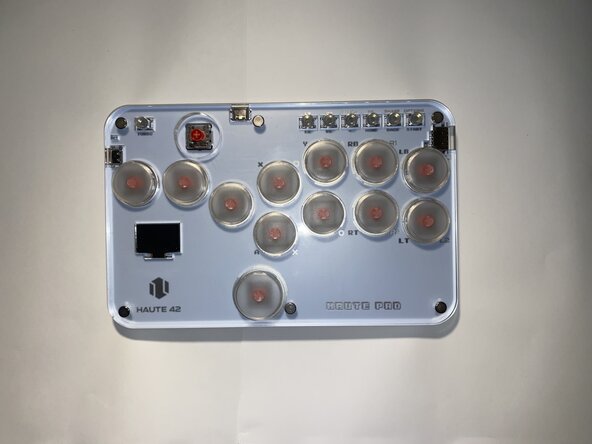
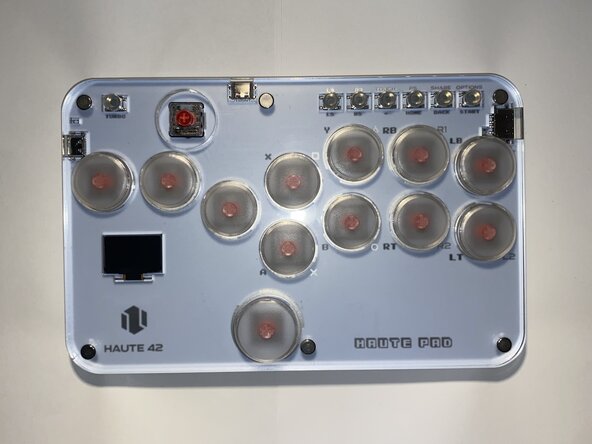
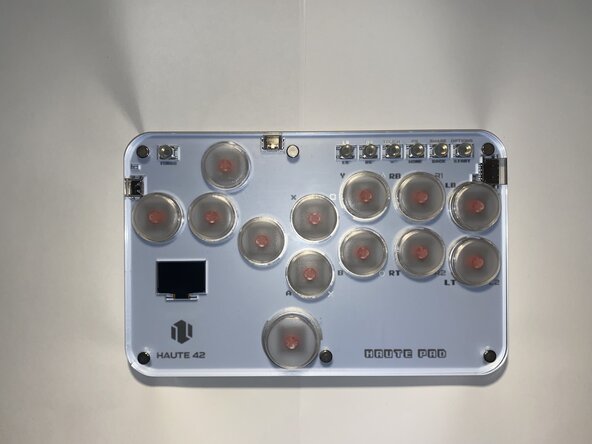
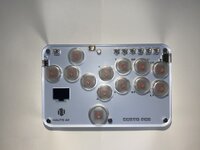
This guide covers the replacement of a keycap and button switch on a Haute42 S13 controller. It is important to note that this guide can also apply to any Haute42 controller, but instructions specific to this model will be detailed.
This guide can also be used if you just want to change the keycap buttons to a different color and customize the look of your controller by following the first couple of steps.
Before you begin, make sure the controller is turned off and disconnected from the USB cord.
What you need
-
-
-
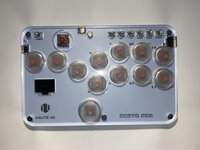
Unplug the controller from any device it is connected to and make sure it is powered off.
 Ask FixBot
-
-
-
-
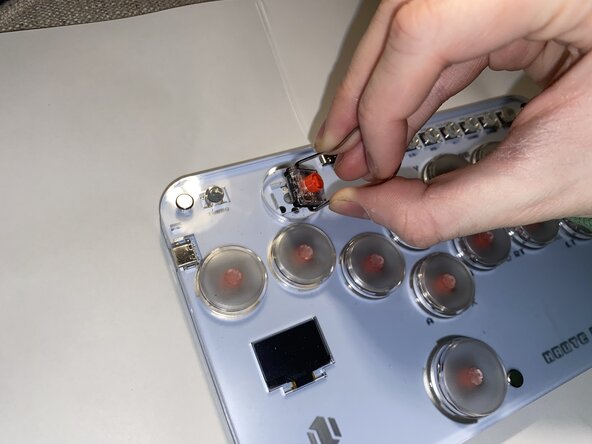
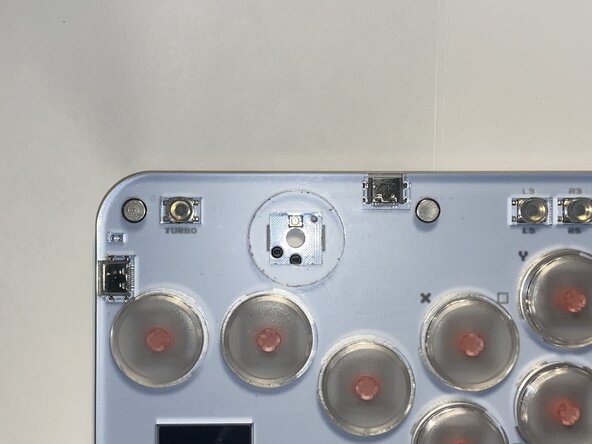
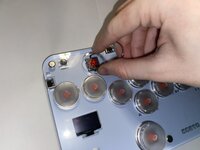
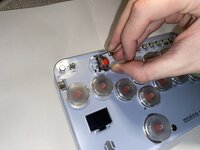
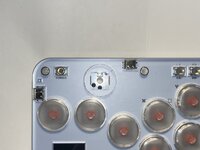
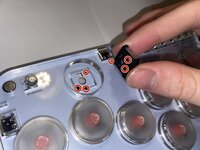
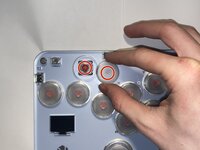
Align the pins of the new switch with the holes in the socket and replace the switch.
-
-
-
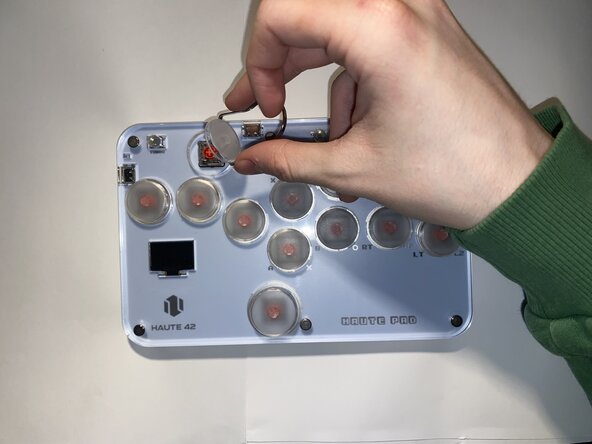
Align the cross on the keycap and the cross on the switch and gently press the keycap onto the switch.
-
-
-
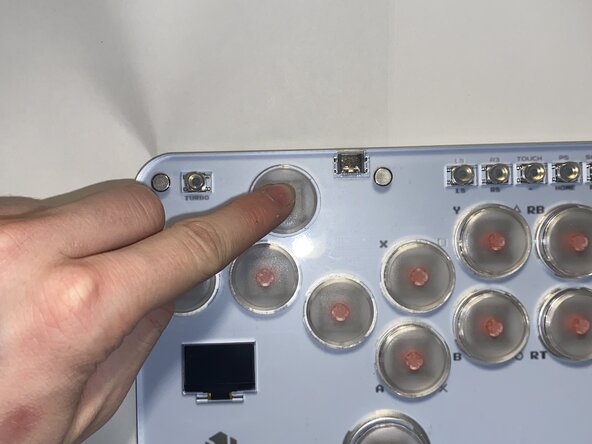
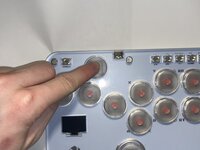
Take a look at the OLED input display on the controller while pressing it to check if the button is fully functional.
-
-








Cancel: I did not complete this guide.
3 other people completed this guide.

Team

York University, Team 3-2, Woodhouse Winter 2025 Member of York University, Team 3-2, Woodhouse Winter 2025
YORK-WOODHOUSE-W25S3G2
2 Members
12 Guides authored
