Free Shipping on Domestic Orders $75+

Hasee Z7M-i78172D1 CPU Fan Replacement

What you need

    1. Hasee Z7M-i78172D1 CPU Fan Replacement, Rear Panel: step 1, image 1 of 1
      • Use a #0 Phillips head screwdriver and unscrew the sixteen 7mm screws on the back of the device.

      Ask FixBot

      Add Comment

    2. Hasee Z7M-i78172D1 CPU Fan Replacement: step 2, image 1 of 3 Hasee Z7M-i78172D1 CPU Fan Replacement: step 2, image 2 of 3 Hasee Z7M-i78172D1 CPU Fan Replacement: step 2, image 3 of 3
      • Use a plastic opening tool to take off the back plastic panel.

      Ask FixBot

      Add Comment

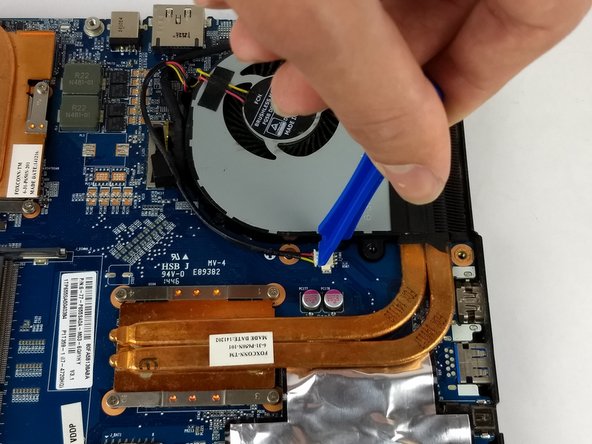
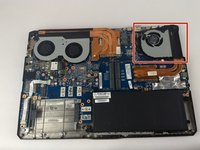
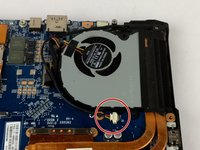
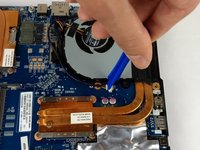
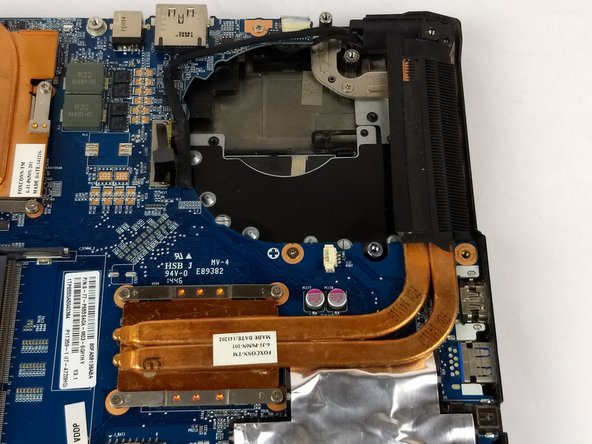
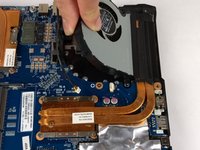
    1. Hasee Z7M-i78172D1 CPU Fan Replacement, CPU Fan: step 3, image 1 of 3 Hasee Z7M-i78172D1 CPU Fan Replacement, CPU Fan: step 3, image 2 of 3 Hasee Z7M-i78172D1 CPU Fan Replacement, CPU Fan: step 3, image 3 of 3
      • To take out the CPU fan it is necessary to disconnect the CPU fan cable. Use a plastic opening tool to remove the cable.

      Ask FixBot

      Add Comment

    2. Hasee Z7M-i78172D1 CPU Fan Replacement: step 4, image 1 of 1
      • Use a #0 Phillips head screwdriver to remove the two 7mm screws holding the fan to the motherboard.

      Ask FixBot

      Add Comment

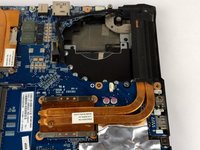
    3. Hasee Z7M-i78172D1 CPU Fan Replacement: step 5, image 1 of 2 Hasee Z7M-i78172D1 CPU Fan Replacement: step 5, image 2 of 2
      • Lift the CPU fan out and replace with the replacement fan.

      Ask FixBot

      Add Comment

Conclusion

To reassemble your device, follow these instructions in reverse order.

Cancel: I did not complete this guide.

2 other people completed this guide.

Jake Decker

Member since: 02/14/18

341 Reputation

2 Guides authored

Team

USF Tampa, Team S6-G6, Eyestone Spring 2018 Member of USF Tampa, Team S6-G6, Eyestone Spring 2018

USFT-EYESTONE-S18S6G6

3 Members

72 Guides authored

0 Guide Comments

Add Comment

View Statistics:

Past 24 Hours: 2

Past 7 Days: 17

Past 30 Days: 91

All Time: 2,780