Free Shipping on Domestic Orders $75+

HTC Wizard 100 Motherboard Replacement

What you need

  1. HTC Wizard 100 Motherboard Replacement, Battery: step 1, image 1 of 2 HTC Wizard 100 Motherboard Replacement, Battery: step 1, image 2 of 2
    • Power the phone off.

    • Use your thumb to gently press downward and away from the camera to remove the battery cover.

    Ask FixBot

    Add Comment

  2. HTC Wizard 100 Motherboard Replacement: step 2, image 1 of 2 HTC Wizard 100 Motherboard Replacement: step 2, image 2 of 2
    • Pull on the plastic tab to release the battery.

    Ask FixBot

    Add Comment

  3. HTC Wizard 100 Motherboard Replacement, Back Case: step 3, image 1 of 2 HTC Wizard 100 Motherboard Replacement, Back Case: step 3, image 2 of 2
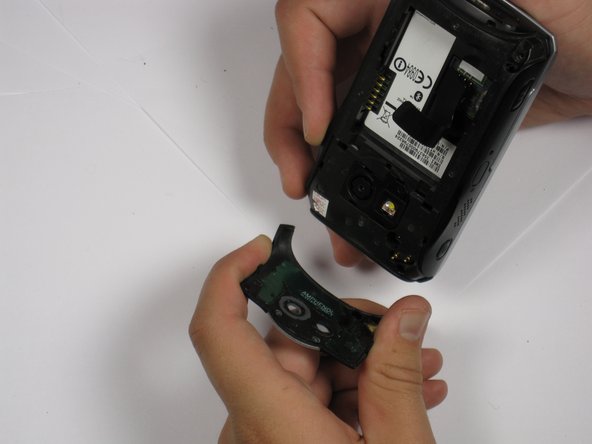
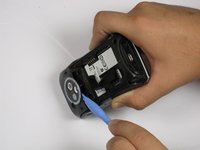
    • Use a plastic opening tool to remove the camera cover.

    • Work around the corners to avoid breaking the plastic clips that hold the camera cover on.

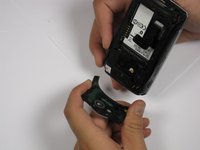
    • Lift the camera cover off of the phone.

    Ask FixBot

    Add Comment

  4. HTC Wizard 100 Motherboard Replacement: step 4, image 1 of 1
    • Remove the stylus from the phone.

    • Remove the four 5.5 mm screws with the T6 Torx Screwdriver.

    • One of the screws might be under a sticker, which will void your warranty.

    Ask FixBot

    Add Comment

  5. HTC Wizard 100 Motherboard Replacement: step 5, image 1 of 3 HTC Wizard 100 Motherboard Replacement: step 5, image 2 of 3 HTC Wizard 100 Motherboard Replacement: step 5, image 3 of 3
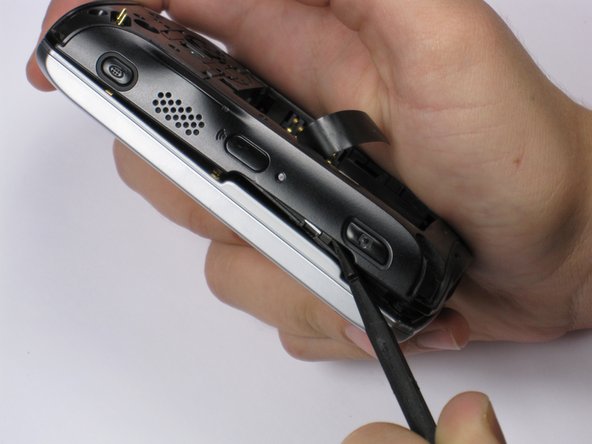
    • Be Careful! Do not insert the spudger in between the keyboard and screen. This could break the keyboard off the phone.

    • If your phone contains a memory card, you may want to remove it before proceeding with this step.

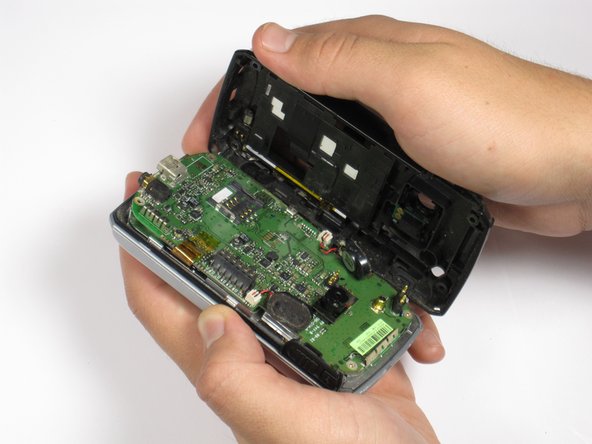
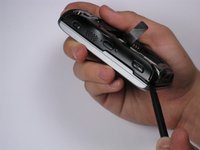
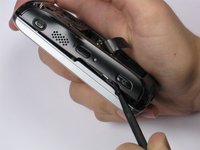
    • Insert spudger in the bottom corner as seen in the picture. Carefully slide the spudger from the bottom towards the top as seen in the second picture.

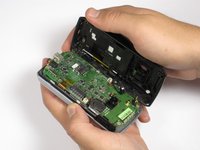
    • Lift the back case off completely.

    • The speakers might be dangling and unsecured.

    Ask FixBot

    Add Comment

  6. HTC Wizard 100 Motherboard Replacement, Speakers: step 6, image 1 of 2 HTC Wizard 100 Motherboard Replacement, Speakers: step 6, image 2 of 2
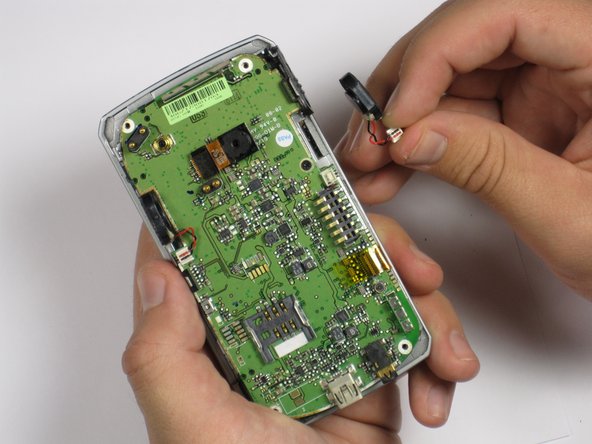
    • Grip the speaker connector with your thumb and finger and gently pull up.

    • Repeat for 2nd speaker.

    Ask FixBot

    Add Comment

  7. HTC Wizard 100 Motherboard Replacement, Camera: step 7, image 1 of 1
    • Locate the camera and pry off with the plastic opening tool or spudger.

    Ask FixBot

    Add Comment

  8. HTC Wizard 100 Motherboard Replacement, Motherboard: step 8, image 1 of 1
    • Remove the 3.4 mm black screw with the Phillips #000 screwdriver.

    Ask FixBot

    Add Comment

  9. HTC Wizard 100 Motherboard Replacement: step 9, image 1 of 2 HTC Wizard 100 Motherboard Replacement: step 9, image 2 of 2
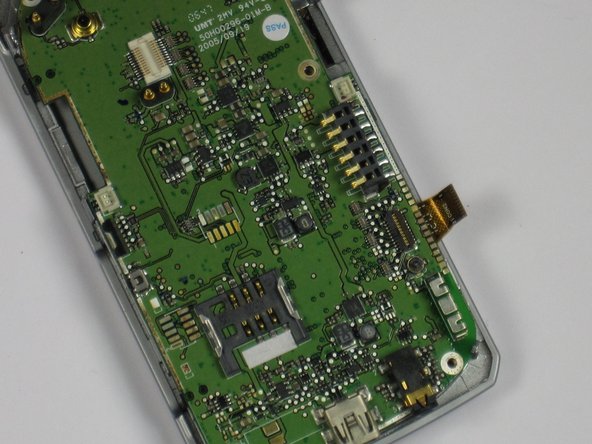
    • Remove the plastic tape to reveal the connector.

    • Use your finger or plastic opening tool to flip the connector and release the cable.

    Ask FixBot

    Add Comment

  10. HTC Wizard 100 Motherboard Replacement: step 10, image 1 of 2 HTC Wizard 100 Motherboard Replacement: step 10, image 2 of 2
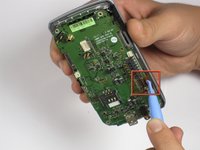
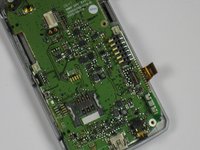
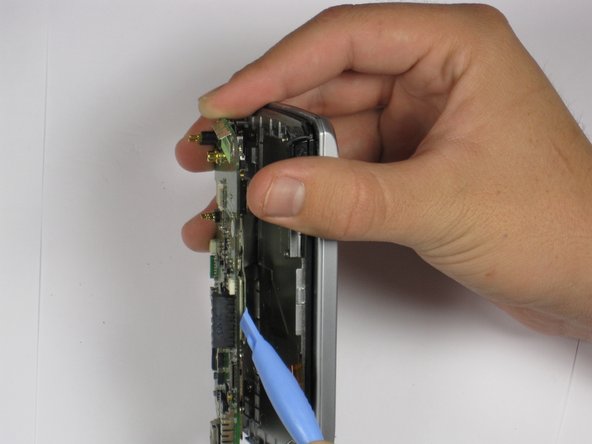
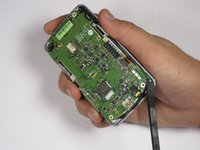
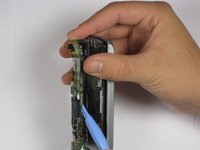
    • Use the plastic opening tool to carefully lift the motherboard off one corner at a time.

    • Lift the motherboard slowly away from the keyboard because there is a cable attached to bottom of the motherboard.

    • If the motherboard is not easily removed by pulling, then lift one side of the motherboard until you can see the attached cable. Then use the plastic opening tool to detach the cable from the motherboard.

    Ask FixBot

    Add Comment

Conclusion

To reassemble your device, follow these instructions in reverse order.

Cancel: I did not complete this guide.

Eric W

Member since: 09/22/11

41 Reputation

3 Guides authored

Team

Cal Poly, Team 20-28, Maness Fall 2011 Member of Cal Poly, Team 20-28, Maness Fall 2011

CPSU-MANESS-F11S20G28

4 Members

15 Guides authored

0 Guide Comments

Add Comment

View Statistics:

Past 24 Hours: 2

Past 7 Days: 6

Past 30 Days: 25

All Time: 1,142