
HTC Trophy Power Button Replacement

Victoria Schmidt and 3 other contributors
Last updated on Dec 9, 2019
Views: 479
View statistics:
- Past 24 Hours:
- 2
- Past 7 Days:
- 12
- Past 30 Days:
- 62
- All Time:
- 479
Comments: 0
No one has left comments on this guide. Will you be first?
Go to guide commentsCompleted: 0 1
No one has marked this guide "completed." Will you be the first?
1 person has marked this guide "completed." It's you — great job!
Favorites: 0 1
No one has favorited (and subscribed to) this guide. Will you be the first?
1 person has favorited (and subscribed to) this guide — and that's you!
Introduction
Go to step 1 ↓Basic Information
Use this guide to replace the power button on the HTC Trophy Windows 7 device. The power button serves multiple function included powering the device on/off, hard resetting the device, and lighting up or turning off the device’s screen.
Symptoms for a malfunctioning power button:
- “mushy” button when pressed. (Not a solid press or click)
- Press or hold power button and nothing happens
- Power button is stuck
Before disassembling the device ensure there is no simple solution such as dirt or dust obstructing the button. If you notice an obstruction, try to Clear the Debris.
Ensure the device is powered off before disassembly.
- If you can not turn off the device, wait for the battery to run out of energy.
Special Skills
What you need
Tools


-
-
-
Power off the phone before starting.
-
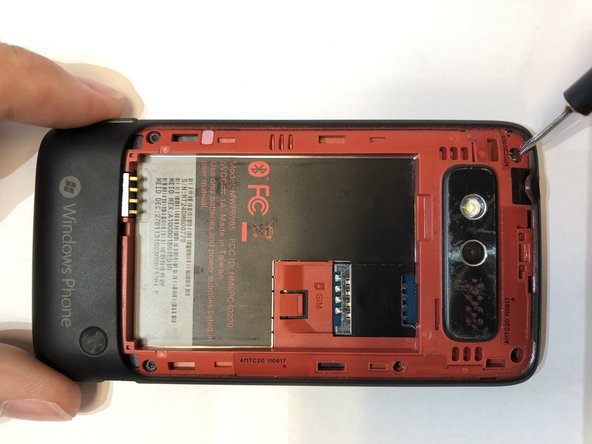
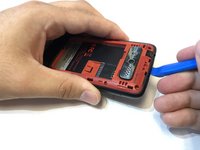
Remove the back panel by inserting the IFixIt opening tool into gap at the top of the rear and prying upward.
 Ask FixBot
-
-
-
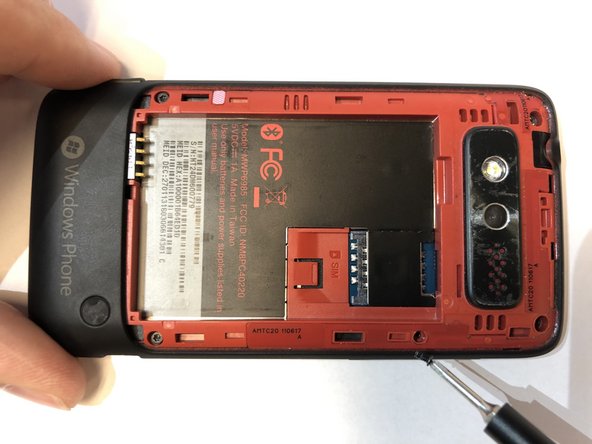
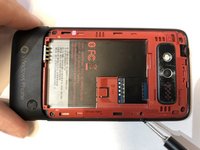
Remove the battery by inserting the IFixIt opening tool into the small gap between the battery and the surrounding plastic.
-
Apply a small force towards the bottom of the phone and lift upwards.
-
-
-
-
-
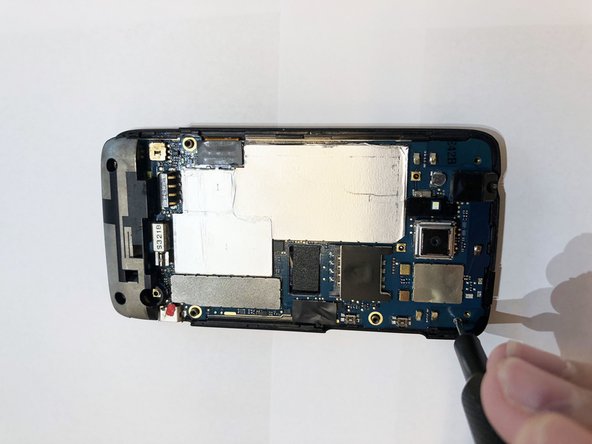
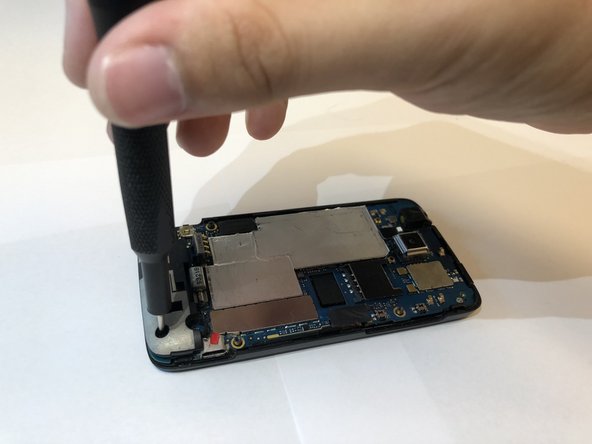
Remove the 5 screws holding the two phone halves together.
-
Three 4mm long T5 Torx screws.
-
Press a T5 Torx screwdriver into the void sticker and remove the 4mm long T5 Torx screw.
-
One 4mm long Philips #000 screw.
-
-
-
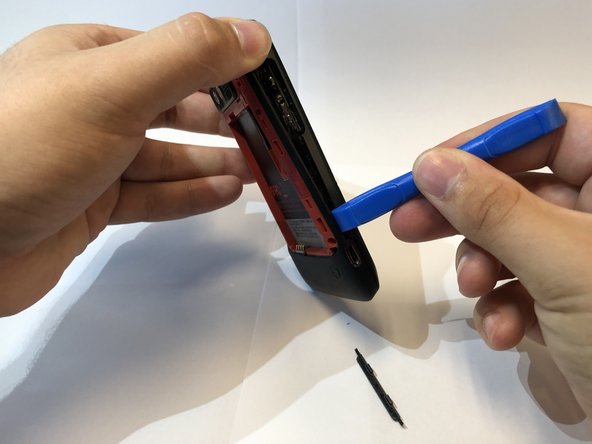
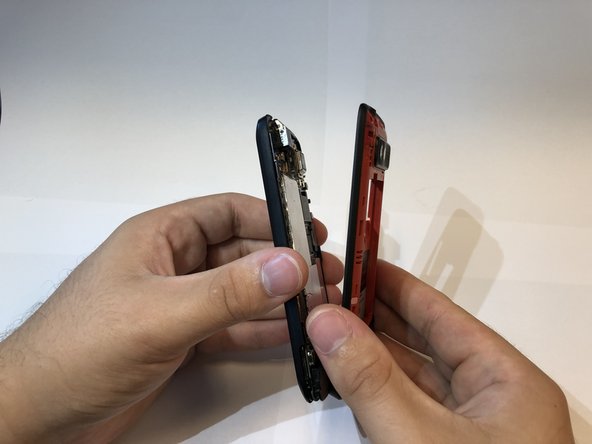
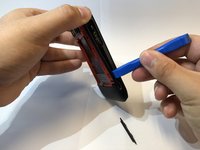
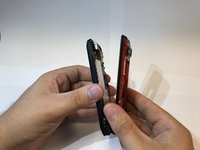
Insert the IFixIt opening tool into the seem of the plastic around the edge of the phone and pry the two halves apart.
-
-
-
Remove the three screws holding the mother board to the display assembly.
-
One 2mm long Philips #000 screw.
-
Two 4mm long T5 Torx screws in the holes of the plastic.
-
-
Tool used on this step:Tweezers$4.99
-
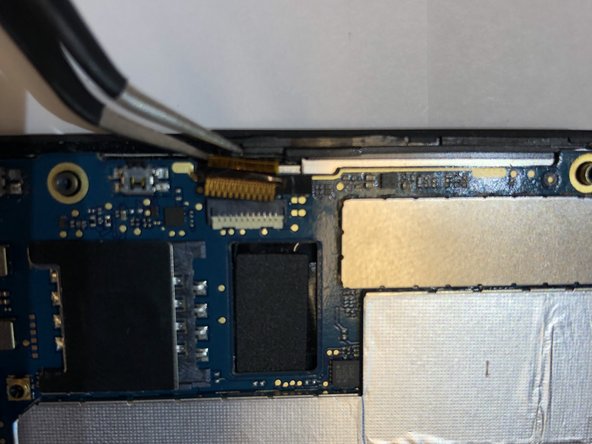
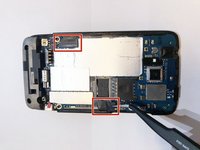
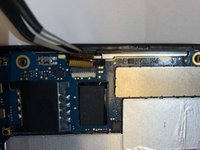
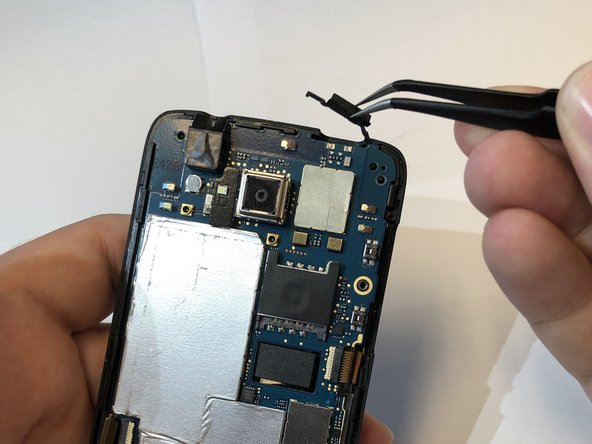
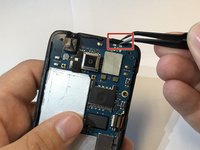
Remove the black tape cover the ribbon cable connectors with tweezers.
-
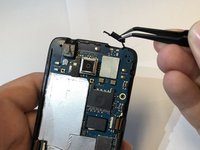
Disconnect the ribbon cables from the connectors.
-
-
-
-
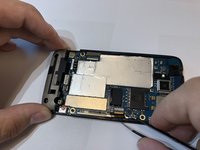
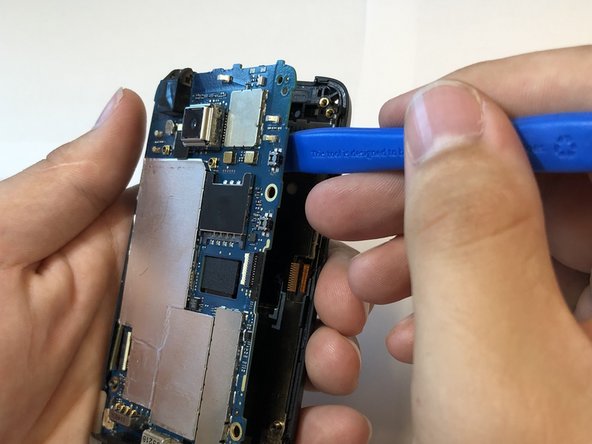
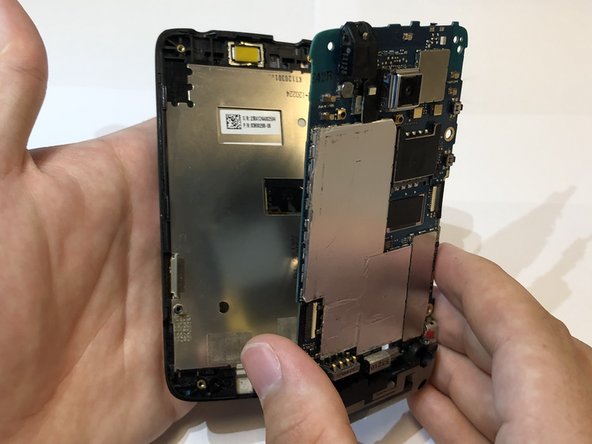
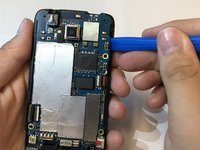
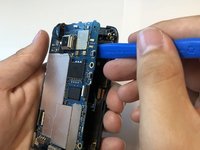
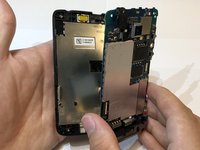
Use the iFixit opening tool to separate the motherboard from the display assembly.
-
-
-
-
-
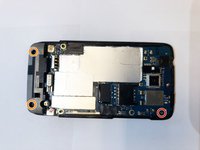
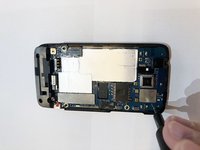
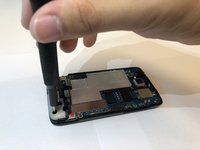
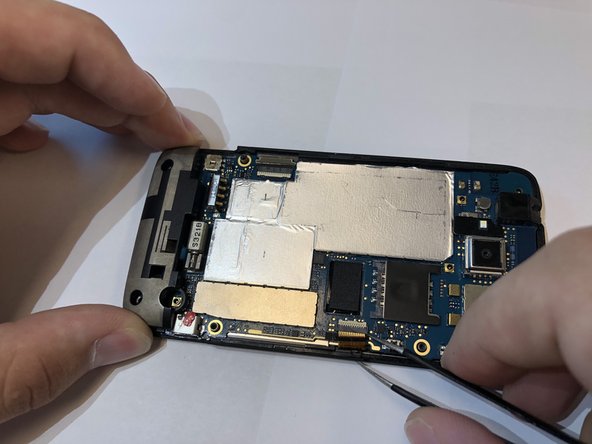
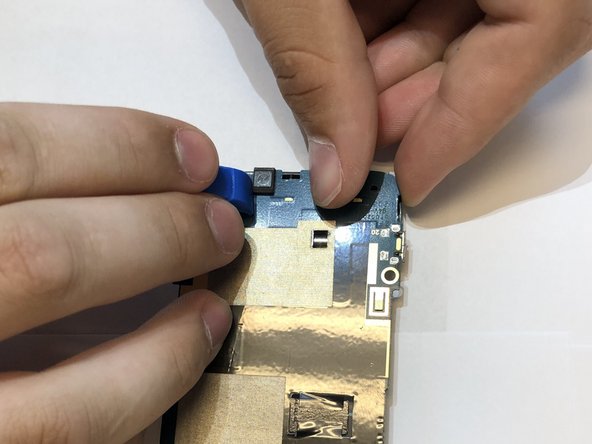
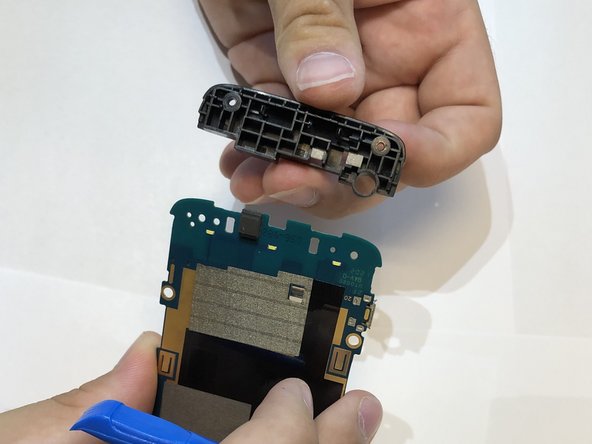
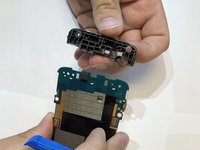
Remove the plastic piece off of the motherboard.
-
Put pressure outwards to release these clips with the iFixit opening tool and you fingers.
-
-
-









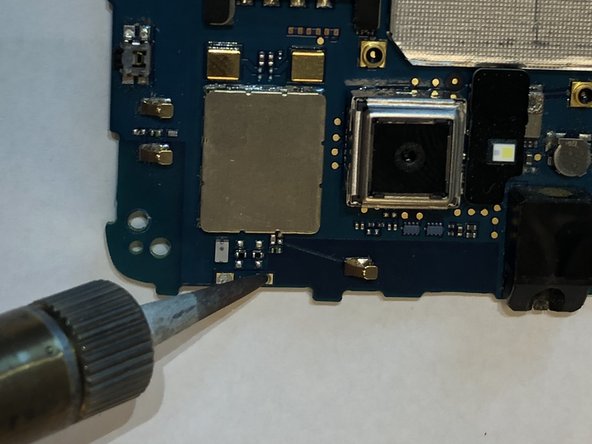
To reassemble your device, follow these instructions in reverse order.

Team

Embry-Riddle Aeronautical University, Team S13-G2, Lamothe Fall 2019 Member of Embry-Riddle Aeronautical University, Team S13-G2, Lamothe Fall 2019
ERAU-LAMOTHE-F19S13G2
3 Members
72 Guides authored
