Free Shipping on Domestic Orders $75+

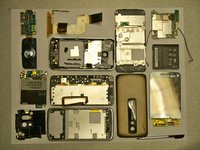
HTC Touch Pro CDMA Screen Replacement

Views: 4.1K

View statistics:

Past 24 Hours:
2
Past 7 Days:
18
Past 30 Days:
93
All Time:
4,129
Comments: 2

2 comments on steps.

Completed: 3

3 people have marked this guide "completed." Will you be next?

Favorites: 3

3 people have favorited (and subscribed to) this guide. Will you be next?

Time Required: 10 - 15 minutes
Difficulty: Moderate
Action Shots

Be an action hero! This guide needs images that better demonstrate how to perform specific actions.

HTC Touch Pro CDMA Screen Replacement

Introduction

Go to step 1 ↓

This easy to follow guide will show you in the ins and outs on how to repair your HTC Touch Pro.

What you need

Tools

    1. HTC Touch Pro CDMA Screen Replacement, Battery: step 1, image 1 of 2 HTC Touch Pro CDMA Screen Replacement, Battery: step 1, image 2 of 2
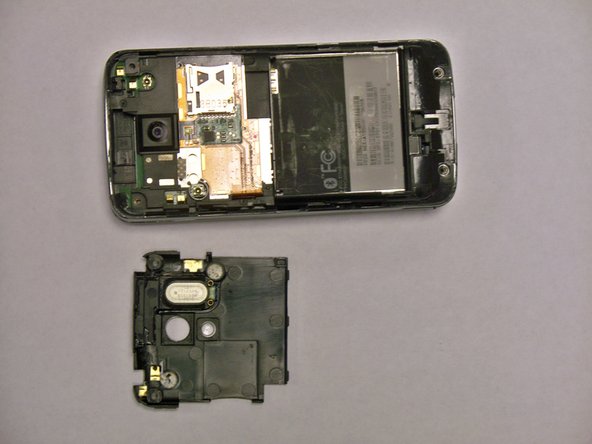
      • First, gently press on the back plate and push down toward the camera.

      Ask FixBot

      Add Comment

    2. HTC Touch Pro CDMA Screen Replacement: step 2, image 1 of 2 HTC Touch Pro CDMA Screen Replacement: step 2, image 2 of 2
      • Use your finger to lift up the edge of the battery.

      Ask FixBot

      Add Comment

    1. HTC Touch Pro CDMA Screen Replacement, USB Logic Board: step 3, image 1 of 1
      • Remove the 4 screws using the T6 screw driver.

      Ask FixBot

      Add Comment

    2. HTC Touch Pro CDMA Screen Replacement: step 4, image 1 of 2 HTC Touch Pro CDMA Screen Replacement: step 4, image 2 of 2
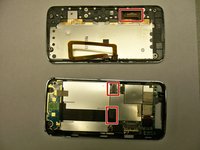
      • Lift the plastic cover near the memory card slot.

      Ask FixBot

      Add Comment

    3. HTC Touch Pro CDMA Screen Replacement: step 5, image 1 of 1
      • Remove the two Phillips #00 screws from the backside of the screen.

      Ask FixBot

      Add Comment

    4. HTC Touch Pro CDMA Screen Replacement: step 6, image 1 of 2 HTC Touch Pro CDMA Screen Replacement: step 6, image 2 of 2
      • Insert a spudger or a plastic opening tool into the seam on the side of the phone.

      • Gently pry apart the two halves of the phone.

      Ask FixBot

      Add Comment

    5. HTC Touch Pro CDMA Screen Replacement: step 7, image 1 of 2 HTC Touch Pro CDMA Screen Replacement: step 7, image 2 of 2
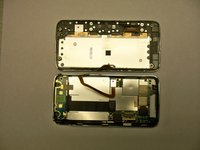
      • Gently unplug the connectors.

      • Remove the screws with a 00 Phillips-head screwdriver.

      Ask FixBot

      Add Comment

    6. HTC Touch Pro CDMA Screen Replacement: step 8, image 1 of 2 HTC Touch Pro CDMA Screen Replacement: step 8, image 2 of 2
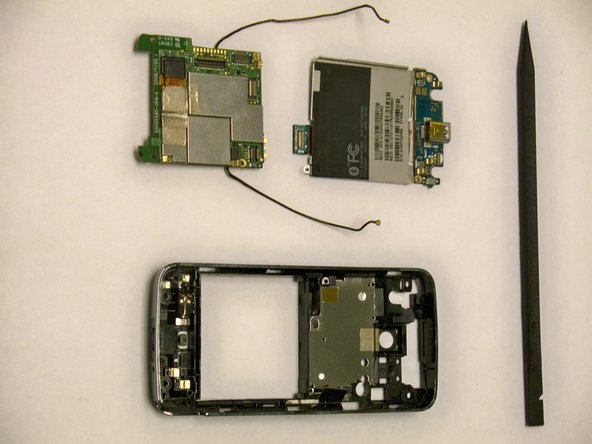
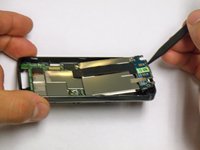
      • Gently lift the motherboard up using a nylon spudger.

      • BE AWARE OF THE ANTENNA.

      Ask FixBot

      Add Comment

    1. HTC Touch Pro CDMA Screen Replacement, Keyboard: step 9, image 1 of 2 HTC Touch Pro CDMA Screen Replacement, Keyboard: step 9, image 2 of 2
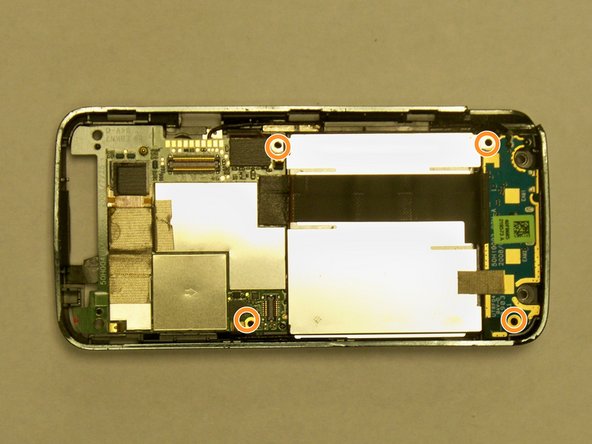
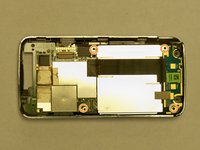
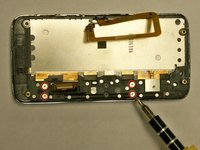
      • Remove the 4 screws circled in red using a 00 Phillips-head screwdriver.

      Ask FixBot

      Add Comment

    1. HTC Touch Pro CDMA Screen Replacement, Screen: step 10, image 1 of 2 HTC Touch Pro CDMA Screen Replacement, Screen: step 10, image 2 of 2
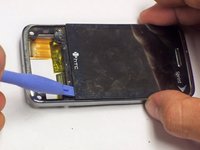
      • Start by lifting the back plate of the screen by using yours finger or a plastic opener tool.

      Ask FixBot

      Add Comment

    2. HTC Touch Pro CDMA Screen Replacement: step 11, image 1 of 1
      • Remove the 4 screws by using a 00 Phillips-head screwdriver.

      • Gently lift the connectors.

      Ask FixBot

      Add Comment

    3. HTC Touch Pro CDMA Screen Replacement: step 12, image 1 of 1
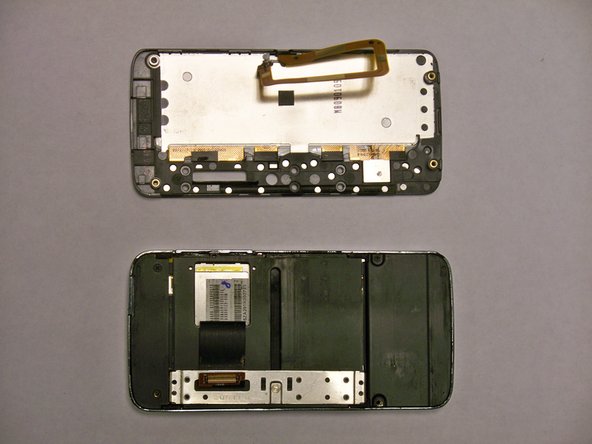
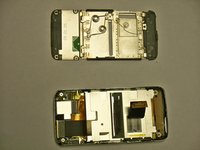
      • Lift the front keyboard by removing the screws with a 00 Phillips-head screwdriver.

      Ask FixBot

      Add Comment

    4. HTC Touch Pro CDMA Screen Replacement: step 13, image 1 of 3 HTC Touch Pro CDMA Screen Replacement: step 13, image 2 of 3 HTC Touch Pro CDMA Screen Replacement: step 13, image 3 of 3
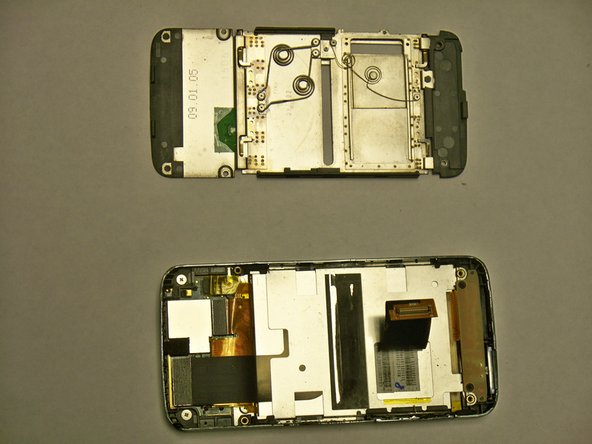
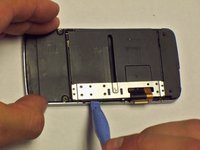
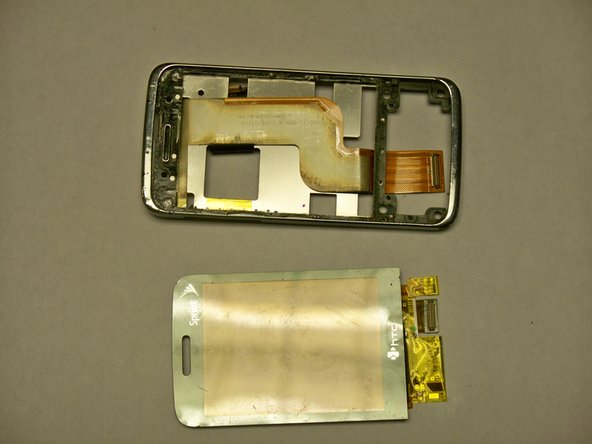
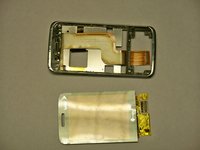
      • With the front keyboard removed, gently lift the screen up with a plastic opener tool and remove it .

      Ask FixBot

      Add Comment

Conclusion

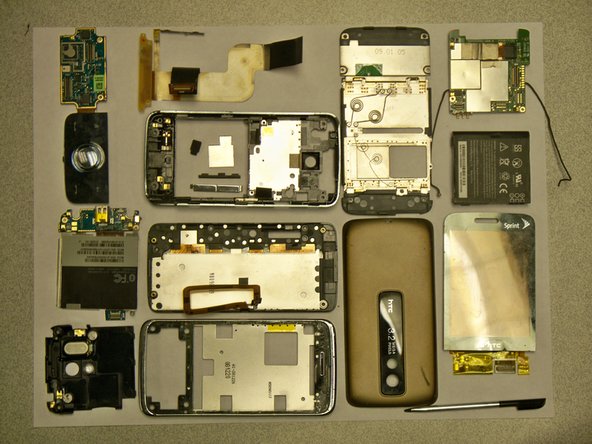
To reassemble your device, follow these instructions in reverse order.

Cancel: I did not complete this guide.

3 other people completed this guide.

Zhaowei Zhang

Member since: 04/28/11

133 Reputation

4 Guides authored

Team

0 Guide Comments

Add Comment

View Statistics:

Past 24 Hours: 2

Past 7 Days: 18

Past 30 Days: 93

All Time: 4,129