Free Shipping on Domestic Orders $75+

HTC Touch Pro CDMA Keyboard Replacement

Views: 2.5K

View statistics:

Past 24 Hours:
2
Past 7 Days:
14
Past 30 Days:
101
All Time:
2,544
Comments: 2

2 comments on steps.

Completed: 0

No one has marked this guide "completed." Will you be the first?

Favorites: 1

1 person has favorited (and subscribed to) this guide. Will you be next?

Time Required: 5 minutes
Difficulty: Easy
Action Shots

Be an action hero! This guide needs images that better demonstrate how to perform specific actions.

HTC Touch Pro CDMA Keyboard Replacement

Introduction

Go to step 1 ↓

To replace keyboard.

What you need

Tools

    1. HTC Touch Pro CDMA Keyboard Replacement, Battery: step 1, image 1 of 2 HTC Touch Pro CDMA Keyboard Replacement, Battery: step 1, image 2 of 2
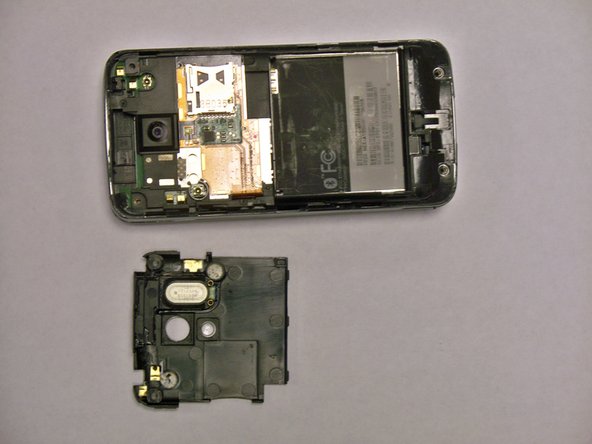
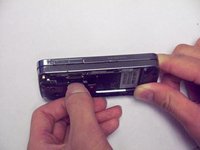
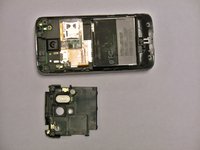
      • First, gently press on the back plate and push down toward the camera.

      Ask FixBot

      Add Comment

    2. HTC Touch Pro CDMA Keyboard Replacement: step 2, image 1 of 2 HTC Touch Pro CDMA Keyboard Replacement: step 2, image 2 of 2
      • Use your finger to lift up the edge of the battery.

      Ask FixBot

      Add Comment

    1. HTC Touch Pro CDMA Keyboard Replacement, USB Logic Board: step 3, image 1 of 1
      • Remove the 4 screws using the T6 screw driver.

      Ask FixBot

      Add Comment

    2. HTC Touch Pro CDMA Keyboard Replacement: step 4, image 1 of 2 HTC Touch Pro CDMA Keyboard Replacement: step 4, image 2 of 2
      • Lift the plastic cover near the memory card slot.

      Ask FixBot

      Add Comment

    3. HTC Touch Pro CDMA Keyboard Replacement: step 5, image 1 of 1
      • Remove the two Phillips #00 screws from the backside of the screen.

      Ask FixBot

      Add Comment

    4. HTC Touch Pro CDMA Keyboard Replacement: step 6, image 1 of 2 HTC Touch Pro CDMA Keyboard Replacement: step 6, image 2 of 2
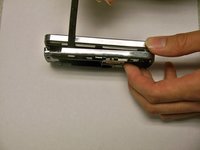
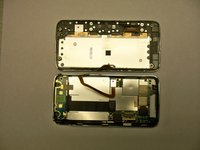
      • Insert a spudger or a plastic opening tool into the seam on the side of the phone.

      • Gently pry apart the two halves of the phone.

      Ask FixBot

      Add Comment

    5. HTC Touch Pro CDMA Keyboard Replacement: step 7, image 1 of 2 HTC Touch Pro CDMA Keyboard Replacement: step 7, image 2 of 2
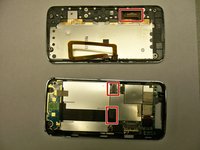
      • Gently unplug the connectors.

      • Remove the screws with a 00 Phillips-head screwdriver.

      Ask FixBot

      Add Comment

    6. HTC Touch Pro CDMA Keyboard Replacement: step 8, image 1 of 2 HTC Touch Pro CDMA Keyboard Replacement: step 8, image 2 of 2
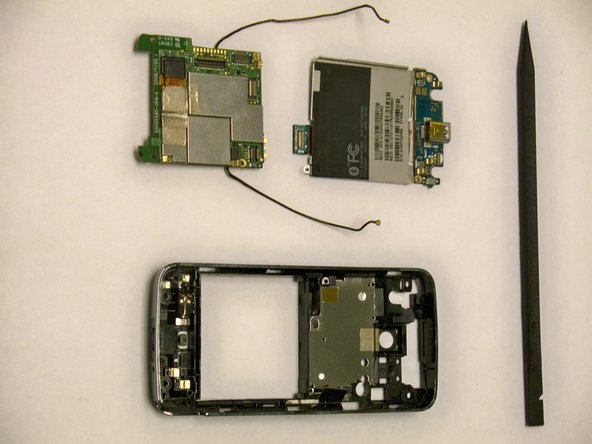
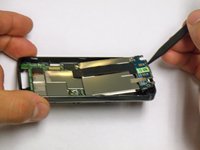
      • Gently lift the motherboard up using a nylon spudger.

      • BE AWARE OF THE ANTENNA.

      Ask FixBot

      Add Comment

    1. HTC Touch Pro CDMA Keyboard Replacement, Keyboard: step 9, image 1 of 2 HTC Touch Pro CDMA Keyboard Replacement, Keyboard: step 9, image 2 of 2
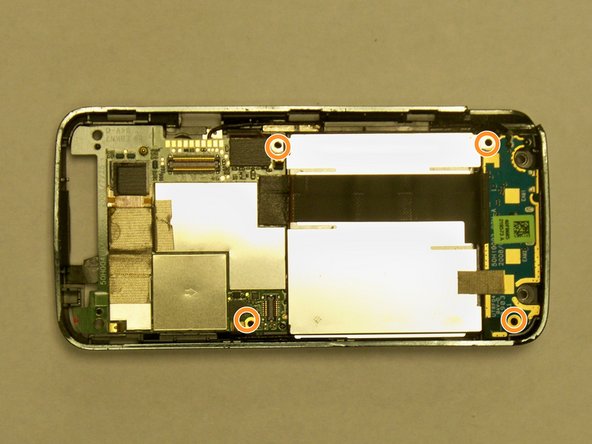
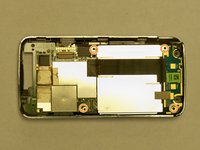
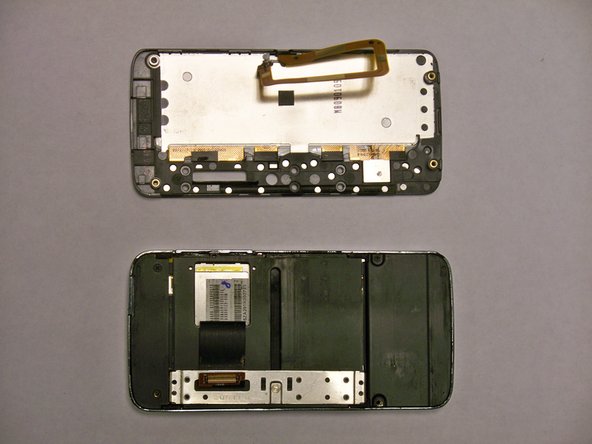
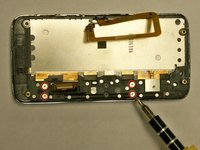
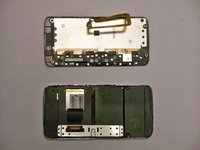
      • Remove the 4 screws circled in red using a 00 Phillips-head screwdriver.

      Ask FixBot

      Add Comment

Conclusion

To reassemble your device, follow these instructions in reverse order.

Cancel: I did not complete this guide.

Zhaowei Zhang

Member since: 04/28/11

133 Reputation

4 Guides authored

Team

0 Guide Comments

Add Comment

View Statistics:

Past 24 Hours: 2

Past 7 Days: 14

Past 30 Days: 101

All Time: 2,544