Free Shipping on Domestic Orders $75+

HTC One V Ear Speaker Replacement

What you need

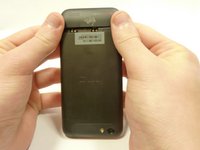
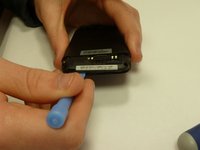
  1. HTC One V Ear Speaker Replacement, Disassembling HTC ONE V Bottom Assembly: step 1, image 1 of 3 HTC One V Ear Speaker Replacement, Disassembling HTC ONE V Bottom Assembly: step 1, image 2 of 3 HTC One V Ear Speaker Replacement, Disassembling HTC ONE V Bottom Assembly: step 1, image 3 of 3
    • Power off your device.

    • Remove the bottom cover by sliding it off.

    Ask FixBot

    Add Comment

  2. HTC One V Ear Speaker Replacement: step 2, image 1 of 1
    • Remove the SIM card.

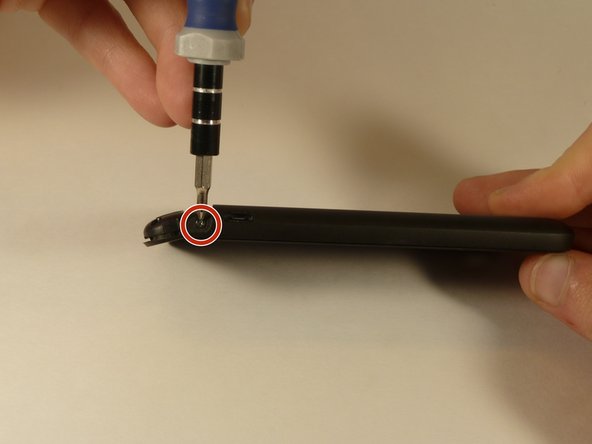
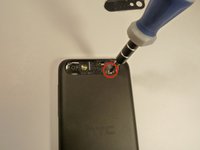
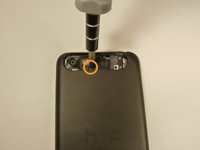
    • Remove the four screws securing the bottom casing.

    • Two 3.0 mm Phillips #0 screws in the top left and right corners.

    • Two 2.0 mm Phillips #0 screws in the bottom left and right corners.

    Ask FixBot

    Add Comment

  3. HTC One V Ear Speaker Replacement: step 3, image 1 of 2 HTC One V Ear Speaker Replacement: step 3, image 2 of 2
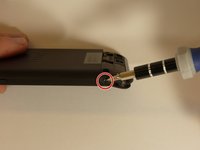
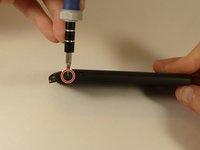
    • Remove the 2.0 mm Phillips #0 screws on either side of the phone.

    Ask FixBot

    Add Comment

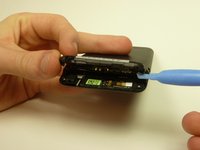
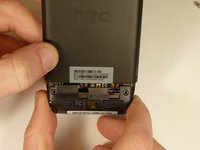
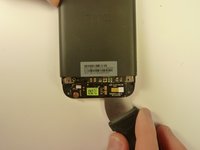
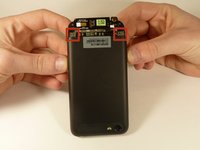
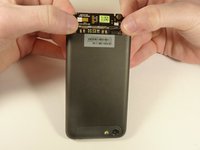
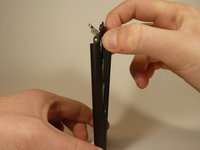
  4. HTC One V Ear Speaker Replacement: step 4, image 1 of 3 HTC One V Ear Speaker Replacement: step 4, image 2 of 3 HTC One V Ear Speaker Replacement: step 4, image 3 of 3
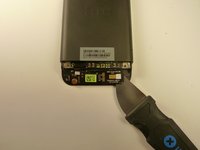
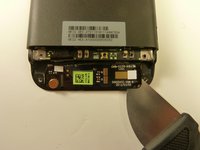
    • Use a plastic opening tool to pry open the bottom casing.

    • Remove the bottom casing by pulling it towards you.

    Ask FixBot

    Add Comment

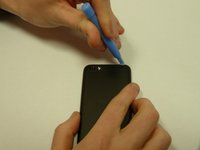
  5. HTC One V Ear Speaker Replacement, Disassembling HTC One V Back Case: step 5, image 1 of 3 HTC One V Ear Speaker Replacement, Disassembling HTC One V Back Case: step 5, image 2 of 3 HTC One V Ear Speaker Replacement, Disassembling HTC One V Back Case: step 5, image 3 of 3
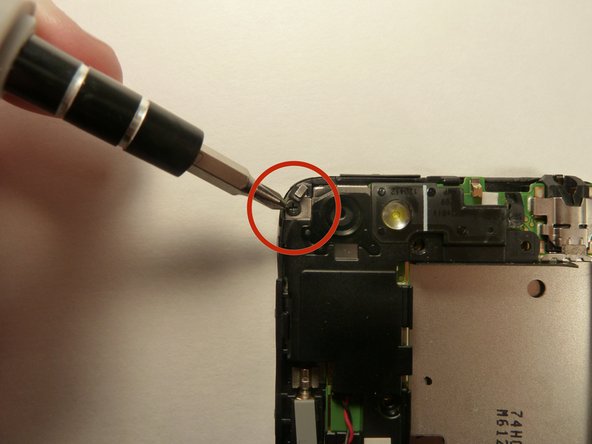
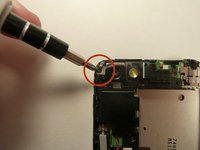
    • Use the plastic opening tool to pry open the rear camera panel.

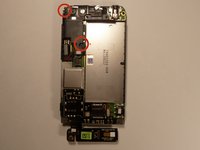
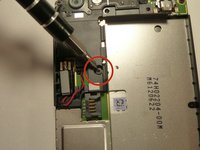
    • Remove both screws that are securing the back case.

    • One 4.0 mm Phillips #0 screw.

    • One 3.0 mm Phillips #0 screw.

    Ask FixBot

    Add Comment

  6. HTC One V Ear Speaker Replacement: step 6, image 1 of 3 HTC One V Ear Speaker Replacement: step 6, image 2 of 3 HTC One V Ear Speaker Replacement: step 6, image 3 of 3
    • Use a Jimmy to pry up the OEM SIM and SD card reader contact.

    • Pry from right to left to avoid potential damages to the ribbon.

    Ask FixBot

    Add Comment

  7. HTC One V Ear Speaker Replacement: step 7, image 1 of 3 HTC One V Ear Speaker Replacement: step 7, image 2 of 3 HTC One V Ear Speaker Replacement: step 7, image 3 of 3
    • Using both thumbs, gently push on the two bottom rear corners of the motherboard.

    • Gently and slowly pull the screen out from the front of the phone, while feeding the OEM reader contact through the opening.

    Ask FixBot

    Add Comment

  8. HTC One V Ear Speaker Replacement, Battery: step 8, image 1 of 1
    • Pry up the battery with the flat end of the spudger.

    Ask FixBot

    Add Comment

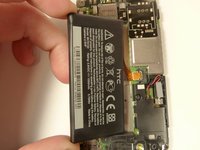
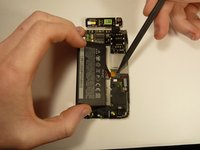
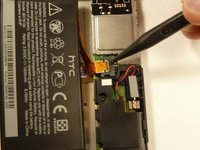
  9. HTC One V Ear Speaker Replacement: step 9, image 1 of 3 HTC One V Ear Speaker Replacement: step 9, image 2 of 3 HTC One V Ear Speaker Replacement: step 9, image 3 of 3
    • Gently lift up the battery away from the edge of its housing.

    • Use the point end of the spudger to push the connection out of its housing.

    Ask FixBot

    Add Comment

  10. HTC One V Ear Speaker Replacement, Camera Lens: step 10, image 1 of 3 HTC One V Ear Speaker Replacement, Camera Lens: step 10, image 2 of 3 HTC One V Ear Speaker Replacement, Camera Lens: step 10, image 3 of 3
    • Remove the two 3.0 mm Phillips #0 screws, that are securing the camera lens.

    Ask FixBot

    Add Comment

  11. HTC One V Ear Speaker Replacement: step 11, image 1 of 1
    • Pry off the camera lens using a plastic opening tool.

    Ask FixBot

    Add Comment

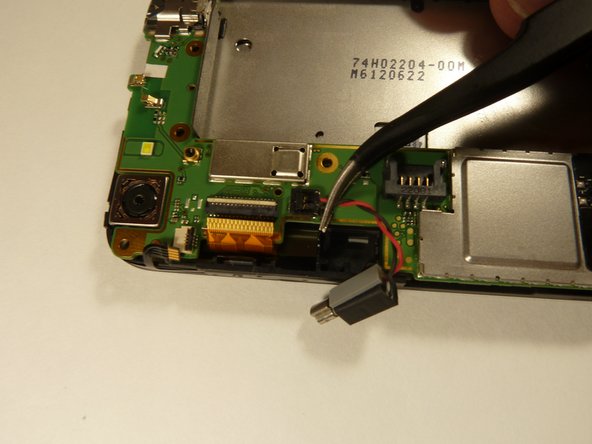
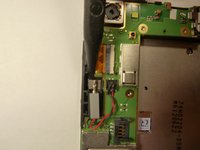
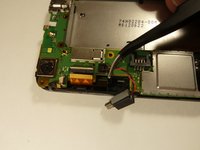
  12. HTC One V Ear Speaker Replacement, Vibrator: step 12, image 1 of 2 HTC One V Ear Speaker Replacement, Vibrator: step 12, image 2 of 2
    Tool used on this step:
    Tweezers
    $4.99
    Buy
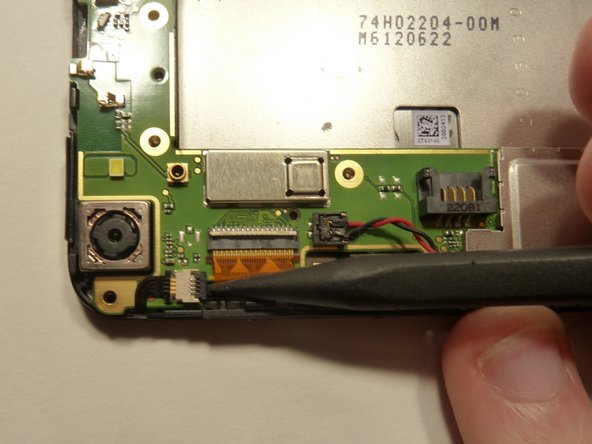
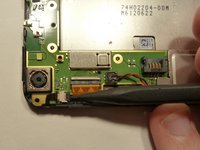
    • Pry the vibrator out of the housing with a spudger.

    • Using the tweezers, pull up on the connecting wires detaching the vibrator from the motherboard.

    Ask FixBot

    Add Comment

  13. HTC One V Ear Speaker Replacement, Motherboard: step 13, image 1 of 3 HTC One V Ear Speaker Replacement, Motherboard: step 13, image 2 of 3 HTC One V Ear Speaker Replacement, Motherboard: step 13, image 3 of 3
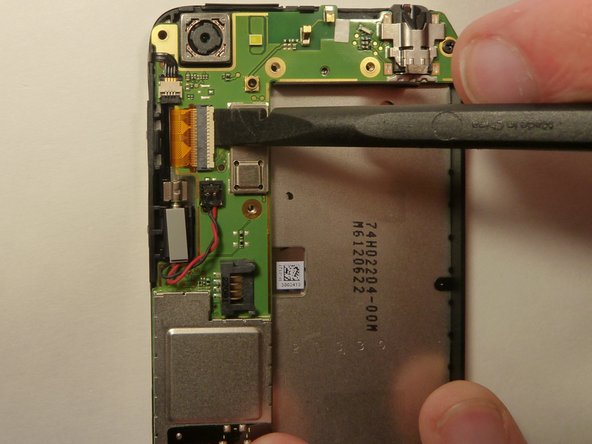
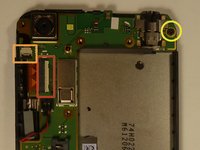
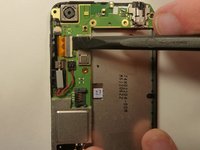
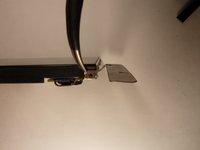
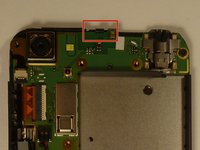
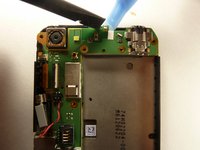
    • Using the spudger lift the tabs on the highlighted, red and orange, ribbon connectors. Gently pull out the ribbons from their connectors.

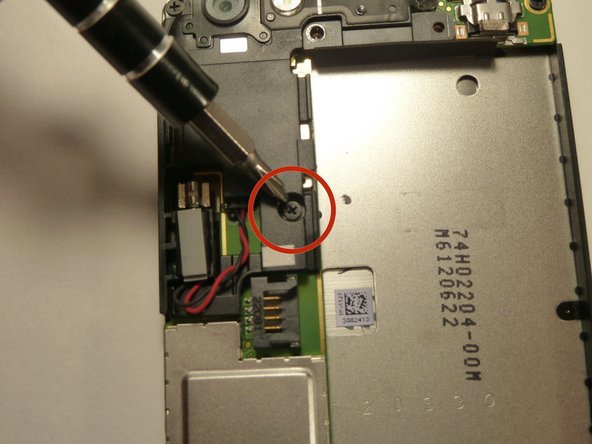
    • Remove the 3.0 mm Phillips #0 screw.

    Ask FixBot

    Add Comment

  14. HTC One V Ear Speaker Replacement: step 14, image 1 of 3 HTC One V Ear Speaker Replacement: step 14, image 2 of 3 HTC One V Ear Speaker Replacement: step 14, image 3 of 3
    Tool used on this step:
    Tweezers
    $4.99
    Buy
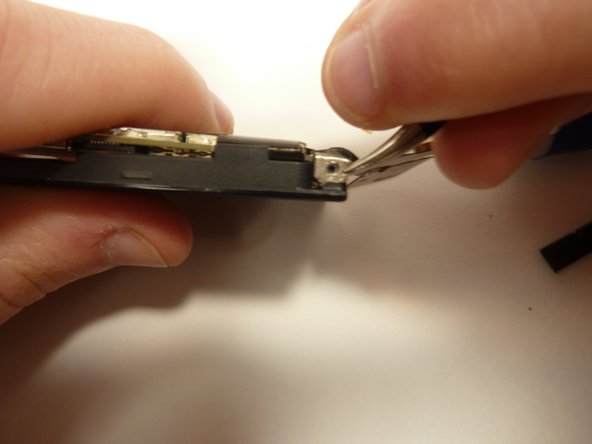
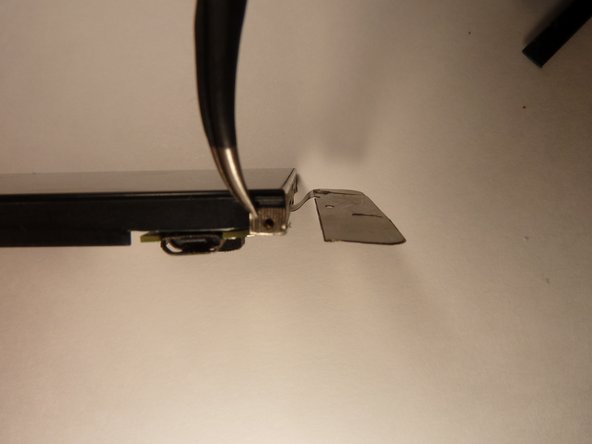
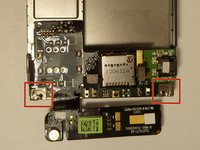
    • Using tweezers, pull back on the tape located on the bottom corners of the motherboard.

    Ask FixBot

    Add Comment

  15. HTC One V Ear Speaker Replacement: step 15, image 1 of 2 HTC One V Ear Speaker Replacement: step 15, image 2 of 2
    • Use the spudger to push back the latch holding on the motherboard. While the latch is pushed back use the plastic opening tool to pry up the motherboard.

    Ask FixBot

    Add Comment

  16. HTC One V Ear Speaker Replacement: step 16, image 1 of 1
    • Place your phone on its side so that you can gently pull up on the motherboard to expose its last connector.

    • Using the flat end of the spudger, pop of the connector.

    Ask FixBot

    Add Comment

  17. HTC One V Ear Speaker Replacement, Ear Speaker: step 17, image 1 of 1
    Tool used on this step:
    Tweezers
    $4.99
    Buy
    • Pull off the ear speaker using the tweezers.

    Ask FixBot

    Add Comment

Conclusion

To reassemble your device, follow these instructions in reverse order.

Cancel: I did not complete this guide.

Michael Lucido

Member since: 01/20/15

852 Reputation

6 Guides authored

Team

USF Tampa, Team 1-3, Blackwell Winter 2015 Member of USF Tampa, Team 1-3, Blackwell Winter 2015

USFT-BLACKWELL-W15S1G3

4 Members

16 Guides authored

0 Guide Comments

Add Comment

View Statistics:

Past 24 Hours: 1

Past 7 Days: 7

Past 30 Days: 24

All Time: 688