
HTC Flyer Back Cover Replacement

Justin Funk and 5 other contributors
Last updated on Oct 7, 2019
Views: 901
View statistics:
- Past 24 Hours:
- 2
- Past 7 Days:
- 21
- Past 30 Days:
- 92
- All Time:
- 901
Comments: 0
No one has left comments on this guide. Will you be first?
Go to guide commentsCompleted: 2 3
2 people have marked this guide "completed." Will you be next?
3 people have marked this guide "completed." Including you — great job!
Favorites: 0 1
No one has favorited (and subscribed to) this guide. Will you be the first?
1 person has favorited (and subscribed to) this guide — and that's you!
Introduction
Go to step 1 ↓Do you need to access the inner components of your device? Consider using this guide to remove the back cover of your device.
What you need
Tools


-
-
-
Apply pressure along the bottom of the white panel containing the camera and push upwards.
 Ask FixBot
-
-
-
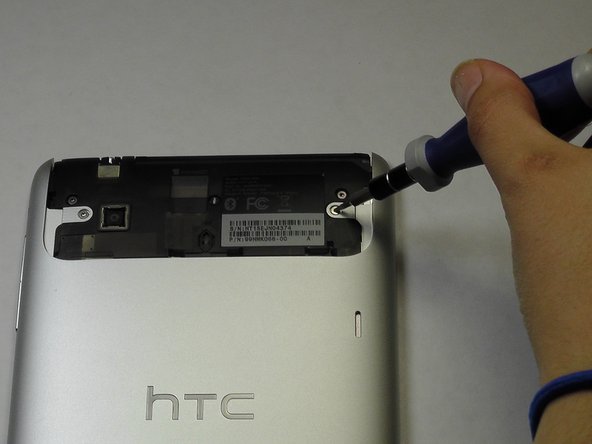
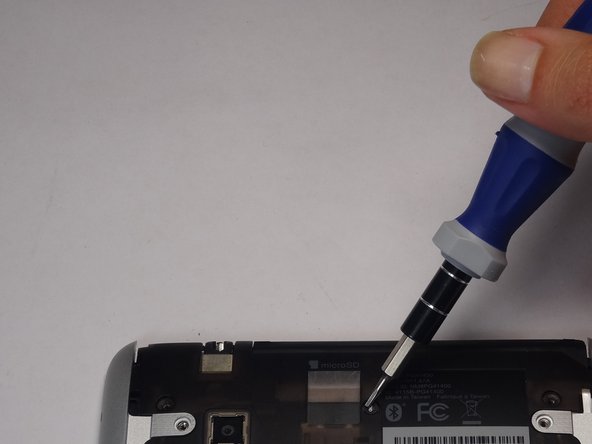
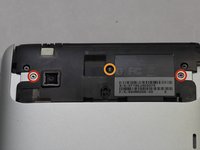
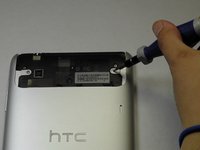
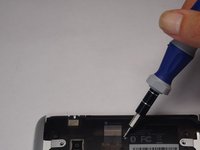
Unscrew the four of 3.5mm Torx T5 screws that run along the sides of the exposed innards.
-
-
-
Remove the black protective piece of plastic by sliding it upwards.
-
Remove the two 3.5mm Torx #5 screws holding the protective plastic down on along the sides.
-
Either remove the sticker or jam the screwdriver into the screw, and remove the screw.
-
Remove the protective panel by sliding it upwards.
-
-
-
-
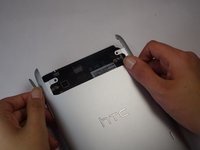
Before removing the back cover, apply some scotch tape to the volume buttons to prevent them from falling out of the back panel.
-
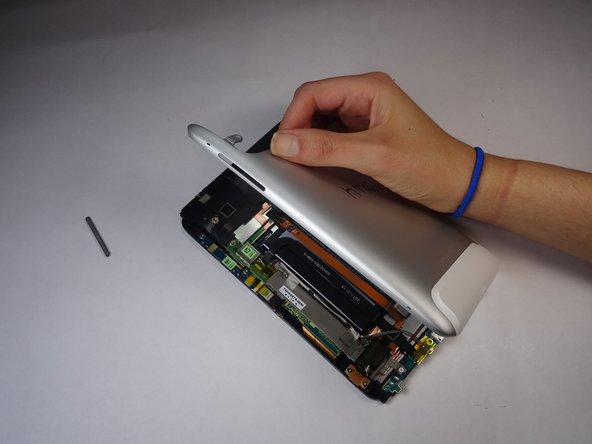
Use a plastic opening tool to lever up the top half of the cover.
-
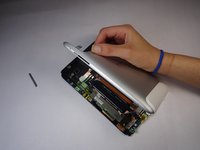
Lift the back panel up and remove it from the device.
-
-



To reassemble your device, follow these instructions in reverse order.
Cancel: I did not complete this guide.
2 other people completed this guide.

Team

USF Tampa, Team 8-5, Leahy Fall 2014 Member of USF Tampa, Team 8-5, Leahy Fall 2014
USFT-LEAHY-F14S8G5
3 Members
72 Guides authored
