Free Shipping on Domestic Orders $75+

HP Stream 14-CB174WM Wi-Fi Card Replacement

Views: 596

View statistics:

Past 24 Hours:
2
Past 7 Days:
12
Past 30 Days:
64
All Time:
596
Comments: 0

No one has left comments on this guide. Will you be first?

Go to guide comments
Completed: 0

No one has marked this guide "completed." Will you be the first?

Favorites: 0

No one has favorited (and subscribed to) this guide. Will you be the first?

Time Required: 25 - 40 minutes
Difficulty: Moderate
HP Stream 14-CB174WM Wi-Fi Card Replacement

Introduction

Go to step 1 ↓

If the Wi-Fi on your laptop is not working, it can be frustrating and disruptive to your daily tasks, especially in today's interconnected world. One of the common reasons for this issue could be a faulty or damaged Wi-Fi card. The Wi-Fi card, also known as a wireless network adapter, is the component responsible for connecting your laptop to wireless networks. Over time, due to various reasons like physical damage, overheating, or wear and tear, the Wi-Fi card may fail or malfunction. Additionally, to remove the motherboard of the laptop, the Wi-Fi card must be removed first.

In this guide, we will walk you through the steps to safely remove your laptop's Wi-Fi card. All you will need for this process is a Phillips #1 screwdriver and a plastic prying tool.

What you need

Tools

    1. HP Stream 14-CB174WM Wi-Fi Card Replacement, Lower Case: step 1, image 1 of 2 HP Stream 14-CB174WM Wi-Fi Card Replacement, Lower Case: step 1, image 2 of 2
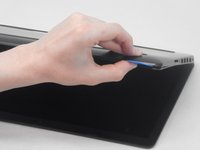
      • Use an opening pick to gently pry up the edge of the rubber foot.

      • Grab the lifted edge of the foot and gently pull it away.

      • Repeat for the other rubber foot.

      • The oils on your skin can damage the adhesive on the rubber feet. Try not to touch the adhesive part of the feet with your hands.

      Ask FixBot

      Add Comment

    2. HP Stream 14-CB174WM Wi-Fi Card Replacement: step 2, image 1 of 2 HP Stream 14-CB174WM Wi-Fi Card Replacement: step 2, image 2 of 2
      • Use a Phillips screwdriver to remove the eight 6.6 mm screws that secure the lower case.

      Ask FixBot

      Add Comment

    3. HP Stream 14-CB174WM Wi-Fi Card Replacement: step 3, image 1 of 3 HP Stream 14-CB174WM Wi-Fi Card Replacement: step 3, image 2 of 3 HP Stream 14-CB174WM Wi-Fi Card Replacement: step 3, image 3 of 3
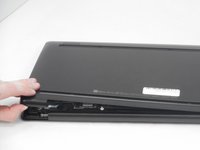
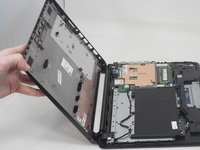
      • Insert an opening pick in the seam between the lower case and chassis.

      • Slide the opening pick around the perimeter, prying every couple of centimeters as you go.

      • You will hear "snaps" of the lower case retaining clips releasing.

      • Continue prying around the entire perimeter until the lower case fully releases.

      • Lift off the lower case.

      Ask FixBot

      Add Comment

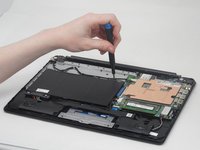
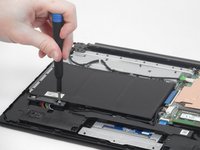
    1. HP Stream 14-CB174WM Wi-Fi Card Replacement, Battery: step 4, image 1 of 3 HP Stream 14-CB174WM Wi-Fi Card Replacement, Battery: step 4, image 2 of 3 HP Stream 14-CB174WM Wi-Fi Card Replacement, Battery: step 4, image 3 of 3
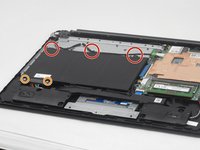
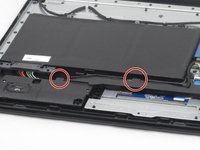
      • Remove the following Phillips screws that secure the battery:

      • Three 2.9 mm

      • Two 6.8 mm

      • Be sure to keep different screw types separate from one another throughout the battery removal process.

      Ask FixBot

      Add Comment

    2. HP Stream 14-CB174WM Wi-Fi Card Replacement: step 5, image 1 of 2 HP Stream 14-CB174WM Wi-Fi Card Replacement: step 5, image 2 of 2
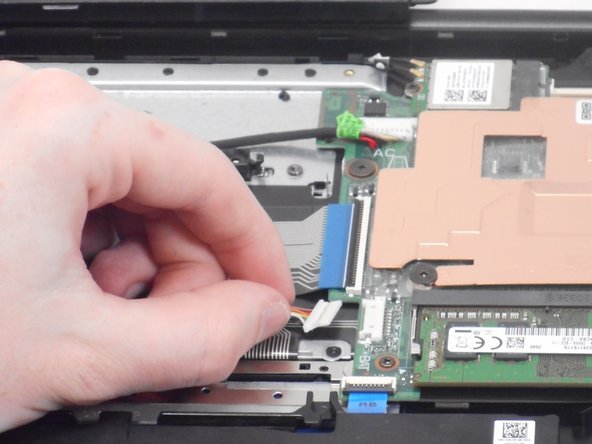
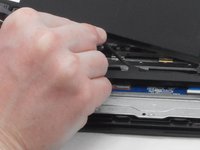
      • Use your fingers or the point of a spudger to slowly “wiggle” the battery connector directly out of its socket.

      • Do not pull on the wires.

      Ask FixBot

      Add Comment

    3. HP Stream 14-CB174WM Wi-Fi Card Replacement: step 6, image 1 of 2 HP Stream 14-CB174WM Wi-Fi Card Replacement: step 6, image 2 of 2
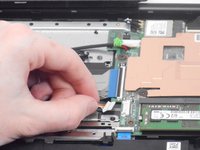
      • Gently unseat the battery connector wire out from under the two plastic tabs.

      Ask FixBot

      Add Comment

    4. HP Stream 14-CB174WM Wi-Fi Card Replacement: step 7, image 1 of 2 HP Stream 14-CB174WM Wi-Fi Card Replacement: step 7, image 2 of 2
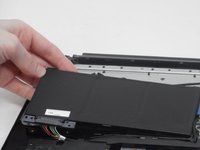
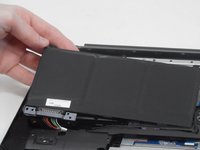
      • Lift the battery up and out of the laptop.

      • The battery should lift out with very little effort. If the battery cannot easily be lifted out of the laptop chassis, check to see if you missed any screws.

      Ask FixBot

      Add Comment

    1. HP Stream 14-CB174WM Wi-Fi Card Replacement, Wi-Fi Card: step 8, image 1 of 2 HP Stream 14-CB174WM Wi-Fi Card Replacement, Wi-Fi Card: step 8, image 2 of 2
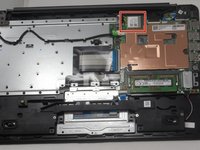
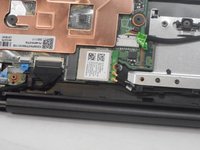
      • Locate the Wi-Fi card module near the top of the laptop.

      • It is right above the large copper heat sink.

      Ask FixBot

      Add Comment

    2. HP Stream 14-CB174WM Wi-Fi Card Replacement: step 9, image 1 of 2 HP Stream 14-CB174WM Wi-Fi Card Replacement: step 9, image 2 of 2
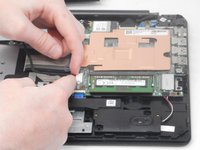
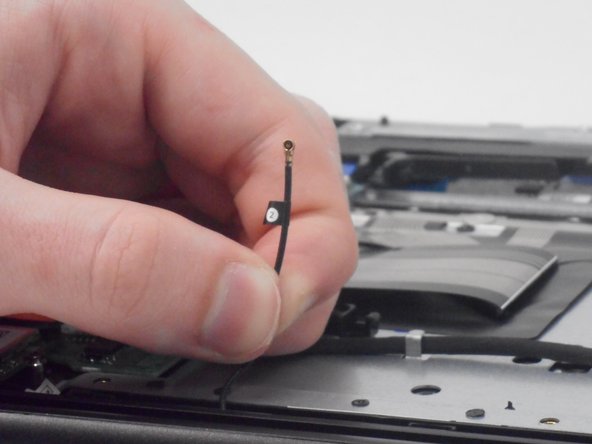
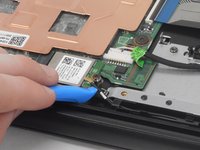
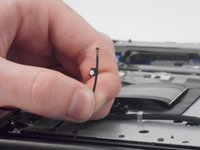
      • Use a plastic opening tool to gently lift and detach the two Wi-Fi card antenna cables.

      • Each wire features numbered tags (1 and 2) corresponding to identical numbers printed on the card. These numbers indicate the designated ports on the wifi card where each wire should be plugged in.

      Ask FixBot

      Add Comment

    3. HP Stream 14-CB174WM Wi-Fi Card Replacement: step 10, image 1 of 1
      • Remove the single screw that secures the Wi-Fi card using a Phillips screwdriver.

      Ask FixBot

      Add Comment

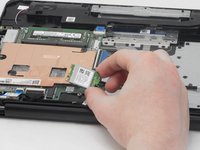
    4. HP Stream 14-CB174WM Wi-Fi Card Replacement: step 11, image 1 of 2 HP Stream 14-CB174WM Wi-Fi Card Replacement: step 11, image 2 of 2
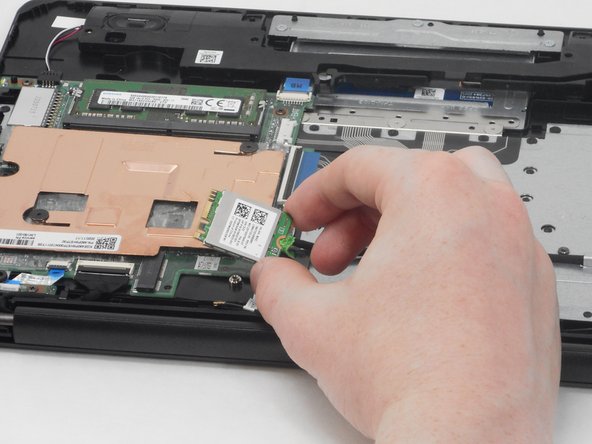
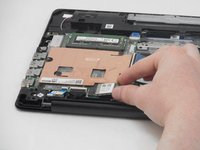
      • Pull the card directly out of its socket.

      Ask FixBot

      Add Comment

Conclusion

To reassemble your device, follow these instructions in reverse order.

Cancel: I did not complete this guide.

0 Guide Comments

Add Comment

View Statistics:

Past 24 Hours: 2

Past 7 Days: 12

Past 30 Days: 64

All Time: 596