
HP Stream 11-y010nr Trackpad Replacement

Adam Sitzmann and 3 other contributors
Last updated on May 4, 2020
Views: 724
View statistics:
- Past 24 Hours:
- 3
- Past 7 Days:
- 18
- Past 30 Days:
- 57
- All Time:
- 724
Comments: 5
5 comments on steps.
Completed: 1 2
1 person has marked this guide "completed." Will you be next?
2 people have marked this guide "completed." Including you — great job!
Favorites: 0 1
No one has favorited (and subscribed to) this guide. Will you be the first?
1 person has favorited (and subscribed to) this guide — and that's you!
Introduction
Go to step 1 ↓Is your HP Stream 11-y010nr trackpad malfunctioning? Do you need to replace your trackpad entirely? First ensure that the issue is not one of the common problems that can be resolved quickly by checking the troubleshooting page here: HP Stream 11-y010nr Troubleshooting
This guide will take you through the process of getting to the trackpad, removing it, replacing it and getting it back to how it was. Be cautious when removing the cover as there are ribbons (thin wires) attached to it. Pulling the cover off with too much force could rip those, damaging the internal hardware.
Prior to starting, ensure the laptop is powered off and is not going to interfere with the process.
What you need
Tools


-
-
Tool used on this step:Tweezers$4.99
-
Gently peel back the two rubber strips that cover the screws on backside of the computer with the needle nose tweezers.
 Ask FixBot
-
-
-
Unscrew the seven 0.4mm screws on the backside of the laptop with the Phillips #0 Screwdriver.
-
-
-
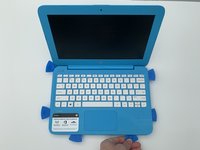
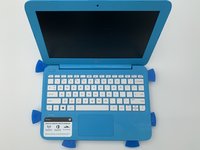
Take the opening picks and push them into the seam between the keyboard and the laptop casing.
-
Go all the way around the laptop.
-
-
-
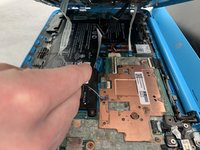
Once the cover is loose enough, lift the keyboard up to expose the wiring beneath.
-
-
-
-
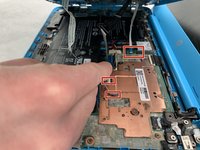
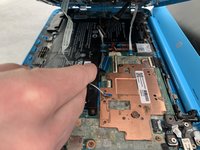
Disconnect the three cables by lifting up on the locking tab of the ZIF connector and pulling the cables out with the needle nose tweezers.
-
Remove the keyboard.
-
-
-
-
-
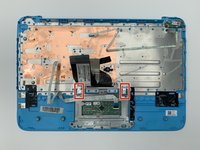
Take the keyboard and flip it over. It will look like the pictures.
-
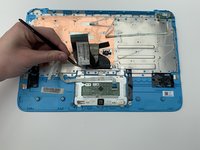
Use the needle nose tweezer to take off protective tape covering the top left and top right screws.
-
-
-
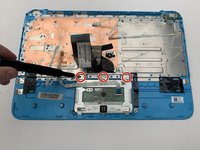
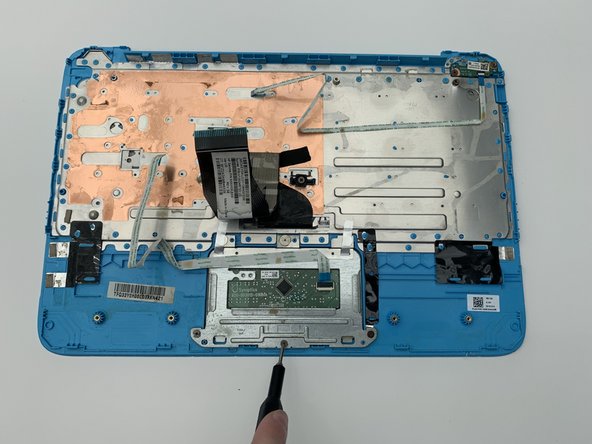
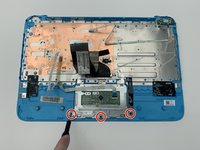
Unscrew the three 0.3mm screws holding the bottom bracket with the Phillips #00 Screwdriver.
-
-
-
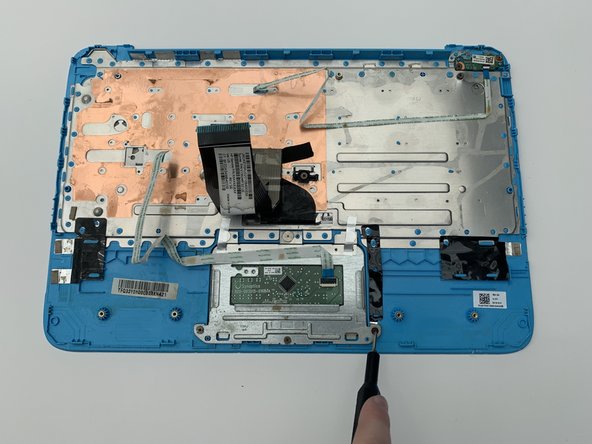
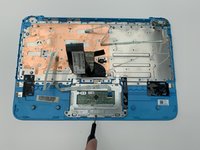
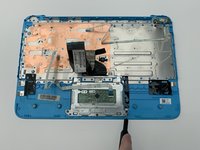
Lift up on the bracket and remove the bracket by lifting up on the metal end as shown.
-
-
-
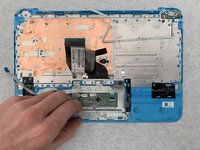
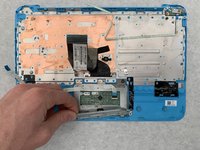
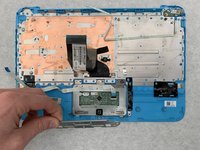
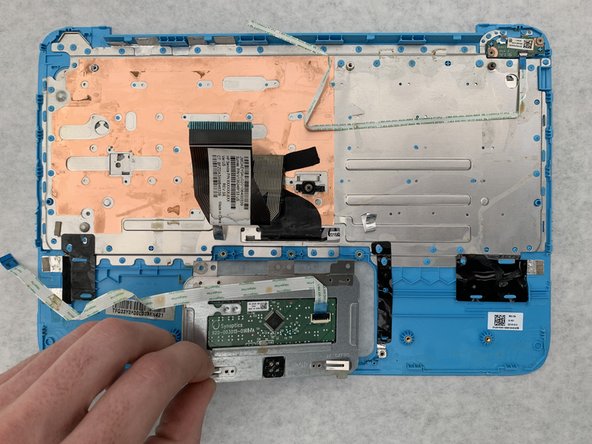
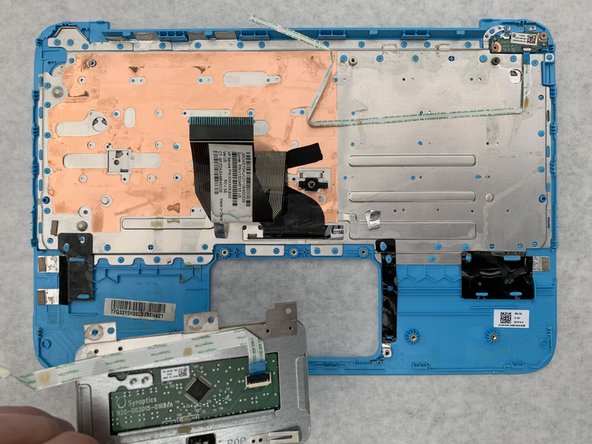
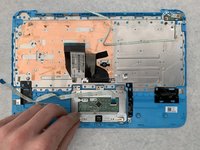
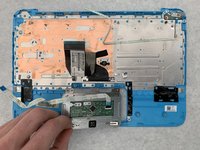
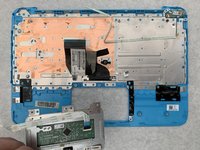
The trackpad is now free to be removed.
-
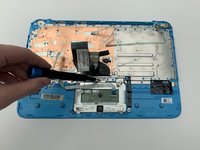
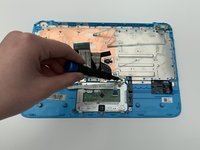
Remove the trackpad by gently pulling up on the metal piece on the bottom left corner of the trackpad.
-
-












To reassemble your device, follow these instructions.
Cancel: I did not complete this guide.
One other person completed this guide.

Team

Embry-Riddle Aeronautical University, Team S5-G6, Watkins Spring 2020 Member of Embry-Riddle Aeronautical University, Team S5-G6, Watkins Spring 2020
ERAU-WATKINS-S20S5G6
4 Members
72 Guides authored
