Free Shipping on Domestic Orders $75+

HP Stream 11-y010nr Screen Replacement

What you need

    1. HP Stream 11-y010nr Screen Replacement, Keyboard: step 1, image 1 of 3 HP Stream 11-y010nr Screen Replacement, Keyboard: step 1, image 2 of 3 HP Stream 11-y010nr Screen Replacement, Keyboard: step 1, image 3 of 3
      Tool used on this step:
      Tweezers
      $4.99
      Buy
      • Gently peel back the two rubber strips that cover the screws on backside of the computer with the needle nose tweezers.

      • Ensure the laptop is turned off.

      Ask FixBot

      Add Comment

    2. HP Stream 11-y010nr Screen Replacement: step 2, image 1 of 2 HP Stream 11-y010nr Screen Replacement: step 2, image 2 of 2
      • Unscrew the seven 0.4mm screws on the backside of the laptop with the Phillips #0 Screwdriver.

      Ask FixBot

      Add Comment

    3. HP Stream 11-y010nr Screen Replacement: step 3, image 1 of 2 HP Stream 11-y010nr Screen Replacement: step 3, image 2 of 2
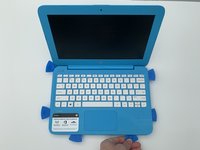
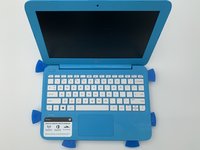
      • Take the opening picks and push them into the seam between the keyboard and the laptop casing.

      • Go all the way around the laptop.

      Ask FixBot

      Add Comment

    4. HP Stream 11-y010nr Screen Replacement: step 4, image 1 of 1
      • Once the cover is loose enough, lift the keyboard up to expose the wiring beneath.

      • Be careful not to pull too hard or fast as there are ribbon cables attached to the keyboard and trackpad.

      Ask FixBot

      Add Comment

    5. HP Stream 11-y010nr Screen Replacement: step 5, image 1 of 3 HP Stream 11-y010nr Screen Replacement: step 5, image 2 of 3 HP Stream 11-y010nr Screen Replacement: step 5, image 3 of 3
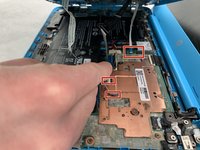
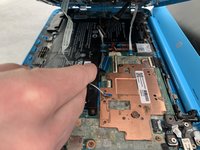
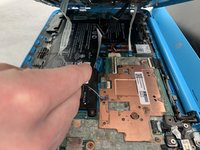
      • Disconnect the three cables by lifting up on the locking tab of the ZIF connector and pulling the cables out with the needle nose tweezers.

      • Remove the keyboard.

      Ask FixBot

      Add Comment

    1. HP Stream 11-y010nr Screen Replacement, Screen: step 6, image 1 of 3 HP Stream 11-y010nr Screen Replacement, Screen: step 6, image 2 of 3 HP Stream 11-y010nr Screen Replacement, Screen: step 6, image 3 of 3
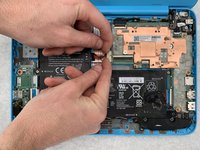
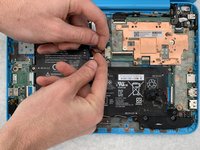
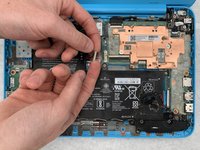
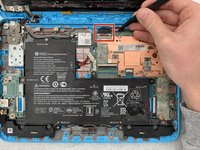
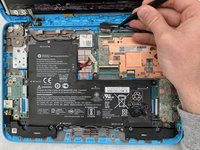
      • Using your fingers or a spudger, pull the battery cable from its connector to disconnect power from the motherboard.

      Ask FixBot

      Add Comment

    2. HP Stream 11-y010nr Screen Replacement: step 7, image 1 of 2 HP Stream 11-y010nr Screen Replacement: step 7, image 2 of 2
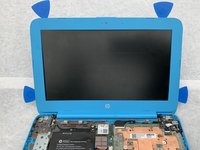
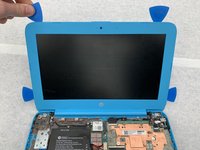
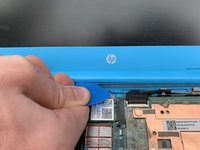
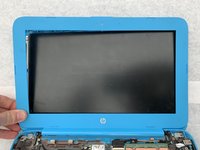
      • Insert iFixit opening picks into the edges of the screen to break the seal between the screen and bezel.

      Ask FixBot

      Add Comment

    3. HP Stream 11-y010nr Screen Replacement: step 8, image 1 of 3 HP Stream 11-y010nr Screen Replacement: step 8, image 2 of 3 HP Stream 11-y010nr Screen Replacement: step 8, image 3 of 3
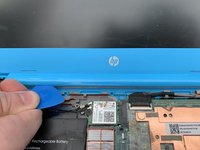
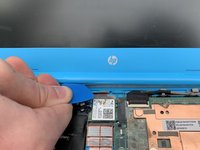
      • Peel the hinge up by sliding iFixit opening picks left to right along the hinge.

      Ask FixBot

      Add Comment

    4. HP Stream 11-y010nr Screen Replacement: step 9, image 1 of 3 HP Stream 11-y010nr Screen Replacement: step 9, image 2 of 3 HP Stream 11-y010nr Screen Replacement: step 9, image 3 of 3
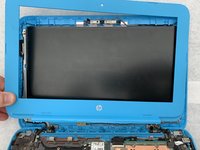
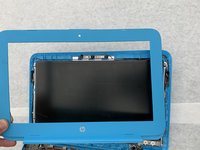
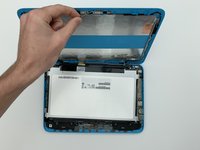
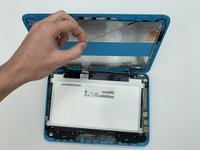
      • Remove the bezel by pulling upwards on the left bottom corner.

      Ask FixBot

      Add Comment

    5. HP Stream 11-y010nr Screen Replacement: step 10, image 1 of 2 HP Stream 11-y010nr Screen Replacement: step 10, image 2 of 2
      • Disconnect the screen from the motherboard by pulling the display cable from its connector.

      Ask FixBot

      Add Comment

    6. HP Stream 11-y010nr Screen Replacement: step 11, image 1 of 1
      • Unscrew the four 0.4mm screws surrounding the display using a Phillips #00 screwdriver.

      Ask FixBot

      Add Comment

    7. HP Stream 11-y010nr Screen Replacement: step 12, image 1 of 3 HP Stream 11-y010nr Screen Replacement: step 12, image 2 of 3 HP Stream 11-y010nr Screen Replacement: step 12, image 3 of 3
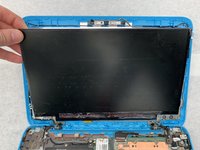
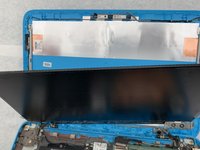
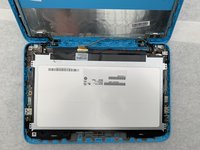
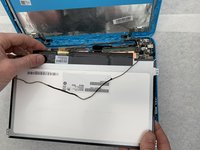
      • Gently remove the screen from its holding and lay the screen down on the keyboard. It is still attached to the computer.

      Ask FixBot

      Add Comment

    8. HP Stream 11-y010nr Screen Replacement: step 13, image 1 of 3 HP Stream 11-y010nr Screen Replacement: step 13, image 2 of 3 HP Stream 11-y010nr Screen Replacement: step 13, image 3 of 3
      Tool used on this step:
      Tweezers
      $4.99
      Buy
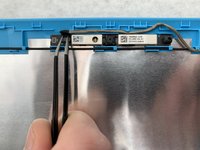
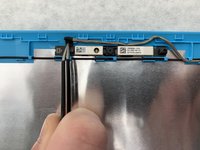
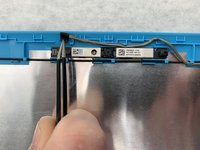
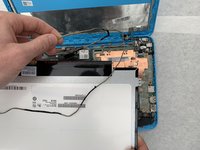
      • Take the tweezers and push up on the small connector to the left of the webcam.

      Ask FixBot

      Add Comment

    9. HP Stream 11-y010nr Screen Replacement: step 14, image 1 of 2 HP Stream 11-y010nr Screen Replacement: step 14, image 2 of 2
      • Gently pull the cord out from around the screen area.

      Ask FixBot

      Add Comment

    10. HP Stream 11-y010nr Screen Replacement: step 15, image 1 of 2 HP Stream 11-y010nr Screen Replacement: step 15, image 2 of 2
      • Remove the screen with the display cable attached.

      Ask FixBot

      Add Comment

Conclusion

To reassemble your device, follow these instructions in reverse order.

Cancel: I did not complete this guide.

0 Guide Comments

Add Comment

View Statistics:

Past 24 Hours: 2

Past 7 Days: 5

Past 30 Days: 28

All Time: 951