
HP Stream 11-r020nr USB Port Replacement

Victoria McGregor and 4 other contributors
Last updated on Jun 15, 2018
Views: 885
View statistics:
- Past 24 Hours:
- 2
- Past 7 Days:
- 15
- Past 30 Days:
- 61
- All Time:
- 885
Comments: 1
1 guide comment.
Go to guide commentsCompleted: 1 2
1 person has marked this guide "completed." Will you be next?
2 people have marked this guide "completed." Including you — great job!
Favorites: 0 1
No one has favorited (and subscribed to) this guide. Will you be the first?
1 person has favorited (and subscribed to) this guide — and that's you!
Introduction
Go to step 1 ↓This guide will show the step by step process of disassembling the HP stream in order to remove and replace the USB port.
What you need


-
-
-
Turn off your HP Stream 11-r020nr by holding the power button down for 10 seconds.
-
Turn the device top down so the rubber feet are facing up.
-
Use a metal spudger to remove all the rubber feet off of the bottom of the device, including the small ones. There will be a total of 11 screws to remove.
 Ask FixBot
-
-
-
Flip the laptop over and open the laptop.
-
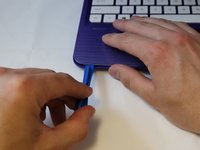
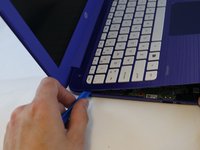
Using the blue plastic opening tool, separate the keyboard plate from the main body by prying up starting around the bottom corners, prying the bottom up first and the sides second all the way around the whole keyboard plate.
-
-
-
Use the black nylon spudger to flip the black tab up that holds the ribbon cable in place.
-
Lift the ribbon cable free.
-
-
-
-
Use the black nylon spudger to flip the black tab up that holds the large ribbon cable in place.
-
Pull the ribbon cable free from the base of the keyboard.
-
-
-
Remove the tape covering the ribbon cable.
-
Use the black nylon spudger to flip the black tab up that holds the ribbon cable in place.
-
Pull the ribbon cable away from the base of the laptop.
-
-
-
After detaching the two large ribbon cables, carefully lean the keyboard against the screen.
-
-
-
-
-
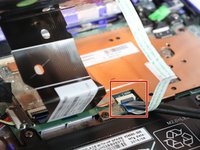
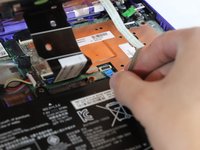
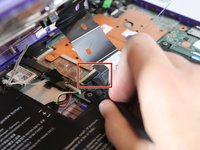
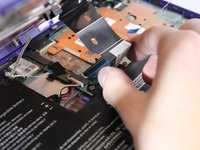
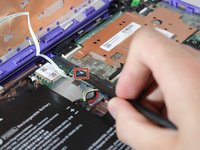
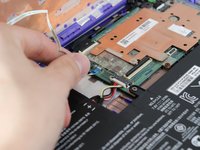
Use the black nylon spudger to flip the tab up that holds the ribbon cable in place.
-










To reassemble your device, follow these instructions in reverse order.
Cancel: I did not complete this guide.
One other person completed this guide.

Team

Eastern Washington University, Team S1-G1, Carnegie Spring 2018 Member of Eastern Washington University, Team S1-G1, Carnegie Spring 2018
EWU-CARNEGIE-S18S1G1
4 Members
72 Guides authored
1 Guide Comment
Thanks for the info…whats the size of the charging port called
