Free Shipping on Domestic Orders $75+

HP Stream 11-d008TU Battery Replacement

What you need

    1. HP Stream 11-d008TU Battery Replacement, Rubber Feet Removal: step 1, image 1 of 3 HP Stream 11-d008TU Battery Replacement, Rubber Feet Removal: step 1, image 2 of 3 HP Stream 11-d008TU Battery Replacement, Rubber Feet Removal: step 1, image 3 of 3
      • Use a prying tool to pry the 2 rubber feet off closest to the hinge of the device

      • Repeat this process for the other side of the device

      • The bottom rubber feet do not have hidden screws underneath them, and as such, they are unnecessary to remove

      Ask FixBot

      Add Comment

    2. HP Stream 11-d008TU Battery Replacement, Screw removal: step 2, image 1 of 2 HP Stream 11-d008TU Battery Replacement, Screw removal: step 2, image 2 of 2
      • Remove the 11x 5mm Phillips PH-0 screws (circled)

      Ask FixBot

      Add Comment

    3. HP Stream 11-d008TU Battery Replacement, Keyboard Unclipping: step 3, image 1 of 3 HP Stream 11-d008TU Battery Replacement, Keyboard Unclipping: step 3, image 2 of 3 HP Stream 11-d008TU Battery Replacement, Keyboard Unclipping: step 3, image 3 of 3
      • Use your finger to pry the outer blue shell over the keyboard

      • Continue this process around the edges of the device

      • You may have to use a prying tool to pry the harder edges such as around the I/O ports

      • Do not lift the keyboard once all the clips are undone, as there are still various cables connected

      Ask FixBot

      Add Comment

    4. HP Stream 11-d008TU Battery Replacement, Keyboard removal: step 4, image 1 of 3 HP Stream 11-d008TU Battery Replacement, Keyboard removal: step 4, image 2 of 3 HP Stream 11-d008TU Battery Replacement, Keyboard removal: step 4, image 3 of 3
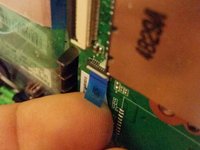
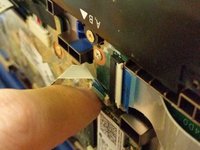
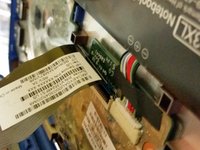
      • Disconnect the power button connector by peeling back the protective tape, using your fingernail to flip the white retaining clip back, and pulling the ribbon cable out

      • Disconnect the touchpad connector by using your fingernail to flip the black retaining clip back, and pulling the ribbon cable out

      • Disconnect the keyboard connector by using your fingernail to flip the black retaining clip back, and pulling the ribbon cable out

      • Your keyboard assembly is now safe to remove

      Ask FixBot

      Add Comment

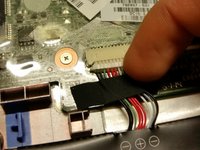
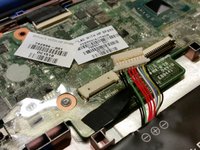
    1. HP Stream 11-d008TU Battery Replacement, Battery Connector: step 5, image 1 of 3 HP Stream 11-d008TU Battery Replacement, Battery Connector: step 5, image 2 of 3 HP Stream 11-d008TU Battery Replacement, Battery Connector: step 5, image 3 of 3
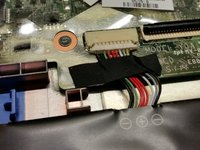
      • Locate the white plastic connector on the motherboard

      • Peel back the black tape holding the cable's wires in place

      • Pull the white connector out by puling the white plastic away from the connector

      • Do not grab the connector by the wires

      Ask FixBot

      Add Comment

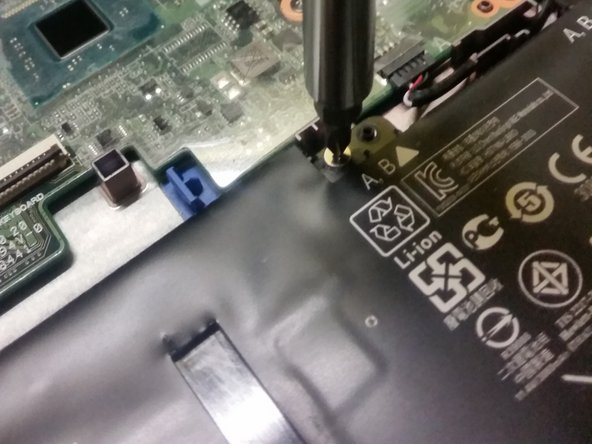
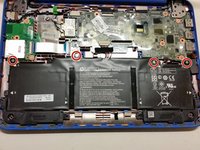
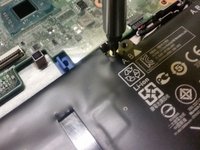
    1. HP Stream 11-d008TU Battery Replacement, Unscrew Battery: step 6, image 1 of 2 HP Stream 11-d008TU Battery Replacement, Unscrew Battery: step 6, image 2 of 2
      • Remove 4x PH-0 Philips head 3mm screws (circled)

      Ask FixBot

      Add Comment

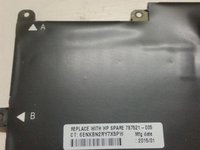
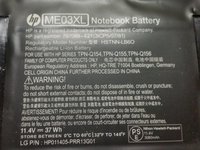
    2. HP Stream 11-d008TU Battery Replacement: step 7, image 1 of 3 HP Stream 11-d008TU Battery Replacement: step 7, image 2 of 3 HP Stream 11-d008TU Battery Replacement: step 7, image 3 of 3
      • Lift the battery out of the case vertically

      Ask FixBot

      Add Comment

Conclusion

To reassemble your device, follow these instructions in reverse order.

Cancel: I did not complete this guide.

One other person completed this guide.

Joel Taylor

Member since: 03/07/20

1,376 Reputation

8 Guides authored

Team

Australia Member of Australia

Community

4 Members

90 Guides authored

0 Guide Comments

Add Comment

View Statistics:

Past 24 Hours: 0

Past 7 Days: 4

Past 30 Days: 26

All Time: 669