Free Shipping on Domestic Orders $75+

HP Split x2 Screen Replacement

What you need

  1. HP Split x2 Screen Replacement, Rear Cover: step 1, image 1 of 1
    • Opening the device voids the manufacturer warranty.

    • Power down the HP Split x2 before beginning the repair

    • Separate the tablet from the keyboard by pushing the slider to the left and lifting the tablet from the keyboard.

    Ask FixBot

    Add Comment

  2. HP Split x2 Screen Replacement: step 2, image 1 of 3 HP Split x2 Screen Replacement: step 2, image 2 of 3 HP Split x2 Screen Replacement: step 2, image 3 of 3
    • Remove the four white caps on the bottom edge of the tablet.

    • Use a tweezer to grasp white caps.

    • The white caps are easily lost. Store them in a secure place.

    Ask FixBot

    Add Comment

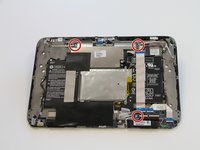
  3. HP Split x2 Screen Replacement: step 3, image 1 of 1
    • Use a Phillips #000 screwdriver to remove the four 3mm screws.

    Ask FixBot

    Add Comment

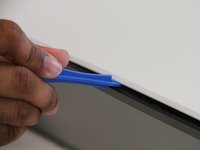
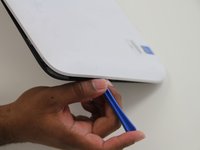
  4. HP Split x2 Screen Replacement: step 4, image 1 of 2 HP Split x2 Screen Replacement: step 4, image 2 of 2
    • Use a plastic opening tool to pry the tabs on the top, left and right sides of the tablet.

    • Only the top and sides have tabs. Remove all tabs before lifting screen.

    Ask FixBot

    Add Comment

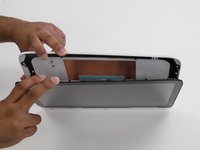
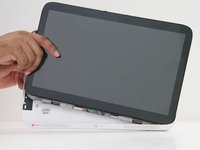
  5. HP Split x2 Screen Replacement: step 5, image 1 of 2 HP Split x2 Screen Replacement: step 5, image 2 of 2
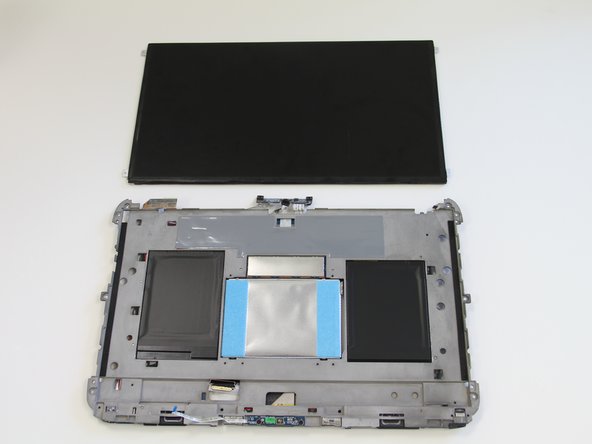
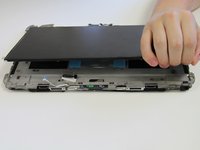
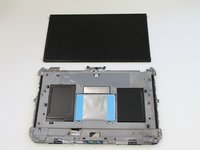
    • Separate the cover and the screen.

    • Gently lift the screen out of the cover.

    Ask FixBot

    Add Comment

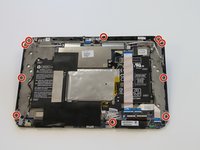
  6. HP Split x2 Screen Replacement, Screen: step 6, image 1 of 2 HP Split x2 Screen Replacement, Screen: step 6, image 2 of 2
    • Use a J0 screwdriver to remove the ten 4mm Phillips screws.

    Ask FixBot

    Add Comment

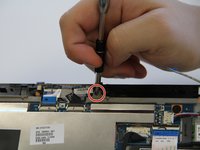
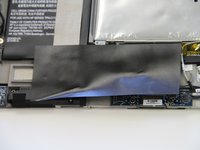
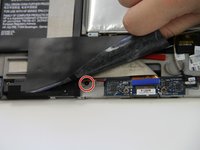
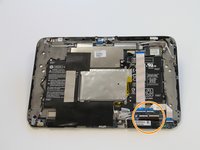
  7. HP Split x2 Screen Replacement: step 7, image 1 of 2 HP Split x2 Screen Replacement: step 7, image 2 of 2
    • Peel back the large black tape.

    • Remove the 4mm Phillips screw.

    Ask FixBot

    Add Comment

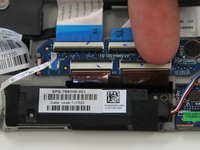
  8. HP Split x2 Screen Replacement: step 8, image 1 of 3 HP Split x2 Screen Replacement: step 8, image 2 of 3 HP Split x2 Screen Replacement: step 8, image 3 of 3
    • Remove three 2 mm zero insertion force (ZIF) connectors. Lift the black tab in front and then remove the ribbon from the rear.

    • Remove two larger zero insertion force (ZIF) connectors. Lift the black tab in front and then remove the ribbon from the rear.

    Ask FixBot

    Add Comment

  9. HP Split x2 Screen Replacement: step 9, image 1 of 3 HP Split x2 Screen Replacement: step 9, image 2 of 3 HP Split x2 Screen Replacement: step 9, image 3 of 3
    Tool used on this step:
    Tweezers
    $4.99
    Buy
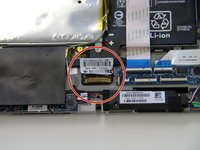
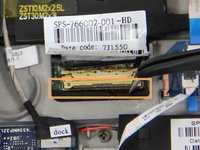
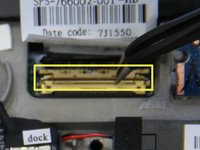
    • The last attachment to the screen is the bronze colored display cable connector.

    • Use a pair of tweezers to lift the metal bar and swing it to the other side on top of the cable.

    • Pull in the direction of the cable to remove the connector.

    Ask FixBot

    Add Comment

  10. HP Split x2 Screen Replacement: step 10, image 1 of 1
    • Glue is holding the device together along the edges. The glue is can be very strong. A heat gun may be required to loosen the glue for removal of the digitizer to prevent damage to the screen.

    • Apply pressure to to the sides of the tablet.

    • Separate the digitizer from the the body of the tablet.

    Ask FixBot

    Add Comment

  11. HP Split x2 Screen Replacement: step 11, image 1 of 2 HP Split x2 Screen Replacement: step 11, image 2 of 2
    • Glue is holding the screen on at the four corners.

    • Lift the screen up, breaking any adhesion forced by the glue.

    • Replace the old screen with a new one.

    Ask FixBot

    Add Comment

Conclusion

To reassemble your device, follow these instructions in reverse order.

Cancel: I did not complete this guide.

11 other people completed this guide.

Ricky Huitema

Member since: 09/24/15

464 Reputation

2 Guides authored

Team

Texas Tech, Team 22-5, Rauch Fall 2015 Member of Texas Tech, Team 22-5, Rauch Fall 2015

TTU-RAUCH-F15S22G5

3 Members

2 Guides authored

5 Guide Comments

This is not helpful because the one I am working on has no screws.

Matt Brown - Reply Share

I also have a Split x2 with no screws

dbmacaulay - Reply Share

I want change my screen because My screen is broken but I do not know , where I can buy my screen

Nohora Chitiva - Reply Share

ebay or amazon

Andrei Isari - Reply Share

Is HP Touch Screen Digitizer Glass for HP Split X2 The same as the screen being replaced here?? I need to know

Nwatu Chineme Edger - Reply Share

Add Comment

View Statistics:

Past 24 Hours: 10

Past 7 Days: 22

Past 30 Days: 67

All Time: 14,035