
HP Spectre x360 13-ac023dx Fan Replacement

Jonathan and 3 other contributors
Last updated on Jan 6, 2021
Views: 6K
View statistics:
- Past 24 Hours:
- 0
- Past 7 Days:
- 16
- Past 30 Days:
- 98
- All Time:
- 6,047
Comments: 5
5 comments on steps.
Completed: 0 1
No one has marked this guide "completed." Will you be the first?
1 person has marked this guide "completed." It's you — great job!
Favorites: 0 1
No one has favorited (and subscribed to) this guide. Will you be the first?
1 person has favorited (and subscribed to) this guide — and that's you!
Introduction
Go to step 1 ↓If your HP Spectre x360 13-ac023dx laptop starts getting hot for long periods of time, abruptly shuts down on its own, and you hear its fan constantly working at full speed, you most likely are experiencing troubles with its cooling fan which requires replacement.
A functional cooling fan allows air to flow in your laptop to keep its internal components cool and from overheating. When your laptop overheats, it can physically damage your components. This may cause your laptop to stop working entirely. If you notice your laptop overheating frequently, use this guide to replace its cooling fan.
To avoid injury, make sure your device is turned off and cooled down before you begin.
What you need
Tools


-
-
-
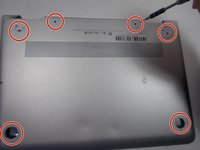
Use a Torx #5 screwdriver to remove the six 3.5 mm screws holding the back cover to the laptop.
-
-
-
-
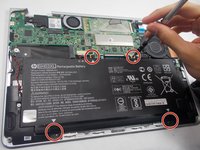
Use the Phillips #000 screwdriver to remove the four 3.5 mm screws holding the battery.
-
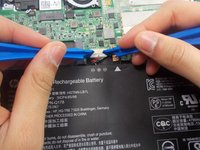
After removing the screws, detach the battery wire from the mother board with the iFixit opening tool.
-
Then, carefully lift the battery off with the iFixit opening tool.
-
-
-
-
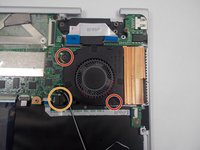
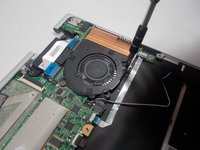
Use the Phillips #000 screwdriver to remove the 3mm screws holding the fan in place.
-
Remove the wires connecting to the motherboard, using the iFixit opening tool.
-


 Ask FixBot







To reassemble your device, follow these instructions in reverse order.

Team

UMass Dartmouth, Team S1-G6, Botvin Fall 2019 Member of UMass Dartmouth, Team S1-G6, Botvin Fall 2019
UMASSD-BOTVIN-F19S1G6
3 Members
60 Guides authored
