Free Shipping on Domestic Orders $75+

HP Spectre 13-3010dx Fan Replacement

What you need

    1. HP Spectre 13-3010dx Fan Replacement, Removal of the Back Case: step 1, image 1 of 2 HP Spectre 13-3010dx Fan Replacement, Removal of the Back Case: step 1, image 2 of 2
      Tool used on this step:
      Anti-Static Wrist Strap
      $7.95
      Buy
      • Put on Anti Static Wrist Strap.

      • It is always a good idea to ground yourself when working with electronics to prevent static buildup. You wear this strap to protect you and your device from accidental electrostatic discharge (ESD) damage during repairs.]

      • Flip Computer Upside down.

      • Unscrew the eight 3.3mm black screws on the back casing with the T4 Torx Screwdriver.

      Ask FixBot

      Add Comment

    2. HP Spectre 13-3010dx Fan Replacement: step 2, image 1 of 2 HP Spectre 13-3010dx Fan Replacement: step 2, image 2 of 2
      • Use the plastic opening tool to lift the back case off.

      • Use the plastic opening tools first; metal spudgers can damage your device.

      Ask FixBot

      Add Comment

    1. HP Spectre 13-3010dx Fan Replacement, Battery: step 3, image 1 of 1
      • Remove the six 2.0mm silver screws and the two 3.2 mm black screws using the PH00 Phillips Screw Head.

      Ask FixBot

      Add Comment

    2. HP Spectre 13-3010dx Fan Replacement: step 4, image 1 of 1
      • Gently unplug from CONO851 plug, using the plastic opening tool.

      Ask FixBot

      Add Comment

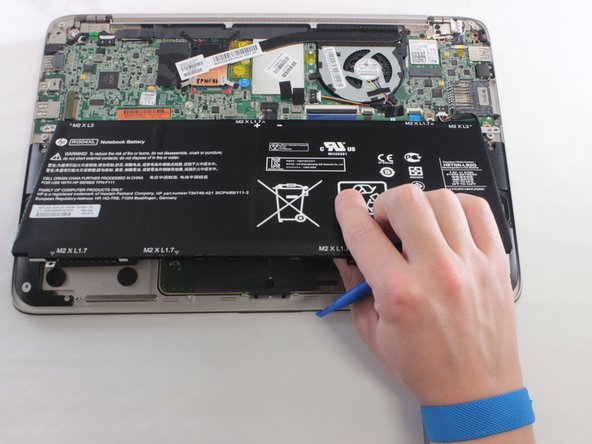
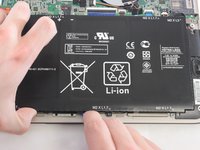
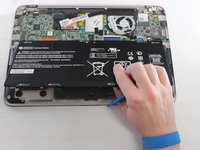
    3. HP Spectre 13-3010dx Fan Replacement: step 5, image 1 of 2 HP Spectre 13-3010dx Fan Replacement: step 5, image 2 of 2
      • Gently lift up the battery and remove using the plastic opening tools.

      Ask FixBot

      Add Comment

    1. HP Spectre 13-3010dx Fan Replacement, Fan: step 6, image 1 of 1
      • Unscrew three 2.0 mm screws using the Phillips Head #0

      Ask FixBot

      Add Comment

    2. HP Spectre 13-3010dx Fan Replacement: step 7, image 1 of 1
      • Disconnect the plug.

      Ask FixBot

      Add Comment

    3. HP Spectre 13-3010dx Fan Replacement: step 8, image 1 of 1
      • Remove the fan.

      Ask FixBot

      Add Comment

Conclusion

To reassemble your device, follow these instructions in reverse order.

Cancel: I did not complete this guide.

6 other people completed this guide.

2 Guide Comments

Why did you physically remove the battery? It seems like unplugging the battery’s CONO851 plug would be good enough? It’s funny, even in the photo where you remove the fan, the battery is still there.

tshong - Reply Share

I replaced the fan in my computer. As tshong said, I did not have to remove the battery. Just unplugged it then skipped steps 3 and 5. and voila.

Trach Nguyen - Reply Share

Add Comment

View Statistics:

Past 24 Hours: 1

Past 7 Days: 5

Past 30 Days: 32

All Time: 3,840