Introduction
This is a keyboard replacement guide for the HP ProBook x360 11 G3 EE, model number is 6FB28LA#ACH. It is vital that your keyboard is working correctly, or it makes having a laptop pointless! What we are doing here is removing the old keyboard where the keys might be missing, something has gotten under the keys and they don't work anymore, or just has gotten worn down from all the use gotten out of it. We're here to tell you, you don't need to buy a new laptop, just a new keyboard! Follow this guide to see how to replace yours.
Before you begin, power off the laptop and disconnect the charging adapter and any peripheral devices.
What you need
-
-
-
To begin, flip your laptop to where the base is facing upwards.
-
Grab your TR9 screwdriver, and take the four screws out that are in all four corners of the base. The bottom two are 5.2 mm Torx Security screws and the top two are 9 mm Torx Security screws.
-
Note: On the top right and the top left screws, you may have to get an opening pick and gently hold the two 9 mm Torx Security screws up to get them out, because of the magnetic pull. (see last photo)
-
Also, with the same TR9 screwdriver, take out the two 5.2 mm Torx Security screws directly between the bottom left and bottom right screws (aligned in a row of 4).
-
Grab your JIS #0 (J0) screwdriver, and take out the remaining two 6.7 mm Japanese Industrial screws located in the middle of the base directly across from each other.
 Ask FixBot
-
-
-
Flip your laptop upright (facing towards you), to where the base is now on a flat surface.
-
Open your laptop.
-
Begin to pry the corners of the keyboard deck with an opening pick.
-
-
-
-
Use an opening tool to pry around the perimeter of the keyboard deck until it gently pops out of place.
-
-
-
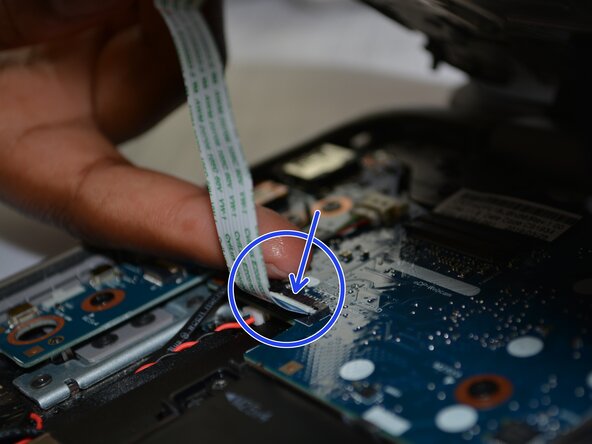
Disconnect the two ribbon cables by lifting the tiny plastic flaps upwards to release them.
-
-




To reassemble your device, follow these instructions in reverse order. Take your e-waste to an R2 or e-Stewards certified recycler.

