Introduction
HP ProBook 450 G6 speakers are failing; loss of sound even after updating drivers, constant audio distortion, buzzing/crackling coming out of speaker.
Note: Before continuing with this repair, turn off the Probook, disconnect the power from the Probook, and disconnect all external devices from the Probook.
What you need
-
-
-
Loosen the five captive Phillips 8.2 mm screws securing the lower case.
-
Remove the two 5 mm Phillips screws securing the lower case.
 Ask FixBot
-
-
-
Insert an opening pick into the seam between the lower case and chassis.
-
Slide the opening pick around the entire perimeter, while prying every couple of centimeters to release the retaining clips.
-
Remove the lower case.
-
-
-
-
-
Remove the three Phillips M2.0x4.0 screws that are securing the battery.
-
-
-
-
-
-
Disconnect the speaker connector from its motherboard socket.
-
-
-
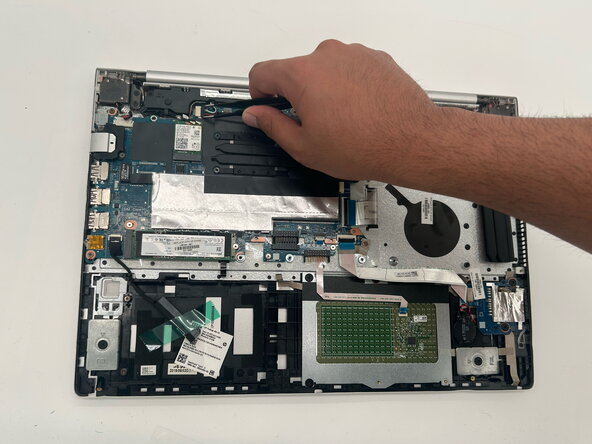
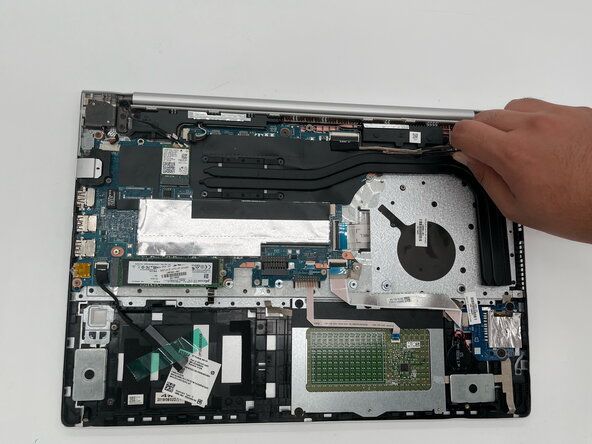
Unseat the cables that route over the right speaker.
-
Unseat the cables that route over the left speaker.
-
-
-
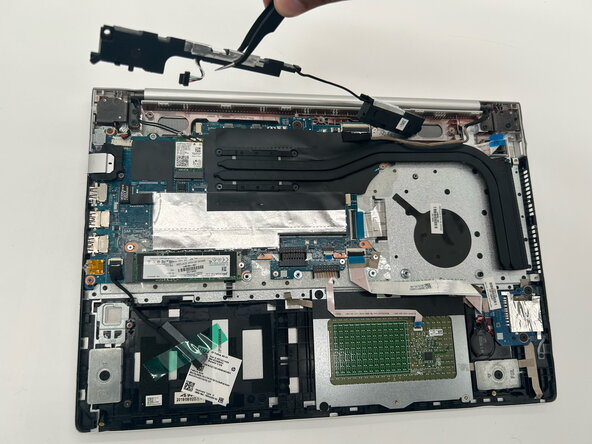
Remove the two Phillips M2.0x6.0 screws securing the speakers to the Probook.
-
Lift and remove the speaker assembly out of the Probook.
-
-








To reassemble your device, follow the above steps in reverse order.
Take your e-waste to an R2 or e-Stewards certified recycler.
Repair didn’t go as planned? Try some basic troubleshooting or ask our Answers community for help.

Team

University of North Texas, Team 1-6, Rea Spring 2026 Member of University of North Texas, Team 1-6, Rea Spring 2026
UNT-REA-S26S1G6
4 Members
48 Guides authored
