
HP ProBook 450 G4 Hard Drive Replacement

Sebastian Dow and 6 other contributors
Last updated on Mar 27, 2024
Views: 6.9K
View statistics:
- Past 24 Hours:
- 4
- Past 7 Days:
- 23
- Past 30 Days:
- 129
- All Time:
- 6,870
Comments: 0
No one has left comments on this guide. Will you be first?
Go to guide commentsCompleted: 1 2
1 person has marked this guide "completed." Will you be next?
2 people have marked this guide "completed." Including you — great job!
Favorites: 0 1
No one has favorited (and subscribed to) this guide. Will you be the first?
1 person has favorited (and subscribed to) this guide — and that's you!
Introduction
Go to step 1 ↓Your HP ProBook 450 G4 laptop’s hard drive can become ineffective after prolonged use. The best way to fix this problem is to simply replace the hard drive. This guide is designed to help you safely and properly remove your laptop’s hard drive in an easy to follow way. Before beginning, make sure to power off your laptop and disconnect it from all power sources.
What you need
Fix Kit
This kit contains all the parts and tools needed to complete this guide.

Parts


Tools
-
Spudger4.9


-
-
-
Flip the laptop over.
-
Orient the laptop so the two vents on the bottom face upward and are further away from you.
 Ask FixBot
-
-
-
Use the Phillips #0 screwdriver to remove the 6.8 mm screw that secures the vent panel to the laptop.
-
Use the spudger to separate the vent panel from the laptop.
-
Slide the vent panel off the backside of the laptop.
-
-
-
-
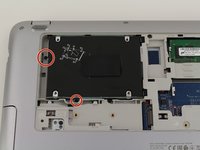
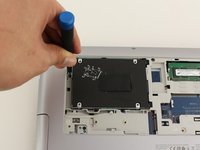
Use the Phillips #0 screwdriver to remove the black 3.2mm screw that secures the hard drive to the left side of the laptop.
-
-
-
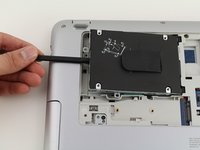
Use the spudger to lift the left side of the hard drive up.
-
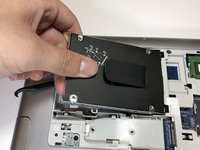
Pull the hard drive diagonally to the left to release the hard drive from the laptop.
-
-




To reassemble your device, follow these instructions in reverse order.
Cancel: I did not complete this guide.
One other person completed this guide.

Team

Cal Poly, Team S1-G3, White Winter 2020 Member of Cal Poly, Team S1-G3, White Winter 2020
CPSU-WHITE-W20S1G3
4 Members
72 Guides authored
