Free Shipping on Domestic Orders $75+

HP ProBook 440 G9 Solid State Drive Replacement

What you need

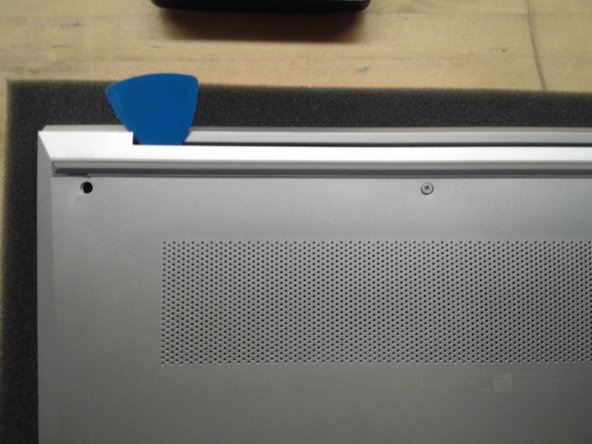
  1. HP ProBook 440 G9 Solid State Drive Replacement, Remove Bottom Cover: step 1, image 1 of 2 HP ProBook 440 G9 Solid State Drive Replacement, Remove Bottom Cover: step 1, image 2 of 2
    • Use Phillips #01 screwdriver to unscrew all 6 threaded screws.

    • Do not remove screws from bottom cover as they are intended to stay attached to the bottom cover.

    • Use guitar pick tool to unclip the back cover all around the edges starting from the top.

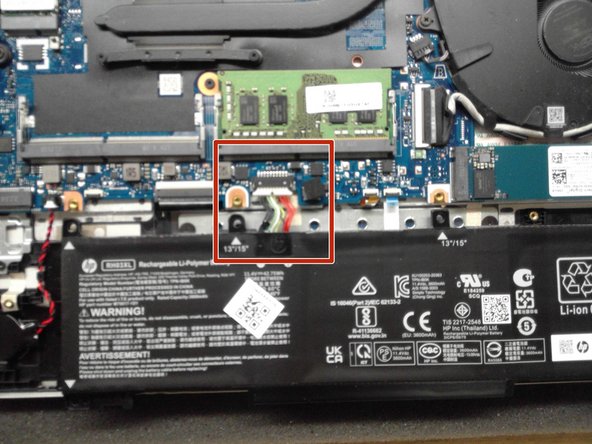
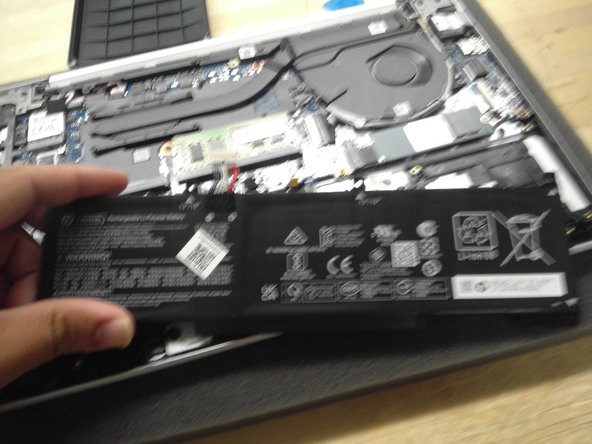
  2. HP ProBook 440 G9 Solid State Drive Replacement, Remove Battery: step 2, image 1 of 3 HP ProBook 440 G9 Solid State Drive Replacement, Remove Battery: step 2, image 2 of 3 HP ProBook 440 G9 Solid State Drive Replacement, Remove Battery: step 2, image 3 of 3
    • Remove all 4 screws from the battery.

    • Disconnect the Battery Connector from the motherboard using the side tabs on the connector.

    • Possible spark may occur at the Battery Connector port if laptop is not fully powered off when replacing the laptop battery.

    • Remove the battery from the laptop.

  3. HP ProBook 440 G9 Solid State Drive Replacement, Remove Solid State Drive: step 3, image 1 of 3 HP ProBook 440 G9 Solid State Drive Replacement, Remove Solid State Drive: step 3, image 2 of 3 HP ProBook 440 G9 Solid State Drive Replacement, Remove Solid State Drive: step 3, image 3 of 3
    • Use Phillips #00 to remove screw from SSD.

    • SSD will lift up at a 45 degree angle when screw is removed.

    • Remove SSD from the SSD slot.

    • When reinserting the SSD plug in at a 45 degree angle and then screw down with the new screw.

Conclusion

To reassemble your device, follow these instructions in reverse order.

Joel

Member since: 04/30/18

470 Reputation

5 Guides authored

0 Guide Comments

Add Comment

View Statistics:

Past 24 Hours: 1

Past 7 Days: 6

Past 30 Days: 48

All Time: 835